

If you have ever sent a photo to a friend standing right next to you using AirDrop, you already know how satisfying that little whoosh sound is. It is fast, wireless, and feels almost like magic. But here is something that trips a lot of people up: what happens after the file is sent? Is there a log somewhere? Can you go back and check your AirDrop history on your iPhone? These are fair questions, and you are not alone in asking them.
Let us walk through everything you need to know about iPhone AirDrop history, where your files end up, and what Apple actually does (and does not) track.
What Is AirDrop and Why Do People Love It?

AirDrop is Apple’s built-in wireless file sharing system that works across iPhones, iPads, and Macs. It uses a combination of Bluetooth and Wi-Fi to create a direct connection between devices, so you do not need the internet, a cable, or even a third-party app. You just tap, confirm, and the file moves over in seconds.
Think of it like passing a note in class except instead of a folded piece of paper, you are sending a high-resolution video, a PDF, or a contact card. The transfer is peer-to-peer, which means the file goes directly from your device to theirs without hitting any server in between.
This is exactly why people love it. It is private, fast, and deeply woven into the Apple ecosystem. Whether you are sharing a meme with your sister or sending a presentation to your colleague, AirDrop just works most of the time.
The Big Question — Does iPhone Keep AirDrop History?
Honestly no, the iPhone does not keep an AirDrop history or transfer log. Apple has not built a native feature that records what you sent, what you received, when it happened, or who was involved. There is no hidden menu, no secret log file, and no way to pull up a list of your past AirDrop activity directly from your iPhone settings.
This surprises a lot of people, especially when they are trying to remember which file they sent last week, or when they are worried someone might have received something they did not mean to share.
Why Apple Chose Not to Log AirDrop Activity
Apple’s approach here is intentional. The company has long positioned itself as a privacy-first brand, and not storing transfer logs is part of that philosophy. If Apple kept a detailed record of every file shared via AirDrop including who sent what to whom and when that data could become a liability. It could be subpoenaed, breached, or misused.
By not logging AirDrop transfers at all, Apple removes that risk entirely. The transfer happens, the file moves, and the system forgets it ever occurred. It is a clean slate by design.
What This Means for Everyday Users
For most people, this is not a problem. You send a file, the other person gets it, and life goes on. But for people trying to figure out “did I already send that document?” or “where did that photo go after I received it?” The lack of a log can be genuinely frustrating.
The good news is that while AirDrop itself keeps no record, the files it delivers do leave a trail in other parts of your phone.
Where Do AirDrop Files Actually Go?
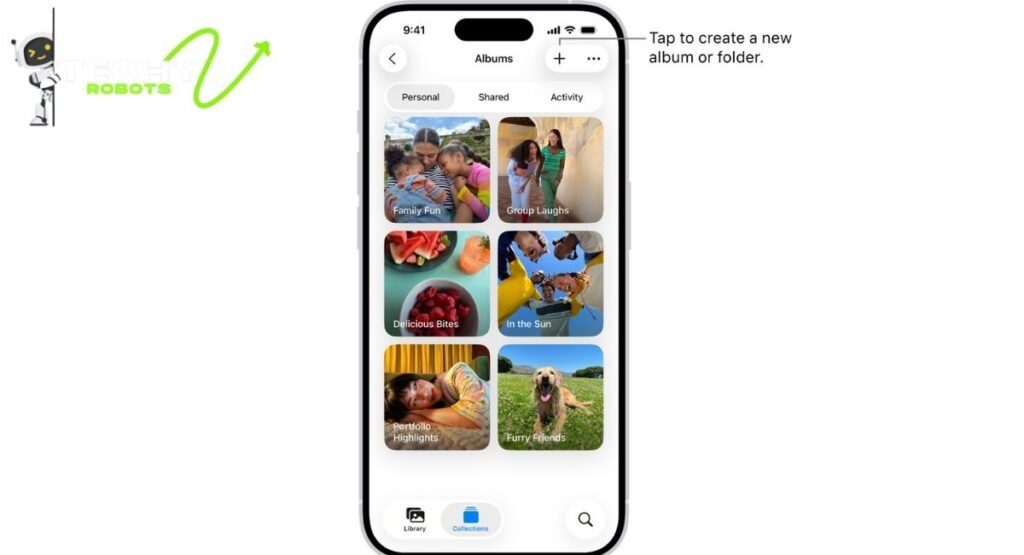
Even though there is no AirDrop transfer history on iPhone, the files themselves land somewhere specific depending on the file type. Knowing where to look is the next best thing to having a proper log.
AirDrop Photos and Videos — Check Your Photos App
If someone sends you a photo or video via AirDrop and you accept it, it goes straight into your Photos app. Simple as that. Open Photos, and the image will appear in your main library sorted by the date it was received.
There is also a handy album called “Imported” that you can check. This album groups photos and videos that came from an external source including AirDrop transfers. So if you are trying to figure out what photos you received recently, that album is your starting point.
AirDrop Documents — The Files App Is Your Friend
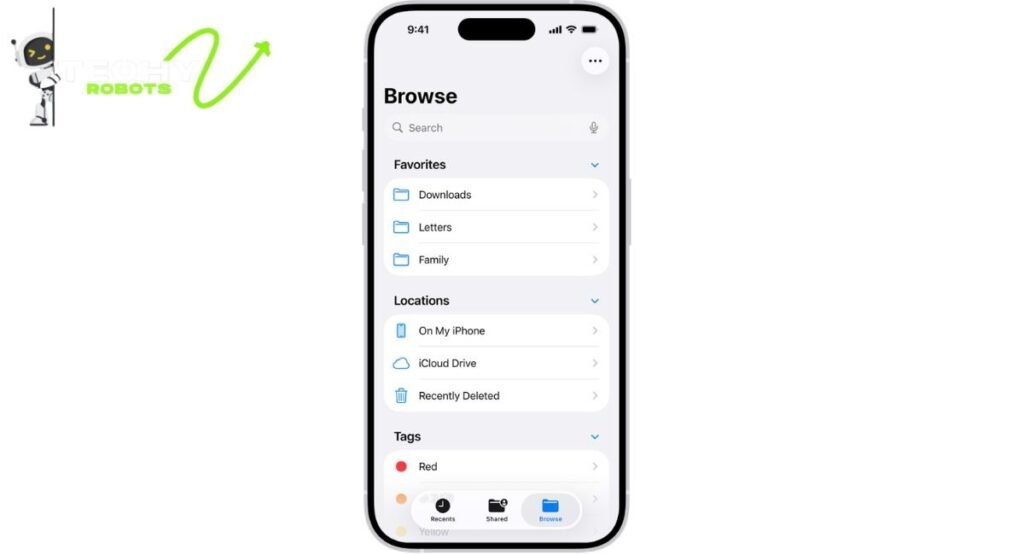
For documents, PDFs, zip files, and other non-photo content, AirDrop sends them to the Files app. They typically land in the “On My iPhone” section under a folder related to the app they are associated with, or sometimes directly in the root of On My iPhone storage.
If you received a Word document, it might open in Pages or Microsoft Word and save there. The behavior depends a bit on what apps you have installed and what the file type is. Either way, the Files app is the place to dig.
AirDrop Files on Mac — Look in Your Downloads Folder
On a Mac, AirDrop received files are easier to track because they always land in one consistent spot: your Downloads folder. Open Finder, click on Downloads, and sort by date any AirDropped file will show up there with its received date and time. This makes Mac AirDrop history slightly easier to manage than on iPhone, even if there is still no formal log.
How to Find Recently Received AirDrop Files on iPhone
So you received something via AirDrop but you cannot remember where it went. Here is a step-by-step way to track it down.
Using the “Imported” Album in the Photos App
Open the Photos app and scroll down in the Albums tab until you see “Imported.” This album is automatically populated with photos and videos that came from outside your device AirDrop is one of those sources. It is not a perfect AirDrop log, but it gives you a visual record of images you received.
Searching Through the Files App
Open the Files app and tap the search icon at the top. If you remember anything about the file, a word in its name, the format, even a rough date you can search for it here. You can also browse “Recents” to see files that were recently accessed or added, which can point you toward something you received via AirDrop.
Can You Track AirDrop Sent Files?
This is where things get even more limited. If you are trying to figure out what files you have sent via AirDrop there is basically no built-in way to do that on an iPhone.
Sent Files and the Lack of a Log
When you send a file through AirDrop, your iPhone does not make a copy of it or note that it was sent. The original file stays in your Photos app, your Files app, or wherever it lives but there is no “Sent” folder like you would find in an email client.
If you are worried about whether a specific file was sent to someone, the only real way to verify is to check with the recipient or look at the original file on your phone and try to remember the context yourself.
AirDrop Privacy Settings You Should Know About
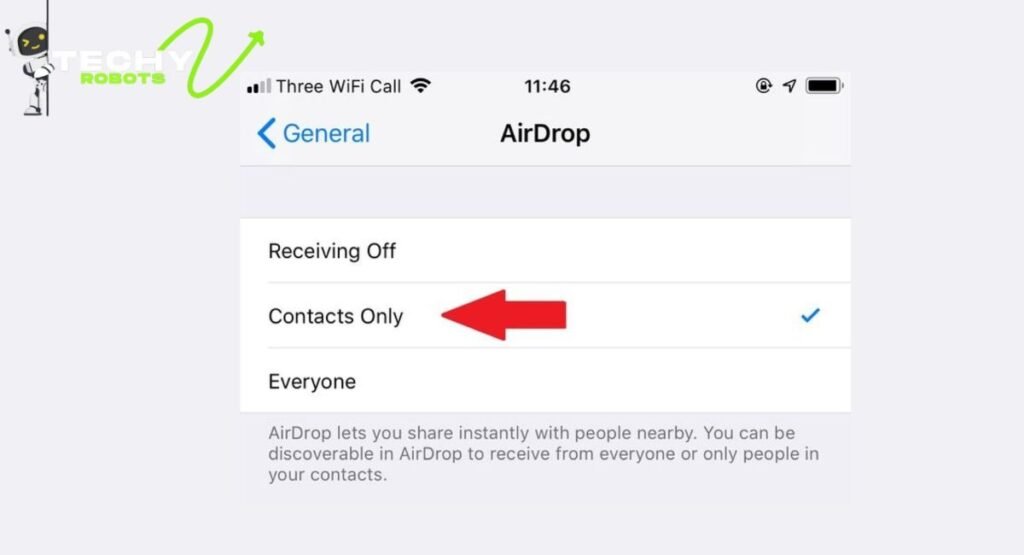
Even though Apple does not give you a transfer log, it does give you solid control over who can find and contact you via AirDrop. This is worth understanding, especially from a security standpoint.
Contacts Only vs. Everyone Mode
In your iPhone settings under General > AirDrop, you will find three options: Receiving Off, Contacts Only, and Everyone. The “Contacts Only” mode is the smart default for most people; it means only people in your contacts list can send you files via AirDrop. Strangers nearby cannot see your device at all.
“Everyone for 10 Minutes” is a newer option Apple introduced in iOS 16 and later. It lets you be discoverable to everyone briefly, which is useful when you are trying to receive something from someone not in your contacts, without leaving yourself permanently exposed.
Receiving Off — When to Use It
If you are in a crowded public place, a concert, an airport, or a busy mall turning AirDrop off entirely is a smart move. It means no one can send you anything, wanted or unwanted, until you turn it back on. It takes two seconds to toggle and gives you complete peace of mind.
AirDrop Security Concerns — Should You Be Worried?
AirDrop security has been a topic of real conversation over the years. You might have heard stories about people receiving unsolicited photos from strangers in public, or worried that someone could access your phone through AirDrop. Let us sort out the facts.
Can Someone Hack You Through AirDrop?
The short answer is no, not in the traditional sense. Accepting an AirDrop request does not give someone access to your phone, your data, or your accounts. The worst-case scenario is that you accept a file you did not want. That is it.
However, there have been documented vulnerabilities in older iOS versions where AirDrop could be exploited to reveal phone numbers and email addresses of nearby devices, even without accepting a transfer. Apple has since patched many of these issues, but it is a reminder to keep your iOS updated.
How to Protect Yourself from Unwanted AirDrop Requests
The simplest protection is to keep your AirDrop setting on “Contacts Only” in most situations. If you receive an AirDrop request from an unknown device, simply decline it and do not accept files from people you do not know. If a request feels suspicious, declining it is always the right call.
AirDrop Not Working? Here’s What to Try
Sometimes AirDrop just refuses to cooperate. Before you panic, here are a few quick fixes that solve most AirDrop problems.
Make sure both Bluetooth and Wi-Fi are turned on. AirDrop needs both, even if you are not connected to a Wi-Fi network. Check that Personal Hotspot is turned off, since it can interfere with AirDrop. Make sure the other device is unlocked and within about 30 feet. Restart both devices if nothing else works.
Also double-check the AirDrop visibility setting. If your reception is set to “Off,” no one will be able to send you anything, and AirDrop transfers will fail silently.
AirDrop vs. Other File Sharing Options
AirDrop is great, but it is not the only game in town. Knowing your alternatives helps you pick the right tool for the right situation.
AirDrop vs. AirDroid
AirDroid is a third-party app that lets you transfer files between Android and other devices wirelessly. Unlike AirDrop, AirDroid does keep transfer logs and gives you a history of what was shared. If you need cross-platform file sharing, say, between an iPhone and an Android phone AirDroid fills the gap that AirDrop cannot.
The trade-off is that AirDroid requires an app and an account, while AirDrop is completely native and seamless within Apple devices.
Third-Party Apps That Can Help Track File Transfers

If the lack of an AirDrop log genuinely bothers you, there are a few things you can do on the organizational side. Some cloud storage apps like Google Drive, Dropbox, or OneDrive keep detailed activity logs of files uploaded, shared, and downloaded. If you make it a habit to work out of one of these apps rather than relying purely on AirDrop, you will naturally have a better record of your file activity.
There is no third-party app that can retroactively show you past AirDrop transfers since Apple does not expose that data but you can build better habits going forward by storing and sharing files through systems that do maintain history.
Tips to Stay Organized with AirDrop Files
Since AirDrop does not organize your files for you, a little personal discipline goes a long way.
When you receive an important document via AirDrop, move it immediately to a labeled folder in your Files app so you know where to find it later. For photos, consider adding them to a specific album right after receiving them. If you send someone a file, drop a quick note in your Notes app or a task manager just “sent X to Y on this date” so you have a personal record.
These small habits can save you a lot of confusion when you are trying to reconstruct what happened weeks later.
Conclusion
The truth about iPhone AirDrop history is simple: Apple does not keep one, and that is a deliberate choice rooted in privacy. Your transfers happen cleanly and quietly, with no log left behind. But the files themselves do land somewhere in Photos, Files, or on Mac in your Downloads folder and knowing those locations is genuinely useful.
If you are managing important files regularly, building your own lightweight system for tracking transfers is the smarter move. Use cloud apps with activity logs, label your folders right away, and keep your AirDrop visibility settings tight so you are always in control of what comes in.
AirDrop is one of the best things about the Apple ecosystem, and understanding both its strengths and its limits helps you use it with confidence.
FAQs
1. Can I see my AirDrop history on my iPhone?
No, the iPhone does not keep a native AirDrop transfer history. Apple does not log sent or received AirDrop files, so there is no built-in way to view past activity.
2. Where do AirDrop files go on the iPhone?
It depends on the file type. Photos and videos go to the Photos app, while documents and other files land in the Files app under “On My iPhone.”
3. Is there an “Imported” album for AirDrop photos?
Yes. The Photos app has an “Imported” album that includes images received from external sources, including AirDrop transfers. It is not a complete log, but it is a helpful starting point.
4. Can someone access my iPhone through AirDrop?
No. Accepting an AirDrop file does not give anyone access to your device or personal data. It is safe to decline any request you are unsure about, and keeping your setting on “Contacts Only” reduces unwanted requests.
5. How can I track files I have sent via AirDrop?
There is no native way to do this on iPhone. The original file stays on your device, but no record of the transfer is created. For better tracking, consider using cloud storage apps that maintain activity logs.