If you have ever stood next to a friend trying to send them a photo, only to realize one of you has an iPhone and the other has an Android, you already know the frustration. It feels crazy, right? Two people standing inches apart, and the easiest solution involves either emailing the file, compressing it through WhatsApp, or downloading some random third-party app that neither of you fully trusts. That whole headache is now being solved, and the solution is more elegant than most people expected.
Cross-platform file sharing between Android and iPhone using AirDrop-style technology is finally here, and it works better than you might think.
The Dream That Finally Became Reality
For years, iPhone users enjoyed AirDrop as one of those features that just worked. Drop a photo, a link, a document, whatever you wanted, and it reached another nearby Apple device in seconds. Android users had their own tools but nothing that talked to Apple’s ecosystem. The two platforms lived in separate bubbles.
That wall is coming down.
Why Cross-Platform Sharing Was Such a Pain Before
The core issue was always that Apple and Google built their wireless sharing technologies on different foundations. AirDrop relies on a combination of Bluetooth for device discovery and Wi-Fi Direct for the actual transfer, wrapped in Apple’s proprietary protocols. Android had its own version of nearby sharing, but since the two systems never spoke the same language, files had nowhere to go across that divide.
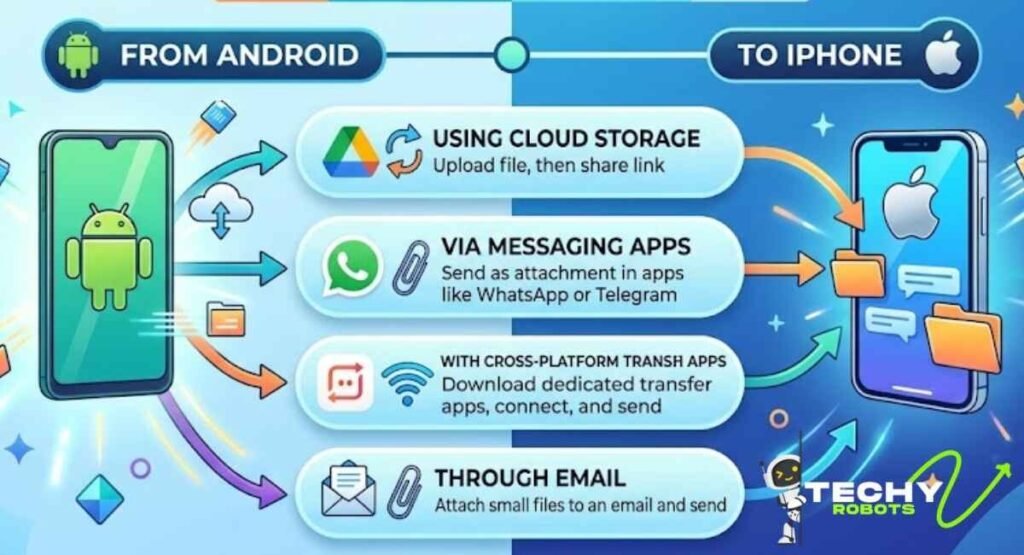
People turned to workarounds like Google Drive, WhatsApp, or email. These all worked, more or less, but they all introduced friction. Files got compressed, accounts were required, and the experience never felt seamless. Sharing a burst of 50 photos to someone standing right next to you should not require a cloud detour.
What Changed and When
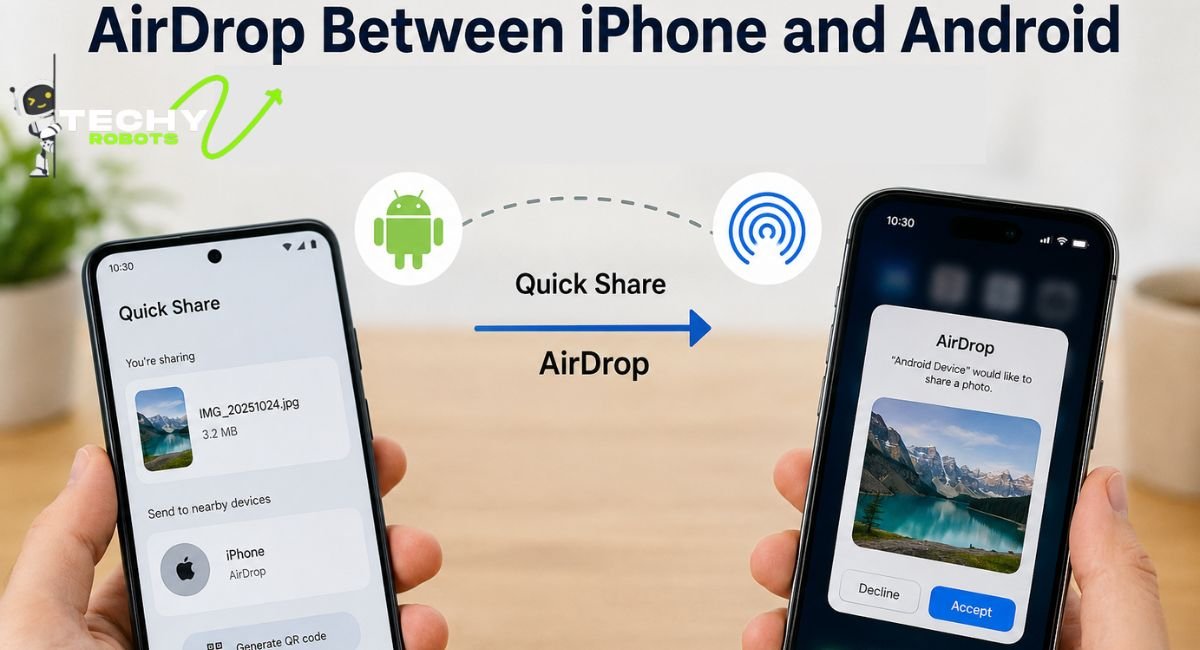
Google made a significant move when it rebranded and overhauled its nearby sharing feature into what is now called Quick Share. The update brought much more than a name change. It introduced interoperability with Apple’s AirDrop, meaning Android devices running the updated Quick Share can now initiate wireless file transfers to iPhones, and iPhones can receive them using the native AirDrop framework. No third-party app required on either side.
The rollout started making waves with the Pixel 9 series and has been expanding rapidly to other Android devices through software updates.
What Is AirDrop and Why Does It Matter for Android Users?
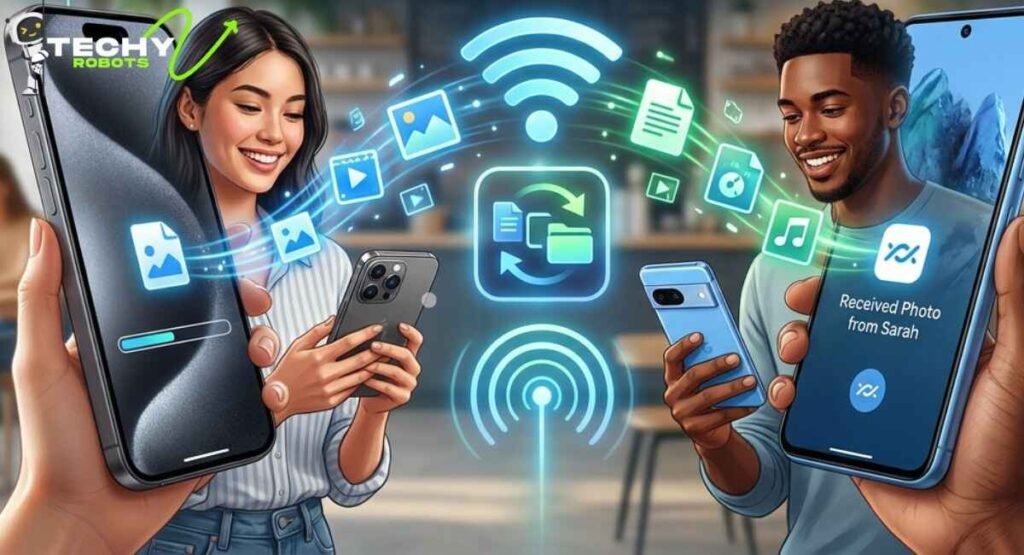
Before getting into how the cross-platform piece works, it helps to understand what AirDrop actually does and why Android users spent years wishing they had it.
How AirDrop Works on Apple Devices
AirDrop uses Bluetooth to let your device broadcast itself to nearby Apple devices and then switches to a direct Wi-Fi connection for the transfer itself. This two-step process means transfers are fast, local, and do not require an internet connection. The moment you share something, it travels directly from one device to another. Nothing passes through a server. Nothing gets stored in the cloud unless you explicitly put it there.
What made it feel almost magical was the simplicity. Open your share sheet, tap AirDrop, see the person’s name pop up, tap it, done. The recipient gets a notification and accepts. It takes about ten seconds and works with photos, videos, documents, contacts, links, and more.
Why Android Users Always Wanted the Same Thing
Android has always had a more open and flexible ecosystem, but that openness sometimes meant fragmentation. Different manufacturers built different sharing tools, and none of them worked seamlessly with Apple. When Quick Share became the unified Android standard, the stage was set for something bigger. The collaboration between Google and Apple to enable this cross-platform feature is genuinely one of the more surprising partnerships in recent tech history.
Google Quick Share: The Android Answer to AirDrop
Quick Share is Google’s native wireless file sharing feature built into Android. Think of it as Android’s version of AirDrop but with a few tricks of its own that, honestly, might make you like it even more in certain situations.
What Quick Share Actually Does
Quick Share handles file transfers between Android devices using Bluetooth and Wi-Fi Direct, similar to how AirDrop works. You can share photos, videos, audio files, apps, and links. It lets you transfer up to 1,000 files per session and handle files as large as 10GB, which is genuinely impressive. For context, WhatsApp caps video transfers at a fraction of that size and compresses photos automatically.
Quick Share also has flexible visibility settings. You can set your device to be discoverable by everyone nearby, just your contacts, or no one. When you want to receive something, you simply open up your discoverability.
How Quick Share and AirDrop Now Work Together
Here is where things get exciting. Google updated Quick Share so that when an Android user wants to send a file to an iPhone, the system generates a mechanism for the two platforms to communicate using AirDrop on the iPhone’s end. The Android device handles the initiation, the iPhone receives it through AirDrop, and the transfer happens over a direct Wi-Fi connection.
The result is that you do not need to install anything on the iPhone. The person receiving just needs to have AirDrop enabled, which is a standard setting on every iPhone.
The QR Code Magic Behind the Transfer
One of the clever touches in this new system is the QR code handshake option. When you initiate a transfer from an Android device to an iPhone, the Android can display a QR code at quickshare.google. The iPhone user opens their camera, scans it, and the transfer kicks off through AirDrop automatically. It sounds like a few extra steps on paper but in practice takes about five seconds and completely sidesteps any need for both devices to find each other over Bluetooth.
This QR-based approach is especially useful in noisy wireless environments, like a crowded event, where Bluetooth discovery can be unreliable.
How to Send Files from Android to iPhone Right Now
Enough background. Here is how you actually do it.
Step-by-Step: Using Quick Share to Send to iPhone
Start by making sure your Android device has the latest version of Quick Share installed. On most Pixel and Samsung devices running Android 12 or later, Quick Share is already built in and updates automatically.
Open the file you want to share, whether it is a photo in your gallery, a document in your files app, or a link in your browser. Tap the share icon. You should see Quick Share as one of the options in the share sheet. Tap it.
Your device will now look for nearby recipients. If the iPhone is nearby with AirDrop enabled, it may show up directly. If not, tap the option to generate a QR code. On the iPhone, open the Camera app, point it at the QR code, and tap the link that appears. This takes you to a quick web handshake page, and the transfer begins through AirDrop.
The file will appear in the iPhone’s Files app or Photos app depending on what was shared.
What Types of Files You Can Share
The good news is that the format restrictions are minimal. You can send photos and videos in their original quality, no compression applied. Documents, PDFs, contacts, and plain links all work too. For the current version of this feature, files up to 10GB can be sent, and you can batch-send up to 1,000 files at once. That kind of capacity puts it miles ahead of what most people use WhatsApp or email for when it comes to bulk transfers.
How to Receive Files on Your iPhone from Android
The iPhone side of this equation is straightforward because it uses the native AirDrop infrastructure.
Enabling the Right AirDrop Settings on iPhone
On your iPhone, go to Settings, then General, then AirDrop. Here you will see three options: Receiving Off, Contacts Only, and Everyone for 10 Minutes. For receiving from an Android device, you need to be on either Contacts Only (if the sender is in your contacts) or Everyone for 10 Minutes.
You can also access AirDrop settings from the Control Center by holding down the network tile in the top-left corner of the expanded control panel.
Using the “Everyone for 10 Minutes” Mode
The “Everyone for 10 Minutes” mode is worth knowing about because it is intentionally time-limited. Apple designed it this way to prevent your phone from being visible to random strangers indefinitely. When you enable it, your iPhone becomes discoverable to any nearby device for ten minutes, then automatically switches back to Contacts Only. This is the setting you will use most often when receiving from Android.
Once the transfer request comes in from the Android device, you will see the usual AirDrop pop-up on your screen asking if you want to accept. Tap Accept, and the file lands in the appropriate app.
Which Android Devices Support Cross-Platform AirDrop Sharing?
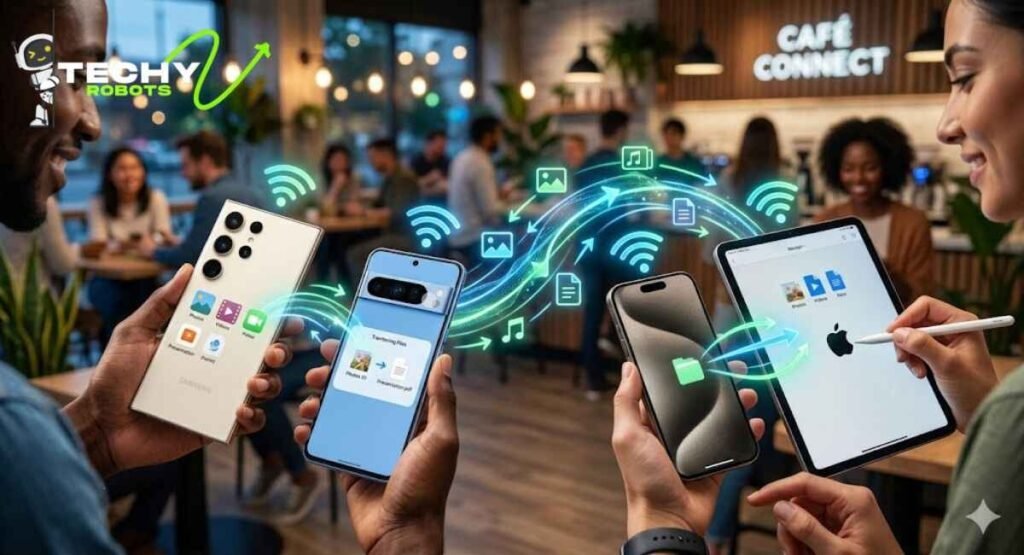
The rollout of this feature is ongoing, and more devices are being added through software updates.
Google Pixel 10 Series and Earlier
The Pixel 10, Pixel 10 Pro, Pixel 10 Pro XL, and Pixel 10 Pro Fold all support the cross-platform Quick Share feature out of the box. Earlier Pixel devices including the full Pixel 9 series and Pixel 8a received the update through a software patch and support the feature as well.
Samsung Galaxy Devices
Samsung has integrated Quick Share across its recent flagship lineup. The Galaxy S26 series, Galaxy S25, Galaxy S24, Galaxy Z Fold series, and Galaxy Z Flip series all support the Android-to-iPhone sharing capability through Quick Share updates. Samsung was actually one of the early adopters of the Quick Share standard since it collaborated with Google on the original rebranding.
Other Supported Android Brands
The feature is not limited to Pixel and Samsung. Devices from Oppo, including the Find X9 and Find X8 series, the Vivo X300 Ultra, OnePlus 15, and Honor devices like the Magic V6 and Magic 8 Pro are either already supported or in the process of rolling out compatibility through system updates. Essentially, any Android device running a recent enough version of Quick Share and Android 12 or later should be able to participate.
Security: Is This Kind of File Transfer Actually Safe?

This is a fair question to ask. When two platforms from different companies start talking to each other wirelessly, security is worth thinking about.
End-to-End Encryption Explained Simply
Both AirDrop and Quick Share use end-to-end encryption for file transfers. What this means in practical terms is that the file is encrypted on the sending device before it leaves, and it is only decrypted on the receiving device. Nothing in the middle, not a server, not a router, not anyone standing nearby with packet-sniffing software, can read the file as it moves.
Think of it like sending a locked box where only the recipient has the key. Even the companies involved, Google and Apple, cannot see what is being transferred.
How the Peer-to-Peer Connection Works
The transfer happens over a direct peer-to-peer Wi-Fi connection. Both devices connect to each other directly, bypassing the internet entirely. This is faster than cloud-based sharing and adds another layer of privacy since the data never touches an external server. Bluetooth is used for the initial device discovery and handshake, then Wi-Fi Direct takes over for the actual file movement, which is why transfers are so much faster than Bluetooth alone.
AirDrop vs Quick Share: Which One Wins?
Now that they work together, comparing them is less about picking a winner and more about understanding their strengths.
Speed and File Size Limits
For raw speed, both tools are comparable when working device-to-device since both rely on Wi-Fi Direct. Where Quick Share pulls ahead is in the file size limit. Quick Share supports transfers up to 10GB and up to 1,000 files at a time. AirDrop’s limits are less clearly defined and tend to vary, but for most everyday use cases both handle the job without trouble.
For large batch transfers, Quick Share has a clear edge. For quick, casual sharing within the Apple ecosystem, AirDrop’s integration feels slightly more refined.
Ease of Use and Setup
AirDrop wins on familiarity for iPhone users since it has been around since 2011 and requires no setup beyond making sure it is turned on. Quick Share has caught up considerably in terms of simplicity and the cross-platform QR code flow is clever enough that most people figure it out on the first try.
The setup burden is genuinely low on both sides, which is what makes this cross-platform solution feel like it should have existed years ago.
Why This Is Better Than WhatsApp or Cloud Storage
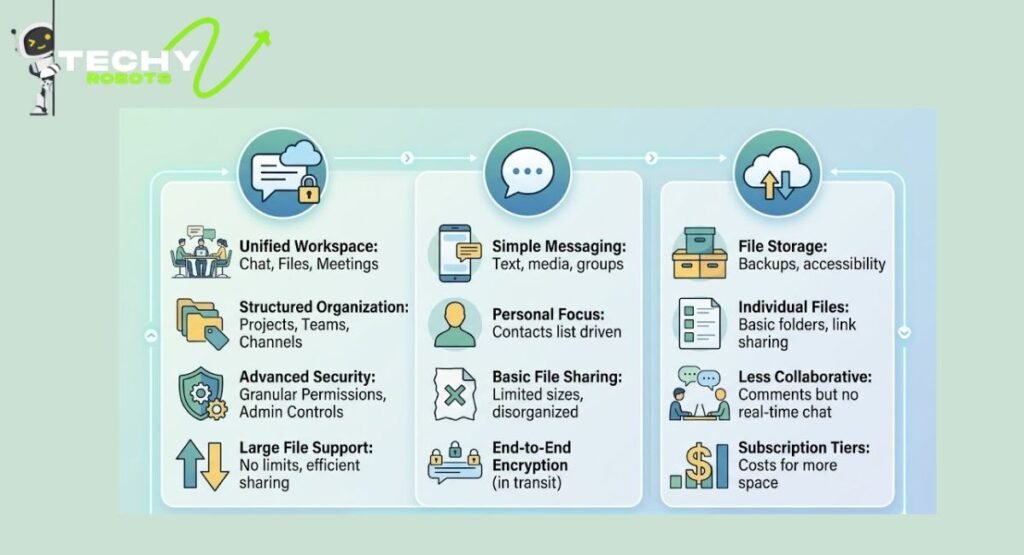
A lot of people default to messaging apps or cloud services for sharing files between platforms. Both are fine tools, but they come with trade-offs that direct wireless sharing avoids entirely.
The Problem with WhatsApp File Compression
WhatsApp is probably the most common workaround people use for cross-platform sharing, and it works well enough for casual use. But here is the catch: WhatsApp compresses photos and videos automatically. A photo you shoot at 12 megapixels might arrive at half that quality or less. Videos get downsized. For anything where the original quality matters, sharing through WhatsApp is a quiet downgrade.
With Quick Share to AirDrop, the file travels exactly as it was. What you send is what they receive.
No Cloud, No Account, No Problem
Cloud storage services like Google Drive work across platforms but require both parties to have accounts, both devices to have internet access, and a round trip through a server. If your Wi-Fi is slow or you are somewhere with limited data, transfers slow to a crawl. Direct wireless transfer sidesteps all of this. No login, no upload time, no download time from a server. Just a direct connection between two devices in the same room.
What to Expect Next: The Future of Cross-Platform Sharing
The collaboration between Apple and Google on this feature suggests both companies understand that users are tired of being penalized for not living entirely in one ecosystem. Most people own devices from different brands or have friends and family on different platforms, and forcing them into clunky workarounds just makes both products look worse.
Expect to see the supported device list expand steadily. The foundation is already in place, and as both companies push updates, more Android brands will be added to the compatibility roster. There is also a reasonable chance the feature will become smoother and more automatic over time, possibly to the point where the QR code step is not always necessary and direct discovery just works between the two ecosystems the way it does within each one today.
RCS messaging, which also recently became a cross-platform standard after Apple adopted it, shows that Apple and Google can work together when it benefits their shared user base. Cross-platform file sharing feels like the next piece of that puzzle.
Conclusion
For a long time, the gap between iPhone and Android felt intentional, like each company was nudging you to stay inside its walls. The arrival of cross-platform AirDrop-style sharing through Quick Share is a genuine step in a different direction. It treats users as people who just want their devices to work together, regardless of who made them.
Whether you are sending vacation photos to a friend, sharing a work document with a colleague who uses a different phone, or just trying to move a file between your own devices, the process is now clean, fast, and private. No compression, no accounts, no apps to install.
The tech has always been there. It just took the two biggest players in mobile deciding to point it at each other.
FAQs
1. Can I use AirDrop directly from Android without any extra steps?
Not through AirDrop itself, since AirDrop is an Apple feature. But through Google’s Quick Share, you can initiate a transfer that arrives on an iPhone via AirDrop. The process is seamless from the user’s perspective and requires no third-party app on either device.
2. Does the iPhone need any special app installed to receive files from Android?
No. The iPhone receives the file using its built-in AirDrop capability. As long as AirDrop is enabled on the iPhone and set to receive from everyone or contacts, it works without any additional software.
3. What is the maximum file size I can send from Android to iPhone this way?
Through Quick Share, you can send files up to 10GB in size, and up to 1,000 files per session. This makes it well-suited for large video files, photo dumps, or document packages that would be impossible to send through messaging apps.
4. Is the file transfer encrypted and private?
Yes. Both Quick Share and AirDrop use end-to-end encryption and establish a direct peer-to-peer Wi-Fi connection between devices. The file never passes through a server, meaning neither Google nor Apple can see what you are transferring.
5. Which Android devices currently support cross-platform sharing with iPhone?
Devices from Google (Pixel 8a and later), Samsung (Galaxy S24 series and later, Z Fold and Z Flip series), OnePlus 15, Oppo Find X8 and X9 series, Vivo X300 Ultra, and Honor Magic V6 and Magic 8 Pro are among the supported devices. The list is growing as manufacturers push Quick Share updates through their Android software pipelines.