If you have been pulling your hair out over Windows 11 24H2 problems, you’re definitely not alone. Ever since Microsoft rolled out version 24H2, the tech forums, Reddit threads, and Microsoft’s own release health dashboard have been flooded with users reporting a wide range of frustrating issues from update installation failures to audio going dead to Outlook just refusing to open. It’s been quite a ride.
Most of these problems have known fixes, and we’re going to walk through all of them in plain English. No confusing jargon, no five-page Microsoft documentation to decode. Just practical, step-by-step guidance you can actually use.
What Is Windows 11 24H2 and Why Does It Keep Causing Headaches?
Windows 11 version 24H2 is the major annual feature update that Microsoft began rolling out in late 2024. It brought a bunch of improvements: better NPU tracking in Task Manager, shared audio support, an improved Magnifier, and wallpaper reliability fixes, among other things. But alongside the good stuff, it also dragged in a long list of bugs and compatibility problems that have persisted well into 2026.
Part of the reason 24H2 has been so bumpy is the sheer scale of changes Microsoft made under the hood, particularly around the Windows servicing stack, EFI System Partition handling, and how the OS interacts with certain hardware drivers. When you change that much at once, things break and the cumulative updates (including Patch Tuesday updates and out-of-band releases) have been playing catch-up ever since.
Microsoft does publish information through the Windows release health dashboard, and the Feedback Hub is technically available for reporting issues, but for most regular users and IT admins, that’s cold comfort when your system is stuck in a reboot loop or your audio has gone mysteriously silent.
The Most Common Windows 11 24H2 Problems You’re Probably Facing
Let’s get into the specific issues that are affecting the most people right now.
Update Installation Failures and Error 0x800f0922
One of the most widely reported Windows 11 24H2 problems is getting hit with Error 0x800f0922 when trying to install a cumulative update. This error typically means the update failed during the reboot phase, and Windows automatically rolled back the changes to keep your system bootable.
The root cause is usually tied to Windows servicing boot files. If the update can’t properly write to certain system locations during the restart sequence, it throws this error and gives up. It’s especially common on systems that have had multiple failed updates piled on top of each other.
To fix this, start by running the Windows Update troubleshooter from Settings. If that doesn’t help, open an administrative command prompt and run DISM /Online /Cleanup-Image /RestoreHealth followed by sfc /scannow. These commands scan and repair corrupted system files that might be blocking the update. After that, try the update again. In many cases, this resolves the issue.
If you’re still stuck, check whether your Windows Recovery Environment (WinRE) is healthy. A broken WinRE can prevent updates from completing their reboot phase successfully.
The EFI System Partition Free Space Issue
This is a particularly sneaky problem. Some Windows 11 24H2 installations fail because the EFI System Partition (ESP) doesn’t have enough free space to accommodate the new servicing stack files the update needs to write. Microsoft has confirmed this as a Known Issue and it’s been blocking updates on certain machines particularly older devices where the ESP was created with a smaller default size.
If you’re hitting this, Microsoft’s recommended fix is to use the MBR2GPT tool or disk management utilities to expand the ESP, but this isn’t a casual fix; it requires careful handling and ideally a full backup first. For enterprise-managed devices, IT administrators have been advised to watch the release health dashboard for when Microsoft deploys a Known Issue Rollback (KIR) that handles this automatically through Group Policy.
Windows Push Notification Service Hanging and App Launch Failures
A separate issue that crept in with a recent cumulative update is the Windows Push Notification (WPN) service getting stuck. When this service hangs, apps that rely on it for launching or background tasks start behaving strangely, some refuse to open entirely, others open but sit there doing nothing.
Microsoft has acknowledged this and issued a fix through the Release Preview Channel. If you haven’t received it yet, you can manually check for optional updates in Windows Update settings. Look for the non-security preview update and install it. That should get your WPN service back on track and restore normal app behavior.
Unexpected Audio Mute and Sound Output Problems
Here’s one that’s caught a lot of people off guard. After installing certain cumulative updates for Windows 11 24H2, some users have found that their audio output gets muted without any warning. It doesn’t show up as a volume issue, it’s a deeper problem where the audio output itself gets toggled off at the system level.
The quick workaround is to go into Sound Settings, click on your audio output device, and check whether it shows as muted or disabled. Re-enabling it usually brings sound back. But the issue can return after restarting, so the more permanent fix is to check for the latest audio driver from your device manufacturer rather than relying on the Microsoft-packaged driver that came with the update.
Windows 11 24H2 Problems Related to the May 2026 Security Update (KB5089549)
The May 2026 Patch Tuesday brought some fixes, but it also introduced new headaches for a subset of users.
Task Manager Bug with Lingering taskmgr.exe Process
One odd bug that surfaced with KB5089549 is Task Manager sometimes leaving behind a ghost taskmgr.exe process that keeps running in the background even after you close the app. While this might sound minor, it can consume system resources over time and shows up confusingly in the Processes list.
The fix here is straightforward if you spot the lingering process, you can end it manually through Task Manager itself. Microsoft is aware of the bug and it’s expected to be resolved in a future cumulative update. If it’s causing real performance issues in the meantime, restarting your device will clear it.
Microsoft Teams Free Sign-In and Authentication Errors
Users running the free version of Microsoft Teams on Windows 11 24H2 have been running into sign-in problems tied to Microsoft account authentication and internet connectivity detection. The app either refuses to log in or throws a connectivity error even when the internet is clearly working fine.
Microsoft addressed this with an out-of-band update (KB5078127) that doesn’t come through the standard Windows Update channel automatically for all users. You may need to check the Microsoft Update Catalog and install it manually. After applying it, restart Teams and try signing in again.
OneDrive, Outlook, and Cloud Storage Sync Bugs
Cloud storage and email have been a particularly messy area with Windows 11 24H2.
PST Files on OneDrive Causing Outlook to Go Unresponsive
If you store your Outlook PST files on OneDrive which is a pretty common setup for people who want their email backed up to the cloud you may have run into a situation where Outlook simply freezes or stops responding after updating to 24H2. This is being caused by a conflict between how the new OS version handles cloud-backed storage and how Outlook accesses those PST files.
Microsoft’s guidance here is to move your PST files off OneDrive and store them locally on your C: drive. It’s not ideal, but it’s the most reliable workaround while Microsoft works on a proper fix. You can still back up those files manually to another cloud service if needed.
Sent Items Sync Problems and Cloud-Backed Storage Glitches
Separate from the PST issue, some users are seeing Sent Items in Outlook not syncing properly, with emails appearing to send but not showing up in the Sent folder or showing up only after a significant delay. This appears to be related to the same cloud-backed storage handling changes in 24H2.
Toggling the “Use Cached Exchange Mode” setting in Outlook account settings, or temporarily disabling it and re-enabling it, has helped some users force a proper sync. If you’re on Dropbox for file storage rather than OneDrive, some users have reported similar file save operation failures, so this seems to be a broader issue with how 24H2 handles file system callbacks from cloud sync clients.
Enterprise and Business-Specific Windows 11 24H2 Issues
If you’re an IT administrator managing a fleet of business devices, you’ve got some extra headaches to deal with.
Azure Virtual Desktop and Windows 365 Authentication Failures
Enterprise users connecting through Azure Virtual Desktop or Windows 365 have been experiencing remote desktop credential failures. Microsoft’s newer Windows App for connecting to cloud-hosted desktops was signing users out unexpectedly and refusing to authenticate properly.
Microsoft released KB5078127 as an out-of-band update specifically targeting this. For organizations using Windows App through a web client, a server-side fix was deployed without requiring any action from admins. If your users are still seeing issues on the installed Windows App client, make sure KB5078127 has been applied to their devices.
IIS Websites Failing to Load with ERR_CONNECTION_RESET
Windows Server administrators running IIS (Internet Information Services) discovered a particularly disruptive bug where websites hosted on IIS started returning ERR_CONNECTION_RESET errors to clients. This is caused by a problem in HTTP.sys, the kernel-mode HTTP driver introduced by a recent cumulative update.
Microsoft acknowledged this and released a fix through subsequent updates. If you’re still affected, verify that your server has all current cumulative updates applied and check the release health dashboard for the specific KB number addressing the HTTP.sys connection issue.
Smart Card and Certificate-Based Authentication Breaking
Organizations relying on smart cards and RSA certificates for authentication (which is common in government, healthcare, and financial environments) have been hit by a cryptographic service provider bug linked to CVE-2024-30098. The Key Storage Provider wasn’t handling certain RSA smart card certificates correctly, causing authentication failures.
This has been patched in subsequent cumulative updates. If you’re still seeing issues, check that your cryptographic service provider and smart card middleware are fully updated, and consult the Windows release health dashboard for the specific KB article.
Audio Driver Conflicts, Bluetooth Failures, and BSOD Issues
Hardware compatibility has been an ongoing saga with 24H2.
Dirac Audio and Bluetooth Headset Failures
Devices with Dirac Audio enhancement software have been running into problems where the cridspapo.dll file included with Dirac conflicts with 24H2’s audio stack. The result is either Bluetooth audio completely failing, integrated speakers cutting out, or both.
Microsoft has applied a compatibility safeguard hold to affected devices, meaning if your device is in this category, Windows Update won’t offer you the 24H2 update until the driver vendor releases a fix. If you’ve already updated and are experiencing this, check for a Dirac Audio software update from your device manufacturer’s support page.
Intel Smart Sound Technology Driver Conflicts and Blue Screens
The Intel Smart Sound Technology (Intel SST) driver has been causing blue screen errors on a range of devices running 24H2. The incompatible driver version creates a BSOD compatibility issue that can make devices unbootable in the worst cases.
Microsoft has placed a safeguard hold on devices with the problematic Intel SST driver version, identified by a specific safeguard ID in the Windows Update for Business documentation. If your device is hitting blue screens related to intcaudiobus.sys or similar Intel audio drivers, boot into Safe Mode, uninstall the problematic driver, and install an updated version from Intel’s website or your device manufacturer.
Gaming and DRM Playback Problems in Windows 11 24H2
Gamers and home theater enthusiasts have also had their share of frustrations.
Easy Anti-Cheat Compatibility and Gaming Blue Screens
Easy Anti-Cheat, used by a wide range of popular online games, has been causing blue screen errors on certain Windows 11 24H2 configurations. The anti-cheat driver doesn’t play nicely with some of the kernel-level changes introduced in 24H2, and the result is a BSOD during game launch or shortly after.
Microsoft has applied a safeguard hold to affected gaming configurations. If you’re already on 24H2 and hitting this issue, check for an updated version of Easy Anti-Cheat through the affected game’s launcher or support page. Some games update this automatically, while others require a manual reinstall of the anti-cheat component.
BluRay, DRM, and Live TV Playback Errors
Users trying to play DRM-protected content including BluRay discs, HDCP-enforced streams, and live TV through certain apps have run into playback failures. This is tied to how the Enhanced Video Renderer handles HDCP enforcement in 24H2, and it’s been particularly frustrating for home theater PC users.
This issue is expected to be resolved through driver updates from the DRM and playback software vendors rather than a Windows update itself. In the meantime, some users have had success rolling back their graphics driver to a previous version.
Compatibility Safeguard Holds: Why Windows Update Is Blocking Your Device
If you’re wondering why your device hasn’t received the 24H2 update yet, or why a specific cumulative update isn’t showing up, it might be because Microsoft has placed a compatibility safeguard hold on your device.
These holds are Microsoft’s way of protecting devices from known-bad update experiences. If your hardware has a driver or configuration that’s been identified as incompatible with 24H2 (or a specific KB update), Windows Update for Business will simply not offer the update to your device until the underlying issue is resolved.
You can check whether your device has a safeguard hold by looking at the Windows release health dashboard at Microsoft’s website, or by checking Windows Update in Settings if the update isn’t appearing and your device meets the hardware requirements, a safeguard hold is the likely reason. IT administrators can also check through the Microsoft 365 admin center for enterprise devices.
How to Fix Windows 11 24H2 Update Errors Step by Step
Let’s pull together a practical action plan for the most common update-related fixes.
Fixing Error 0x800f0922 and EFI Partition Space Issues
Start with the basics: open Settings, go to Windows Update, and click “Check for updates” to make sure you’re not missing any prerequisite updates. Then:
Open an administrative command prompt and run DISM /Online /Cleanup-Image /RestoreHealth. Waiting for it to complete can take 10 to 20 minutes. After that, run sfc /scannow to fix any remaining file corruption. Restart your device and try installing the update again.
If you’re hitting the EFI System Partition space issue specifically, you’ll need to check your ESP size. Run diskpart, list your disks and partitions, and identify the EFI partition. If it’s only 100MB (the older Windows default), it may not have enough room for 24H2’s servicing files. Expanding it requires third-party partitioning tools and should be done with a full backup in place.
Using KIR Group Policy for Enterprise Rollback
For IT administrators dealing with a bad update that’s already deployed to managed business devices, the Known Issue Rollback (KIR) mechanism via Group Policy is your best friend. Microsoft publishes KIR Group Policy administrative templates that you can download and deploy through your existing Group Policy infrastructure.
Once deployed, the KIR policy tells affected devices to revert the problematic behavior introduced by the bad update, without requiring a full rollback to the previous OS version. This is particularly useful when the issue affects productivity (like the WPN service hang or app launch failures) but doesn’t warrant a complete Windows reinstall.
New Features in Windows 11 24H2 That Actually Work Well
Amidst all the problems, it’s worth acknowledging what 24H2 got right. The improved Magnifier is genuinely better for accessibility. NPU tracking in Task Manager gives power users useful visibility into AI workload processing. Shared audio support has been a long-requested feature that finally landed properly. Wallpaper reliability improvements mean your desktop background actually stays where you put it after sleep and wake cycles.
The Windows Hello facial recognition camera also got improvements for object recognition that makes login smoother on supported hardware. These are real quality-of-life improvements that, when the update works correctly, make 24H2 a worthwhile upgrade.
Should You Stay on 24H2 or Wait for Windows 11 25H2?
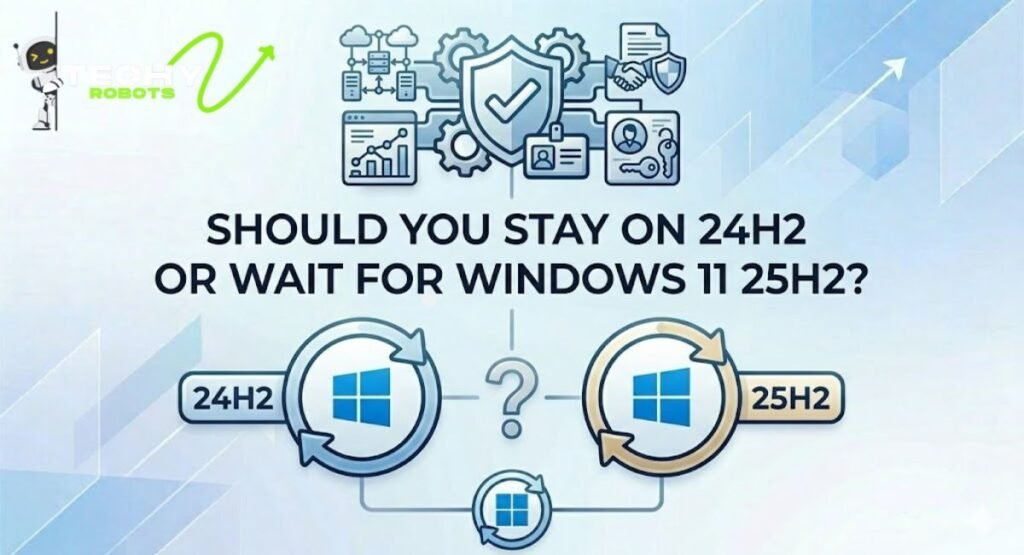
This is the question a lot of people are asking right now. Windows 11 version 25H2 is on the horizon, and some users are tempted to skip the rest of 24H2’s update cycle and wait for the next major version.
Honestly, unless you’re hitting a specific issue that’s making your device unusable, staying on 24H2 and keeping it updated is the right call. The cumulative updates Microsoft has been releasing are steadily addressing the known issues, and by the time 25H2 arrives, you’ll likely want to wait a few months on that too while its early bugs get ironed out.
If you’re on the Release Preview Channel through Windows Insider, you can preview 25H2 builds, but for most users, that’s not worth the stability trade-off. Stick with the stable update channel, apply cumulative updates as they come, and check the release health dashboard before installing major updates on critical machines.
Conclusion
Windows 11 24H2 has had a rougher ride than most Windows updates in recent memory, but it’s not a lost cause. Most of the problems people are running into have either been fixed already through cumulative updates or have clear workarounds you can apply today. The key is knowing what you’re dealing with and where to look for solutions.
Whether you’re a home user frustrated by a silent audio output or an IT admin wrestling with Azure Virtual Desktop authentication failures, the fixes are out there. Microsoft’s release health dashboard, combined with the specific KB numbers we’ve covered here, should give you a solid roadmap for getting your system stable.
Keep your updates current, check for driver updates from your hardware manufacturers, and don’t hesitate to use the Feedback Hub to report issues that haven’t been acknowledged yet. The more users report, the faster Microsoft prioritizes fixes and that benefits everyone running Windows 11.
FAQs
1. What is Error 0x800f0922 in Windows 11 24H2 and how do I fix it?
Error 0x800f0922 happens when a Windows update fails during the reboot installation phase. The most reliable fix is to run DISM /Online /Cleanup-Image /RestoreHealth and sfc /scannow from an administrative command prompt, then restart and retry the update. If the issue persists, check whether your EFI System Partition has enough free space.
2. Why is my audio muting itself after a Windows 11 24H2 update?
This is a known bug where certain cumulative updates toggle the audio output off at the system level. Go to Sound Settings, find your output device, and re-enable it. For a more permanent fix, download the latest audio driver directly from your device manufacturer’s website rather than using the one bundled with the Windows update.
3. Why isn’t Windows Update offering me the 24H2 update?
Your device likely has a compatibility safeguard hold applied by Microsoft. This happens when your hardware configuration has a known incompatibility with 24H2. You can check the Windows release health dashboard to see if your device falls into a known hold category. The update will be offered once Microsoft and your driver vendor resolve the underlying issue.
4. How do I fix Outlook freezing when my PST file is stored on OneDrive?
Move your PST file from OneDrive to a local folder on your C: drive. This is a known conflict between 24H2’s cloud-backed storage handling and how Outlook accesses PST files. Microsoft is working on a long-term fix, but local storage is the most reliable workaround right now.
5. What should IT admins do when a cumulative update breaks something on managed devices?
Use the Known Issue Rollback (KIR) mechanism through Group Policy. Microsoft publishes KIR administrative templates for specific issues, and deploying them rolls back the problematic behavior without requiring a full OS rollback. For devices affected by authentication issues in Azure Virtual Desktop or Windows 365, check whether KB5078127 has been applied, as it addresses several enterprise-specific bugs introduced in recent 24H2 cumulative updates.