
If you have ever scrolled through your phone settings and wondered what all those Android version numbers actually mean, you’re not alone. Android has gone through an incredible journey since it first launched back in 2008, and keeping track of everything can feel like reading a history book.
But here’s the thing: understanding the Android version history isn’t just for tech nerds. It actually helps you know what your phone can do, how secure it is, and whether you’re getting the most out of it.
So let’s break it all down together, starting from the very beginning and working our way up to the latest Android version in 2026.
What Is the Latest Android Version Right Now?
As of 2026, the latest Android version is Android 16, which Google officially announced and began rolling out to compatible devices. Before that, Android 15 was the current stable release for most users.
Android 16 brings a whole wave of new features focused on smarter notifications, stronger security, better multitasking, and accessibility improvements that genuinely make a difference in everyday use.
If you’re running Android 14 or Android 15, you might already be eligible for an update, depending on your device brand and model. More on that later.
A Brief Look at How Android Got Here
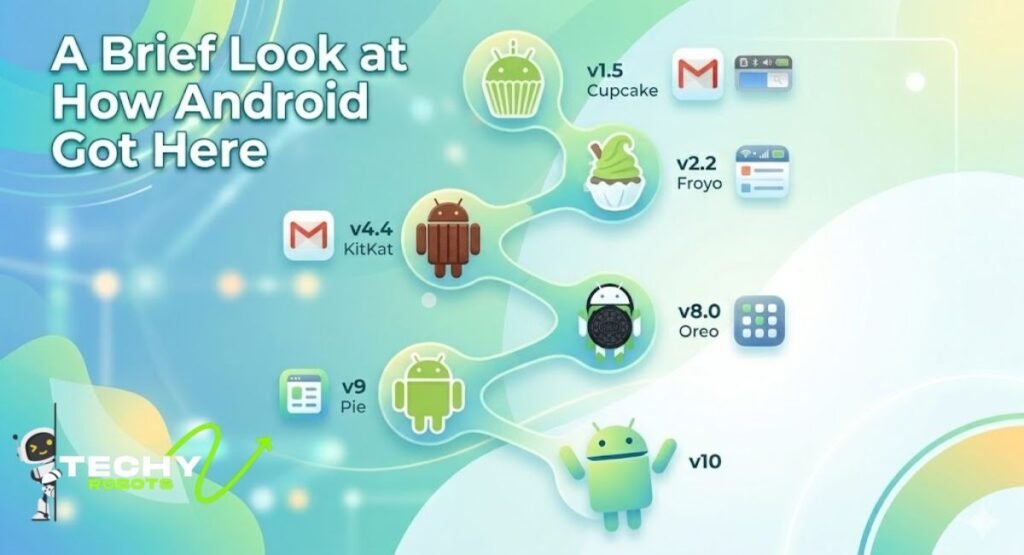
Android didn’t start off as the polished, feature-rich operating system it is today. It started humble, grew fast, and kept reinventing itself with every major release. Let’s take a quick trip through the Android OS timeline.
The Early Days: Android 1.0 to Froyo
Android 1.0 launched in September 2008 on the HTC Dream. It was basic by today’s standards, but it was a genuine smartphone OS that could browse the web, run apps, and sync with Google services. That alone felt revolutionary at the time.
Android 1.5 (Cupcake) came soon after, introducing the on-screen keyboard and video recording. Then came Donut (1.6), which added support for CDMA networks and a proper search function. Eclair (2.0/2.1) introduced live wallpapers, Google Maps navigation, and a redesigned UI.
Froyo, short for Frozen Yogurt (2.2), was a huge deal. It brought performance improvements through JIT compilation, support for Adobe Flash, and the ability to install apps directly to an SD card. Suddenly, Android felt much snappier and more capable.
Sweet Names and Big Leaps: Gingerbread to Jelly Bean
Gingerbread (2.3) polished the platform further and introduced NFC support, which later became the backbone of contactless payments. Honeycomb (3.0) was designed specifically for tablets, introducing a completely different UI with the action bar and a more desktop-like experience.
Ice Cream Sandwich (4.0) was the version that truly unified Android for phones and tablets, bringing a cleaner Material-style design before Material Design was even a thing. It also introduced Face Unlock, which felt almost sci-fi at the time.
Jelly Bean (4.1 to 4.3) brought Project Butter, which targeted 60 fps performance to make Android feel as smooth as butter, hence the name. Expandable and actionable notifications also debuted here, giving users quick controls without opening apps.
The Golden Era Begins: KitKat to Marshmallow
KitKat (4.4) was a turning point. Google made Android leaner so it could run well even on low-end devices with just 512 MB of RAM. It was Google’s way of saying, “Android is for everyone,” not just flagship phones.
Lollipop (5.0) introduced Material Design, the visual design language that completely transformed how Android looked and felt. It was colorful, animated, and elegant. Battery performance improved with Project Volta, and notifications showed up on the lock screen for the first time.
Marshmallow (6.0) brought Doze mode, which put the phone into a deep sleep when inactive, saving battery life significantly. App permissions were overhauled so users could choose what each app could access, a feature we now take for granted.
Modern Android Takes Shape: Nougat to Pie
Nougat (7.0) introduced split-screen multitasking, letting you run two apps side by side on your phone. It also marked the debut of Google Assistant as a core feature, accessible with a long press on the home button.
Oreo (8.0) added picture-in-picture mode, notification channels, and significantly improved boot times. Autofill support made password management much more seamless.
Pie (9.0) was the first version to fully embrace gesture navigation, moving Android closer to a swipe-based interface. It also introduced Adaptive Battery and Adaptive Brightness, using machine learning to optimize performance based on your habits.
Android 10 to Android 14: The Numbered Era
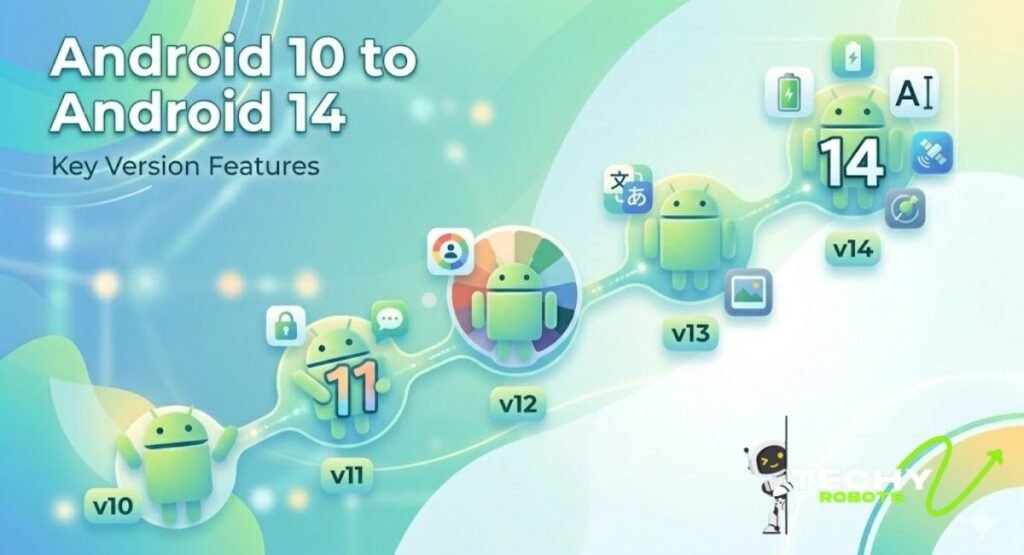
Starting with Android 10, Google dropped the dessert naming convention for the public releases (though they still use it internally). The shift was partly to avoid alphabet confusion globally, since some letters and their associated words don’t translate the same way in every language.
Android 10 and 11: Refinement and Control
Android 10 brought a proper system-wide dark mode, improved location permissions (now you can share location only while using an app), and full gesture navigation became the default. Live captions, which transcribed audio in real time, were a standout accessibility win.
Android 11 built on that with a dedicated conversation section in the notification shade, one-time permissions for sensitive data, a media player in the quick settings panel, and screen recorder support built right into the OS.
Android 12 and 13: Material You and More Privacy
Android 12 was a design overhaul. Material You let Android dynamically generate a color palette from your wallpaper and apply it across the entire system. It was a personal touch that made Android feel uniquely yours. Privacy was also a big theme here, with a privacy dashboard showing which apps had accessed your camera, microphone, or location.
Android 13 went deeper into personalization, allowing per-app language settings so you could use, say, French for one app and English for another. It also tightened photo and media permissions, giving apps access only to the specific photos or videos they needed rather than your entire gallery.
Android 14: Performance, Personalization, and Camera
Android 14 focused heavily on customization and efficiency. Lock screen customization got richer, with more font and shortcut options. Larger text scaling was supported for accessibility. The camera improvements were notable, with Ultra HDR support delivering more vibrant photos with better contrast.
Flash notifications for accessibility let the camera or screen flash when a notification arrives. Health Connect became a central hub for health and fitness data across apps, and Android 14 started laying the groundwork for better large-screen experiences.
Android 15: What Changed Before Android 16
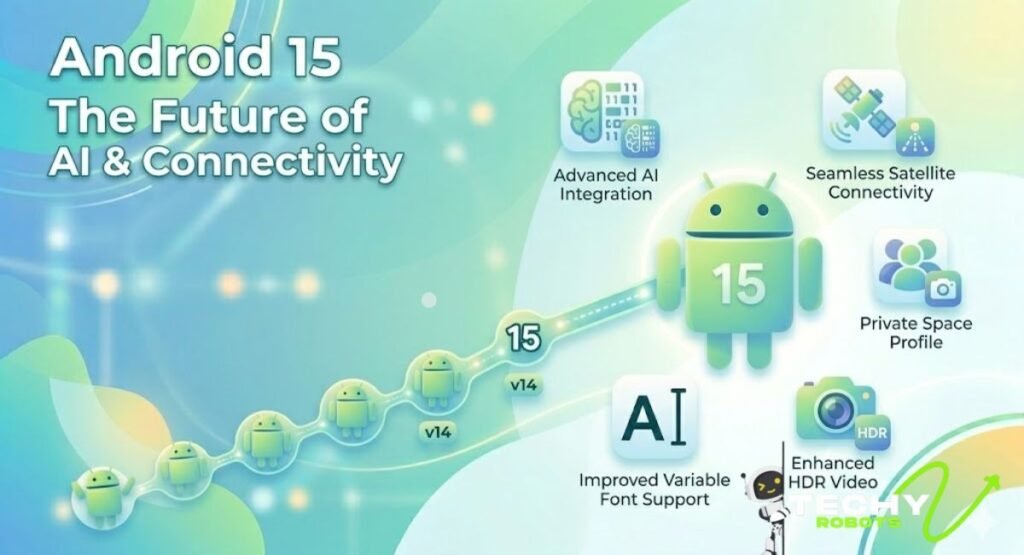
Android 15 served as an important stepping stone before the major changes in Android 16. It wasn’t a flashy release, but it packed in meaningful improvements that everyday users noticed.
Notification Improvements in Android 15
Android 15 improved how notifications were presented, especially for apps that hadn’t updated their notification styles. Silent notifications became easier to manage, and Android’s notification system started to feel less cluttered overall.
Security Upgrades in Android 15
Theft detection lock was introduced, using AI to recognize if your phone was suddenly grabbed and bolted at pace, automatically locking the screen. Offline device lock ensured the phone locked after extended disconnection, preventing someone who stole it from staying offline to avoid a remote wipe.
Private Space was another big addition, letting users create a separate, locked-down area of their phone for sensitive apps, requiring a separate authentication to access.
Android 16: The Latest and Greatest
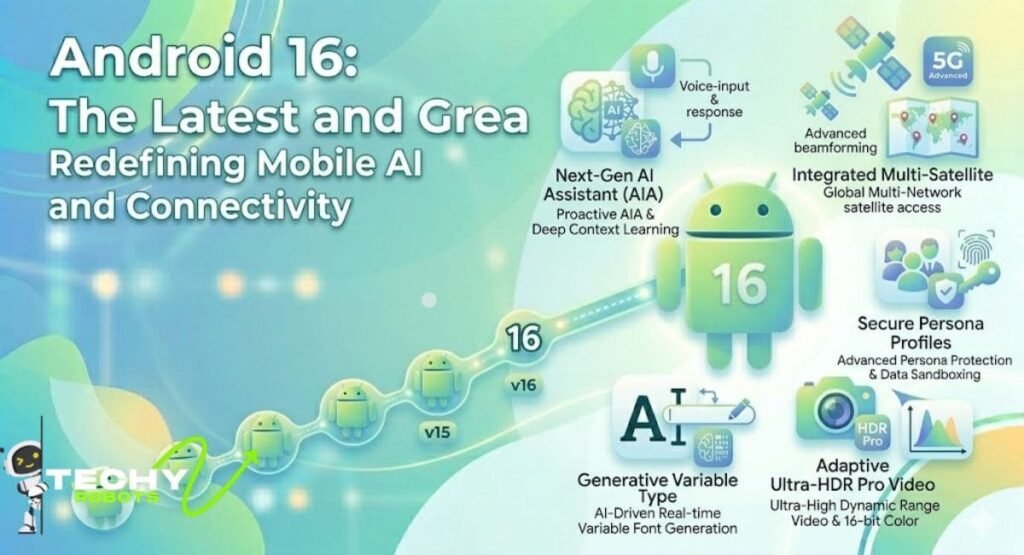
Android 16 is where things get genuinely exciting. Google packed this release with features that feel less like incremental updates and more like thoughtful improvements to how you actually use your phone day to day.
Smarter Notifications with Live Updates and Auto-Grouping
One of the most practical additions in Android 16 is live updates in notifications. Think of it like a live activity on your lock screen that gives you real-time progress, like a food delivery getting closer, a ride on its way, or a package being sorted at the facility. You no longer need to open the app every two minutes to check.
Auto-grouping is the other half of this story. Android 16 automatically bundles notifications from the same app or conversation thread, so your notification shade doesn’t turn into a wall of text. It’s something people have wanted for years, and it finally works the way it should.
Desktop Windowing for Power Users
Android 16 brings proper desktop windowing to supported devices. This means you can run multiple apps in resizable windows, just like on a computer. This is huge for productivity, especially on foldable phones and tablets. You can move windows around, resize them, minimize them, and switch between tasks in a way that’s genuinely efficient rather than just cosmetic.
It’s the closest Android has come to feeling like a true desktop-class OS, and with more people using their phones as their primary work device, the timing makes complete sense.
Predictive Back Gesture
The predictive back gesture previews where you’ll land before you fully swipe back. So if you’re in an app and you start swiping from the edge, you’ll see a peek of the previous screen or the home screen before completing the gesture. It sounds like a small thing, but in practice it makes navigation feel more intentional and less accidental.
Adaptive Refresh Rate Battery Savings
Android 16 gets smarter about display refresh rates, automatically dropping to lower rates during static content like reading an article or looking at a photo.
This preserves battery life without making your screen feel sluggish during interactions where high refresh rates matter. It’s the kind of background optimization you don’t notice until you check your battery at the end of the day and realize you’ve got more left than usual.
Accessibility Features Worth Talking About
Android 16 made some genuinely impactful accessibility changes that deserve their own spotlight.
Hearing Aid Support
Android 16 significantly improves Bluetooth hearing aid integration. Users with hearing aids can now stream audio directly from the phone with better latency and connection stability. Audio routing between hearing aids and speakers is smoother, and controls in the accessibility menu are more straightforward than ever before.
Phone as Microphone Input
This one is clever. Android 16 lets compatible hearing aid users use their phone as a remote microphone. You put your phone near someone speaking, say across a table at a restaurant, and the audio feeds directly into your hearing aids. It turns your Android phone into an assistive listening device without any extra hardware.
Android 16 Security and Privacy Features
Security got a serious upgrade in Android 16, and it shows in several areas.
Identity Check and Advanced Protection Mode
Identity Check is a feature that requires biometric authentication before allowing changes to critical settings when you’re in an untrusted location. So if someone gets your PIN but takes your phone to an unfamiliar place, they still can’t change your recovery email or turn off Find My Device without your face or fingerprint.
Advanced Protection Mode takes security even further, designed for high-risk users like journalists, activists, or executives. It enables stricter controls over app permissions, blocks sideloading of unverified apps, and ties in tighter with Google’s threat intelligence. It’s basically maximum-security mode without needing a separate enterprise device.
Trade-In Mode Explained
Trade-In Mode is a thoughtful addition for anyone upgrading their phone. It locks the device to a simplified interface that lets a buyer or trade-in evaluator check the phone’s basic functions, such as screen, cameras, and buttons, without being able to access personal data or settings. Once the evaluation is done, you can exit the mode and complete the factory reset yourself, keeping your data under your control throughout the process.
Android 16 Multitasking and Productivity
Beyond desktop windowing, Android 16 improves multitasking across the board. App pairs, where you save two apps as a single split-screen shortcut, become more reliable and easier to access from the recent screen. Drag and drop across apps works more consistently, making it easier to move content between apps without jumping through hoops.
The taskbar on larger screens and foldables is more customizable, letting you pin your most-used apps for quick switching. For someone using a foldable device as a laptop replacement, Android 16 closes a lot of the gaps that made previous versions feel half-finished.
Foldable and Tablet Improvements in Android 16
Foldable phones and tablets are no longer an afterthought in Android 16. Google worked closely with device makers to ensure apps behave properly in all orientations and window sizes. App continuity, meaning your open app seamlessly transitions from one screen to another when you unfold or fold the device, is smoother and more reliable.
Tablet-optimized layouts are more common now because Google pushed developers harder to support larger screens. The result is that more apps actually take advantage of the extra real estate instead of just stretching a phone interface across a bigger display.
How to Update Your Phone to the Latest Android Version
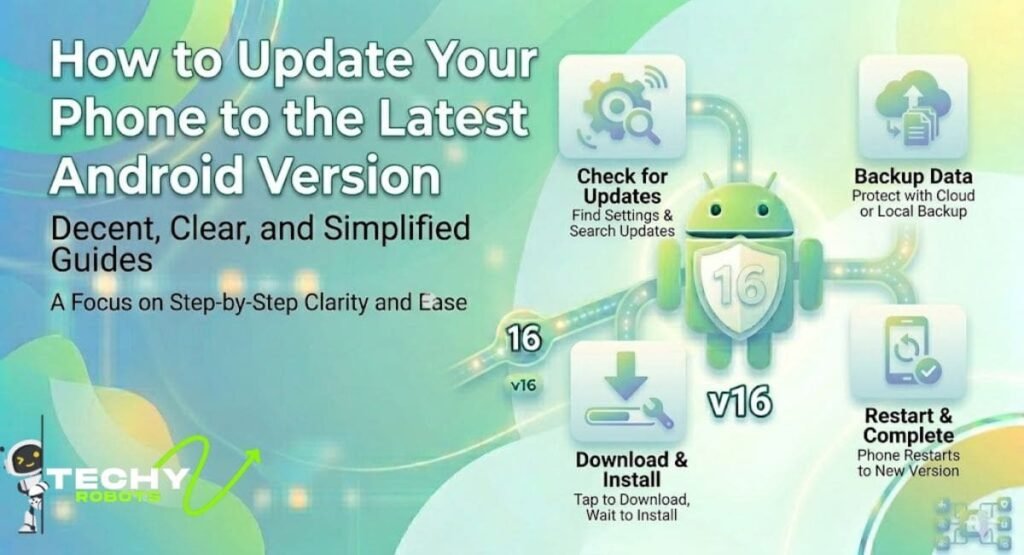
Getting the latest Android version is usually straightforward, though availability depends on your device brand and model.
To check for updates, go to Settings, then scroll down to System, and tap System Update or Software Update. If an update is available, your phone will guide you through the installation process. Make sure your battery is above 50 percent and you have a stable Wi-Fi connection before starting.
If you’re on a Google Pixel, you’ll typically get Android updates first, often on the same day Google releases them. Samsung, OnePlus, and other major brands usually follow within a few weeks to a few months, depending on how much customization they add to their Android skin.
If your device is older and no longer supported by the manufacturer, you may not receive Android 16 even if it’s technically capable of running it. In that case, it might be worth looking at whether a third-party ROM is an option for your device.
Android vs iOS: Where Does Android Stand Today?
Android continues to dominate the global smartphone market with a significant share compared to iOS. The flexibility, open ecosystem, and range of price points mean Android reaches users across every income level in every country.
iOS still has an edge in terms of update consistency, since Apple pushes updates to all supported devices simultaneously. But Android has narrowed that gap considerably, especially with Google’s own Pixel line and its partnership program with select manufacturers to guarantee faster updates.
What Android brings to the table is genuine choice. You can buy a budget phone with solid Android performance, a flagship with cutting-edge hardware, a foldable with a unique form factor, or a tablet that can run a desktop-like experience. iOS doesn’t offer that range. And with Android 16 pushing harder on security, privacy, and desktop-class multitasking, the platform has never been more capable.
Conclusion
Android has come an incredibly long way from the simple, text-heavy interface of version 1.0 to the powerful, intelligent, and personalized operating system it is today.
Android 16 is genuinely the most complete version of the platform yet, hitting the right notes across productivity, security, accessibility, and everyday usability. Whether you’re using a budget phone or a high-end foldable, there’s something in this release that improves how you interact with your device each day.
For most users, the jump to Android 16 will feel natural and rewarding. The features aren’t just technically impressive on paper but actually useful in real life. Live notifications, desktop windowing, stronger privacy controls, and better accessibility support all point to a platform that’s maturing with real intention.
If you haven’t checked for an update recently, now’s a good time to do it. Your phone experience might be about to get noticeably better.
FAQs
1. What is the latest Android version in 2026?
The latest Android version in 2026 is Android 16, which Google began rolling out to Pixel devices and other supported phones. It brings improvements in notifications, security, multitasking, and accessibility.
2. How do I update my Android phone to Android 16?
Go to Settings, tap System, then System Update or Software Update. If your device supports Android 16 and your manufacturer has released the update, you’ll see it here. Keep your battery above 50 percent and connect to Wi-Fi before updating.
3. What are the biggest new features in Android 16?
Android 16’s standout features include live notification updates, auto-grouping of notifications, desktop windowing for tablets and foldables, the predictive back gesture, Identity Check for security, Advanced Protection Mode, and Trade-In Mode.
4. Will my older Android phone get the Android 16 update?
It depends on your device brand and how old your phone is. Google Pixel phones from the Pixel 6 series onward are typically supported. Other brands like Samsung and OnePlus release updates for their recent flagship and mid-range phones, usually within a few months of Google’s release.
5. What is the difference between Android 15 and Android 16?
Android 15 focused on theft detection, Private Space, and notification refinements. Android 16 goes further with desktop windowing, live notification updates, better hearing aid accessibility, stronger biometric security, adaptive refresh rate optimization, and improved foldable and tablet support.