
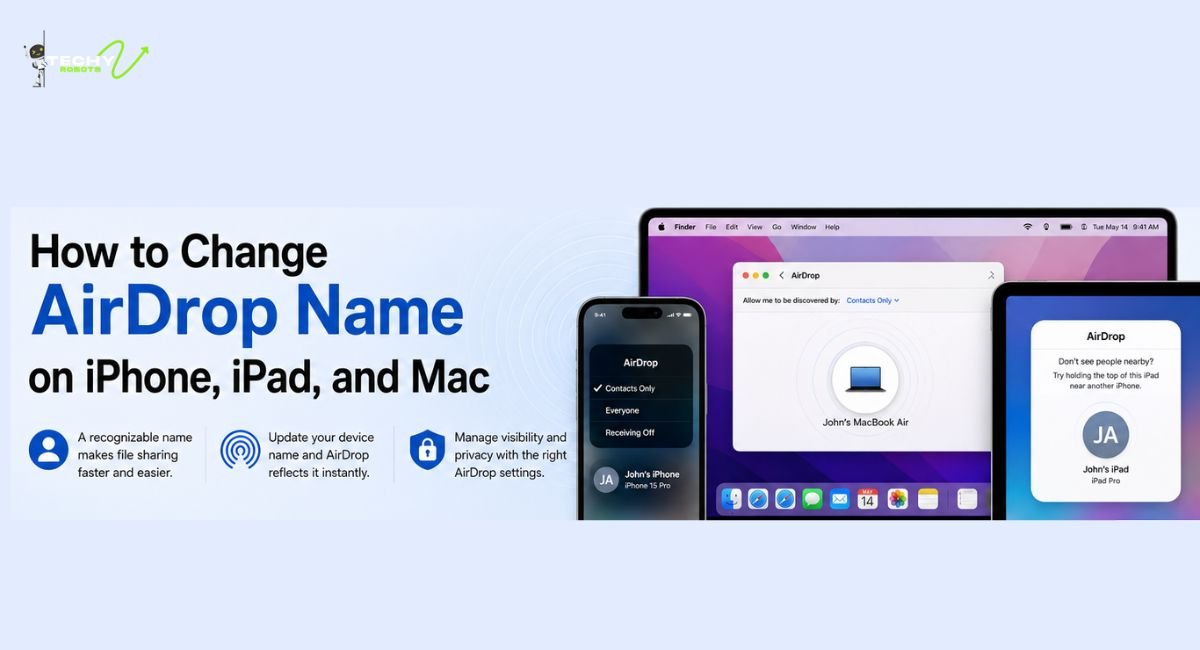
If you have ever sent a file over AirDrop and noticed your device shows up with a weird or outdated name, you are not alone. Whether it says “iPhone” with no name attached, someone else’s name from a previous owner, or just something you want to update, fixing it is simpler than most people think.
This guide walks you through exactly how to change your AirDrop name on iPhone, iPad, and Mac, plus how to solve it when the name just refuses to update.
What Is an AirDrop Name and Why Does It Matter?
Think of your AirDrop name like a name tag at a crowded networking event. When you walk into a room full of Apple devices, the nearby device list shows everyone’s names. If yours says “iPhone” or something completely unrecognizable, people fumbling through a file transfer might accidentally send it to the wrong device.
Your AirDrop device identifier is basically your digital identity on a local Apple network. It shows up any time someone nearby opens AirDrop to share a photo, document, or link. Having a clear, recognizable name saves confusion, especially in workplaces, classrooms, or family settings where multiple Apple devices are all online at once.
Beyond convenience, it is also a small but real privacy matter. You probably do not want strangers in a coffee shop seeing your full name pop up on their screen when they open AirDrop.
How AirDrop Picks Your Device Name
Before changing anything, it helps to understand where your AirDrop name actually comes from. Apple does not have a separate AirDrop name field tucked away somewhere. It pulls the name directly from your device settings.
The Role of Your Apple Device Name
Every iPhone, iPad, and Mac has a device name set in its settings. This is the same name that shows up in Finder when you plug your phone into a Mac, in iCloud, and yes, in AirDrop. So when you rename your Apple device, you are effectively changing your AirDrop name at the same time.
How “My Card” in Contacts Plays a Part
On some older iOS versions, AirDrop would pull from the “My Card” entry in the Contacts app. If your Contacts app has a card assigned to you with a different name than your device name, it can create a device name mismatch that leads to AirDrop showing the wrong name. It is worth checking both places if you are troubleshooting a stubborn naming issue.
How to Change AirDrop Name on iPhone
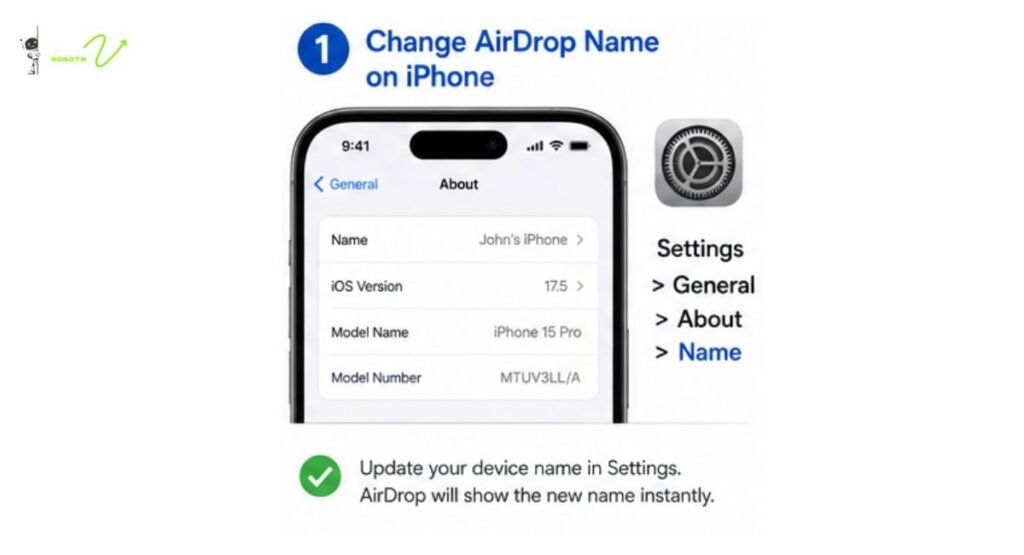
Changing your AirDrop name on iPhone is really just about changing your iPhone’s name in the Settings app. Here is how to do it.
Step-by-Step Instructions for iOS 17 and Later
- Open the Settings app on your iPhone.
- Tap General.
- Tap About.
- Tap the Name field at the very top.
- Clear the existing name and type your new one.
- Tap Done on the keyboard.
That is it. Your device name is now updated, and AirDrop will show your new name the next time someone searches for nearby devices. No need to restart anything in most cases, though a quick restart never hurts if you want the change to take effect immediately across all connected services.
What Happens After You Save the New Name
Once you save the new name, your iPhone broadcasts it over Bluetooth and Wi-Fi, which is how AirDrop works. Nearby devices should see the updated name within a few seconds. If they do not, ask the other person to close and reopen their AirDrop panel in the Control Center.
How to Change AirDrop Name on iPad
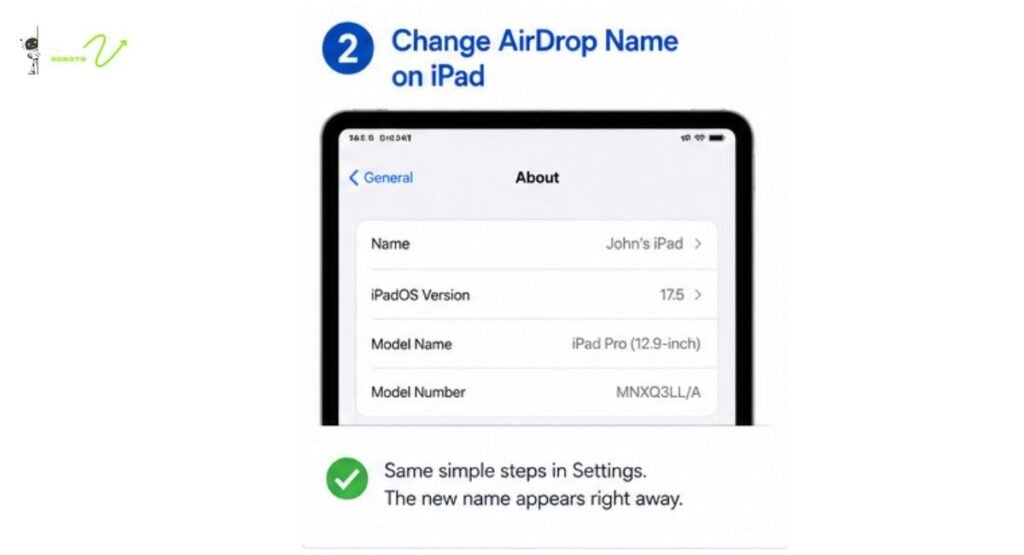
The process on iPadOS is almost identical to iPhone, which makes sense since they share the same operating system base.
Navigating iPadOS Settings for AirDrop
- Open Settings on your iPad.
- Go to General.
- Tap About.
- Select the Name field.
- Delete the old name and enter a new one.
- Tap Done.
Just like on the iPhone, the change takes effect immediately in most cases. If you are in a room with other iPads or iPhones, the updated name should appear on their AirDrop screens within moments.
Confirming the Name Has Updated
To confirm everything worked, swipe down to open the Control Center and long-press the connectivity panel in the upper-left corner. Tap AirDrop. Your device name should now appear at the top of the screen with the new name you just set.
How to Change AirDrop Name on Mac
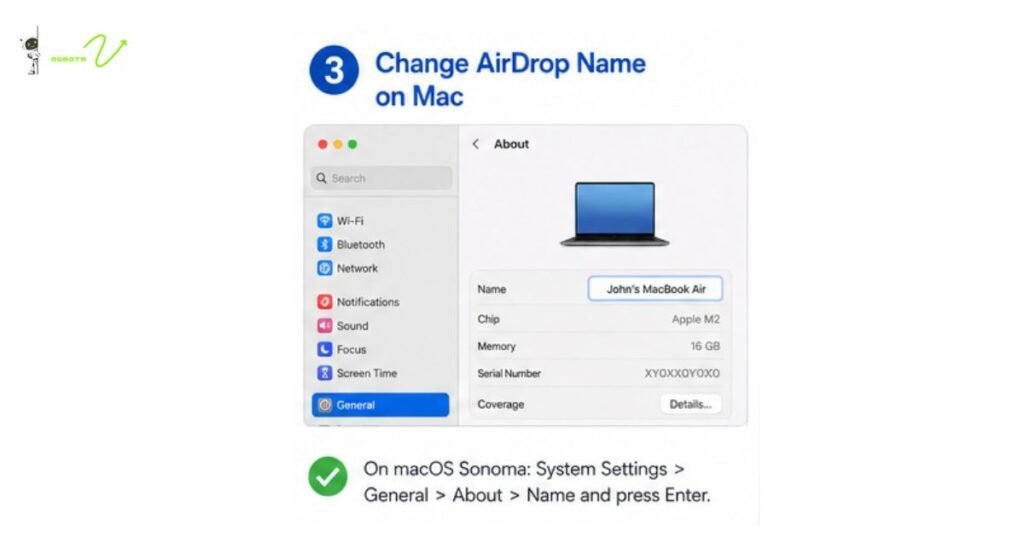
Mac runs on macOS, so the navigation is a little different from iPhone and iPad. If you are on macOS Sonoma or a recent version, here is the path.
Using System Settings on macOS Sonoma
- Click the Apple menu in the top-left corner.
- Open System Settings.
- Click General in the sidebar.
- Select About.
- At the top, you will see a Name field with your current Mac name.
- Click on the name, type your new one, and press Enter.
On older macOS versions (before Ventura), the same option lives under System Preferences > Sharing, where you would see a “Computer Name” field at the top.
Authentication with Touch ID or Password
On some Macs, especially those on managed networks or with certain security settings, changing the device name might prompt you for Touch ID authentication or your Mac login password. This is normal. Apple just wants to confirm it is actually you making the change.
AirDrop Name Not Updating? Here Is Why
Sometimes you follow all the steps, save a new name, and AirDrop is still broadcasting the old one. Frustrating, but there are a few common reasons this happens.
Device Name Sync Delay After Renaming
Apple devices do not always refresh instantly. There can be a small sync delay, especially if you are on a busy network or if Bluetooth is dealing with multiple connections at once. Give it a minute or two before assuming something went wrong.
iCloud Contact Sync and My Card Conflicts
If your Contacts app has a “My Card” set up and the name on that card does not match your new device name, AirDrop can sometimes pull from the wrong source. This is a known iOS and macOS compatibility issue that has affected users across different software versions. Head into your Contacts app, find the card marked as “My Card,” and make sure the name there matches what you want showing up on AirDrop.
How to Fix AirDrop Showing the Wrong Name
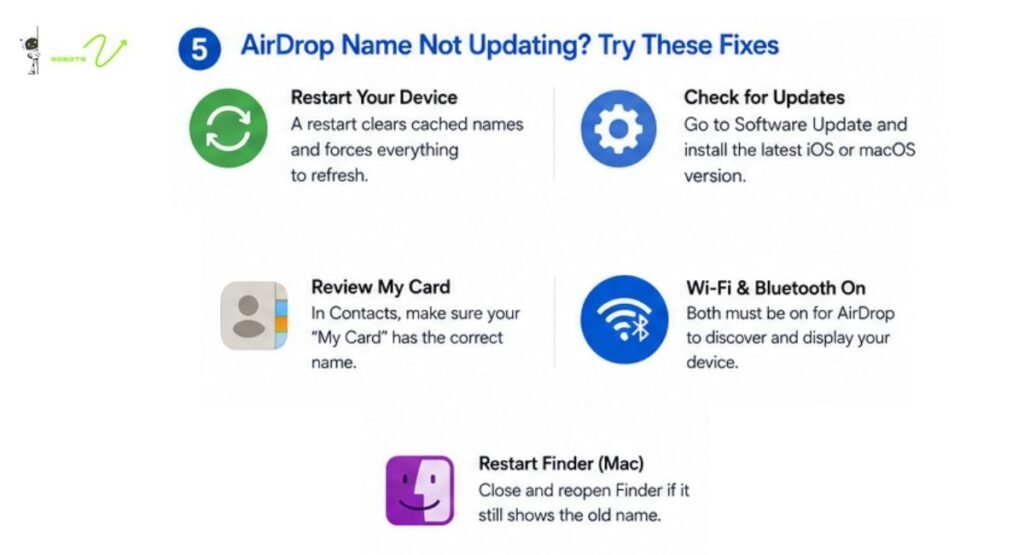
If your AirDrop name is still wrong after renaming the device, here are the troubleshooting steps that actually work.
Restart Your Device First
It sounds too simple, but a restart clears cached device names and forces everything to reload fresh. Turn your iPhone, iPad, or Mac off completely, wait ten seconds, and turn it back on. After the restart, check AirDrop again.
Check for a Software Update
AirDrop name glitches have been patched in several iOS and macOS updates over the years. Head to Settings > General > Software Update on iPhone or iPad, or System Settings > General > Software Update on Mac. If there is an update waiting, install it. It might be the exact fix you need without any other steps.
Review Your Contacts My Card
Open the Contacts app, tap on your own contact card (the one listed as “My Card” at the top), and make sure the first and last name fields are what you want. If this card has an old name or someone else’s name, it can override your device name in certain AirDrop scenarios.
AirDrop Visibility Settings You Should Know
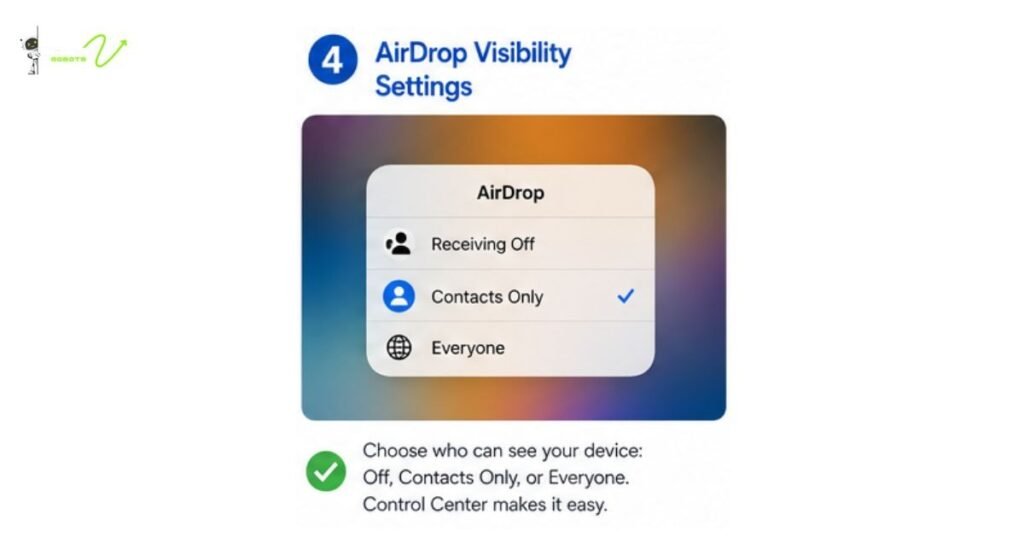
While you are in the AirDrop settings, it is worth taking a moment to review your visibility preferences. These do not affect your name, but they do control who can even see your device on their screen.
Contacts Only vs. Everyone Mode
AirDrop offers three modes: off, contacts only, and everyone. “Contacts only” means only people saved in your Contacts app can see your device in AirDrop. “Everyone” means any Apple device nearby can see you, which is useful for quick transfers with strangers but not ideal in public places where you do not want your name broadcasting to everyone within range.
Control Center and AirDrop Discoverability
You can switch between these modes directly from the Control Center on iPhone and iPad. Just long-press the connectivity cluster (Wi-Fi, Bluetooth area), then tap AirDrop and choose your preferred setting. On Mac, you can manage this through the Finder AirDrop panel or System Settings.
Changing Your iPhone Hotspot Name vs. AirDrop Name
A common point of confusion is that your Personal Hotspot name is actually the same as your device name too. So when you change your iPhone name in Settings > General > About, you are also updating the name that shows up when someone searches for hotspots. This is handy since you only need to make one change to update both your AirDrop identity and your hotspot name at the same time.
Pro Tips for Managing Your AirDrop Identity
A few extra tips that make your AirDrop experience smoother for everyone involved.
Use a Professional or Recognizable Name
If you use AirDrop frequently at work or school, set your device name to something people will immediately recognize. Your actual name works better than “iPhone 15” in most professional settings. Think of AirDrop etiquette the same way you would think about having a clear name tag at a conference.
Managing Multiple Apple Devices with Similar Names
If you own more than one Apple device and they are all named something like “John’s iPhone,” things get confusing fast when multiple devices appear on someone else’s AirDrop screen. Give each device a distinct name. Something like “John iPad Work” and “John iPhone Personal” makes it far easier for both you and others to identify the right device quickly.
Common AirDrop Troubleshooting Mistakes to Avoid
One mistake people make is changing only the AirDrop display settings without actually updating the device name. AirDrop does not have its own independent name field, so if you go hunting for one, you will not find it.
Another mistake is forgetting that both Wi-Fi and Bluetooth need to be active for AirDrop to work at all. If either is off, AirDrop will not show your device to anyone, regardless of what name it has. Also, make sure you have not accidentally left AirDrop set to “Receiving Off” mode, which makes your device invisible on the nearby device list even though AirDrop itself is technically enabled.
Finally, if you are on a Mac and changed the name but it still shows the old one in Finder’s AirDrop panel, try closing Finder completely and reopening it. The panel sometimes caches the old name and needs a fresh load.
Conclusion
Changing your AirDrop name is one of those small things that makes a surprisingly big difference once you do it. Whether you want a professional name for workplace transfers or just want to stop confusing your device with someone else’s in a household full of Apple products, the fix takes less than a minute on any device.
The key thing to remember is that your AirDrop name is your device name. Update it through Settings on iPhone and iPad, or through System Settings on Mac, and AirDrop reflects the change almost immediately. If it does not, a quick restart or software update usually clears it up.
Once everything is sorted, take a moment to review your AirDrop visibility settings too. A recognizable name combined with the right discoverability setting gives you full control over who sees you and how, making every file transfer faster and less confusing.
FAQs
1. Can I set a different name for AirDrop without changing my device name?
No, you cannot. AirDrop pulls its display name directly from your device name set in Settings. There is no separate AirDrop-specific name field on iPhone, iPad, or Mac.
2. Why does my AirDrop show my old name even after I changed it?
This usually comes down to a sync delay or a conflict with the “My Card” entry in your Contacts app. Restart your device and check your Contacts My Card to resolve it.
3. Does changing my iPhone name affect anything else?
Yes, it also updates your Personal Hotspot name and how your device appears in Finder when connected to a Mac. All three use the same device name from your settings.
4. How do I change my AirDrop name on Mac without System Settings?
On older macOS versions, go to System Preferences > Sharing and update the Computer Name field at the top. This is the equivalent path for Macs running macOS Monterey and earlier.
5. Why does AirDrop sometimes show two devices with the same name?
This happens when two Apple devices on the same account or in the same household have identical names. Giving each device a unique, descriptive name in its own settings is the easiest fix.