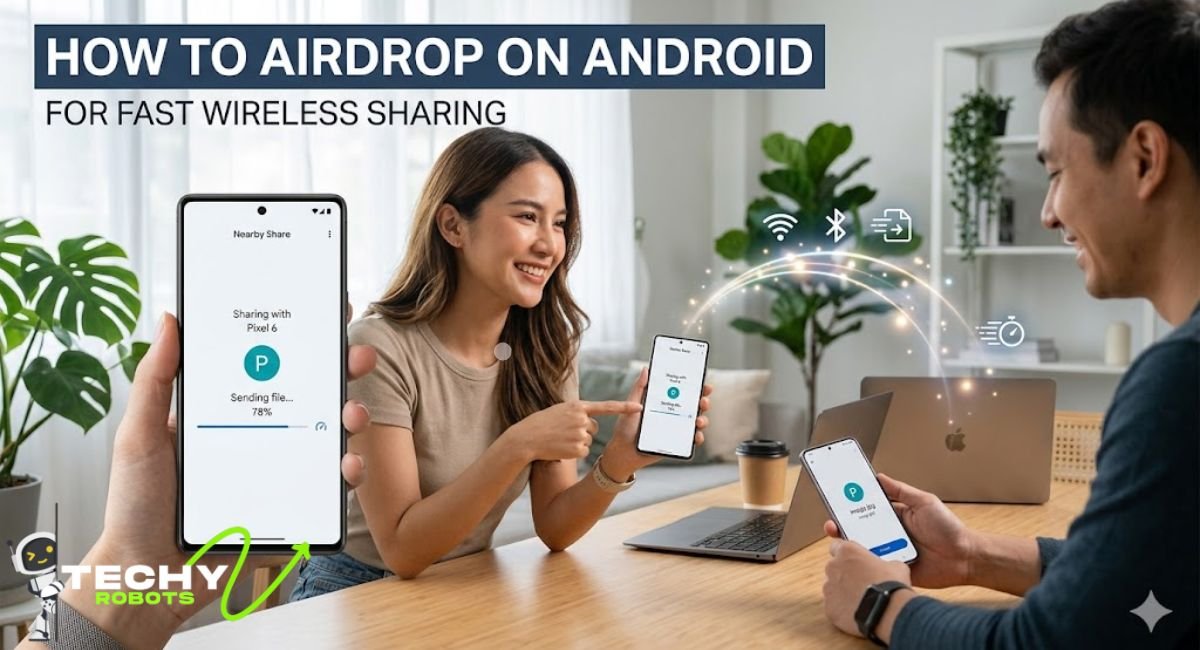
When you just switched from an iPhone, or maybe your friend has a Samsung and you want to share a video with them quickly. You’ve heard of AirDrop and you’re wondering if Android has something like that? The short answer is yes, absolutely. Android has its own built-in wireless sharing tool that works just as smoothly, and in some cases even better.
This guide moves towards what Quick Share actually is, to how you can use it to send and receive files between Android phones, and even across Android and iPhone. Whether you’re using a Google Pixel 10, a Samsung Galaxy S25, or any other Android device, this is your one-stop reference.
What Is AirDrop and Why Android Users Want It
If you’ve ever watched an iPhone user tap a button and instantly send a file to another iPhone nearby, that’s AirDrop. It uses a combination of Bluetooth and Wi-Fi Direct to create a peer-to-peer connection between Apple devices. No internet needed. No cables. Just a tap and the file moves.
The appeal is obvious. It’s fast, it’s secure, and it feels almost like magic. Naturally, Android users wanted something similar. And while Google took a while to get there, the Android ecosystem now has a wireless sharing feature that gives AirDrop a real run for its money.
Does Android Have AirDrop? Here’s the Truth
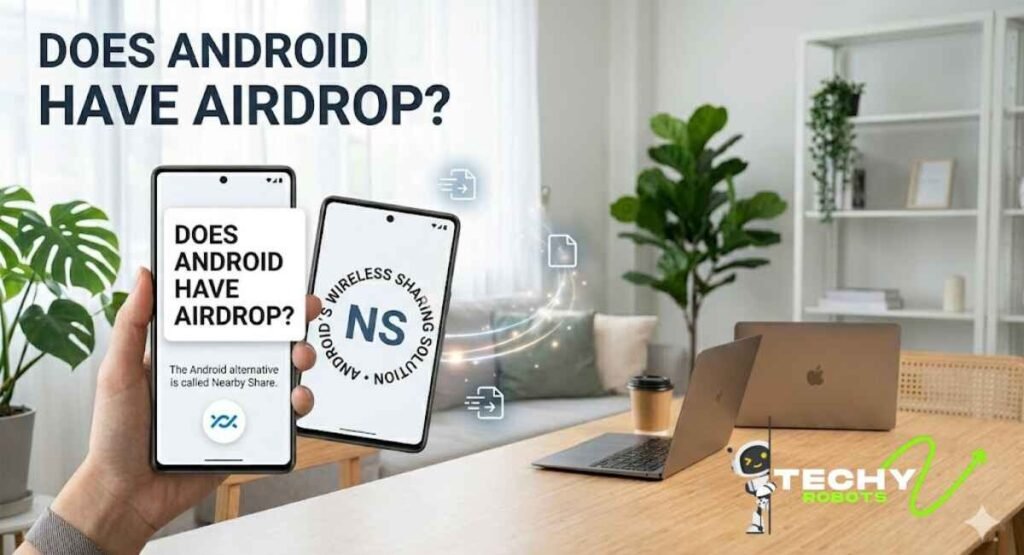
Android does not support Apple AirDrop directly. AirDrop uses a proprietary Apple protocol called AWDL (Apple Wireless Direct Link), which is baked into iOS and macOS hardware. Android devices simply don’t run that protocol so you can’t use AirDrop natively on an Android phone.
But here’s the thing you don’t need to do. Android has Quick Share, which is powered by Google and pre-installed on most modern Android phones. It does everything AirDrop does, and it even supports cross-platform sharing in certain situations.
Quick Share: Google’s Answer to AirDrop
Quick Share was originally called Nearby Share when Google launched it back in 2020. Google later rebranded it to Quick Share and partnered with Samsung to unify the feature across both Google Pixel and Samsung Galaxy devices. Today, Quick Share is the default wireless file sharing feature on Android, and it comes pre-installed — no download required.
It uses a mix of Bluetooth, Wi-Fi Direct, and sometimes even WebRTC (for cloud-based transfers) to send files between nearby devices. You can share photos, videos, documents, contacts, links, and even apps all without needing an internet connection in most cases.
How Quick Share Compares to Apple AirDrop
Let’s put them side by side for a moment. AirDrop is fast and reliable, but it only works between Apple devices. If you want to send a file from an iPhone to a MacBook, great. iPhone to Android? That’s where it hits a wall.
Quick Share, on the other hand, works across Samsung, Google Pixel, OPPO, OnePlus, Xiaomi, HONOR, Vivo, and many other Android devices. It also supports QR code sharing and cloud-based transfers, which AirDrop doesn’t offer natively. So while AirDrop might feel more polished within the Apple bubble, Quick Share is arguably more versatile in the real world.
How to Use Quick Share on Android (Step-by-Step)
Let’s get practical. Here’s exactly how to send and receive files using Quick Share on your Android phone.
Sending a File Using Quick Share
- Open your Photos app or File Manager and select the file you want to share.
- Tap the Share button (the icon that looks like three connected dots or an arrow pointing up).
- From the share sheet, tap Quick Share.
- Your phone will scan for nearby devices. Make sure the recipient’s phone has Quick Share visible (either set to “Everyone” or “Contacts”).
- When their device appears on your screen, tap on it.
- The recipient will get a notification to accept the file. Once they do, the transfer begins instantly.
The whole process takes about 10 to 15 seconds for most files. For larger videos or document batches, it takes a bit longer, but the speed is comparable to AirDrop in most real-world scenarios.
Receiving a File Using Quick Share
- Open your phone’s Settings and search for Quick Share, or swipe down the notification shade and look for the Quick Share toggle.
- Turn it on and set your visibility to Everyone (if you want anyone nearby to send you files) or Contacts (if you prefer to limit it to people in your address book).
- Wait for the sender to find your device and initiate the transfer.
- You’ll see a notification pop up asking you to accept. Tap Accept.
- The file saves directly to your Downloads folder or Photos app, depending on the file type.
That’s it. Clean, simple, no account login needed.
Android AirDrop Support in 2026: What’s New
The Android file sharing landscape has changed quite a bit heading into 2026. Google and Samsung have both pushed meaningful updates that make Quick Share faster, more reliable, and more compatible with non-Android devices.
Google Pixel 10, Pixel 9 Series, and Pixel 8a Support
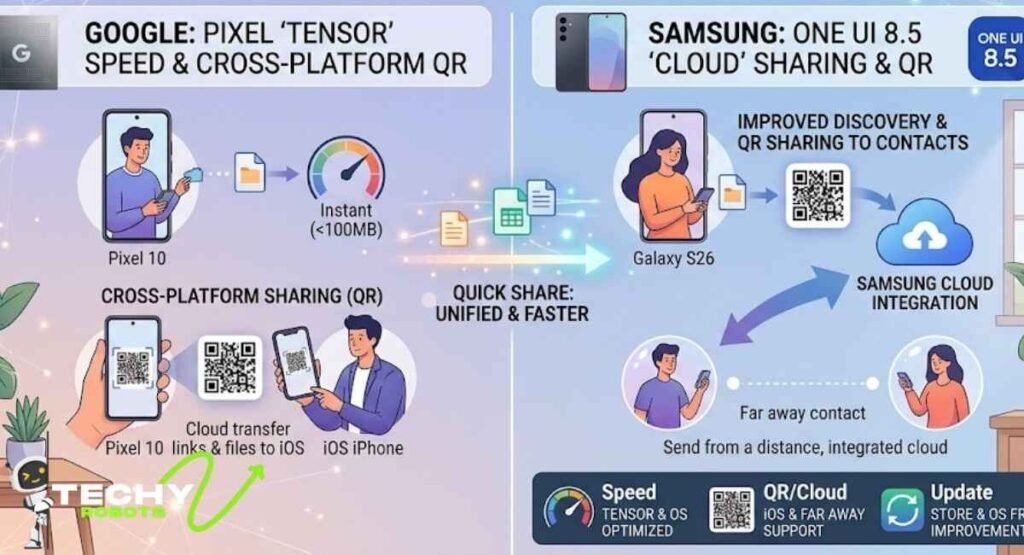
Google’s latest Pixel lineup including the Pixel 10, Pixel 9 series, and Pixel 8a comes with Quick Share baked deeply into the operating system. These devices benefit from Google’s Tensor chipsets, which optimize wireless connectivity and make transfers noticeably snappier. On a Pixel 10 running the latest Android version, Quick Share feels almost instantaneous for files under 100MB.
Google has also been quietly working on cross-platform sharing improvements, which means Pixel users can now share links and certain file types more easily to iOS users through Quick Share’s cloud transfer option.
Samsung Galaxy S26, S25, and One UI 8.5 Updates
Samsung rolled out One UI 8.5 with significant Quick Share improvements across the Galaxy S26, Galaxy S25, Galaxy Z Fold 7, and Galaxy Z Flip 7. The One UI 8.5 beta program gave early access to features like improved device discovery speed and better support for sharing to contacts using QR codes.
Samsung’s version of Quick Share also integrates with Samsung Cloud, meaning you can send files to someone even if they aren’t physically nearby, a feature Apple hasn’t fully brought to AirDrop yet. The Galaxy Store received app updates that enhance the Quick Share framework in the background, making it more stable on One UI devices.
How to AirDrop from iPhone to Android
This is the big one. You can’t use AirDrop directly to send from iPhone to Android, but you can work around it fairly easily.
Using Quick Share to Receive Files from iPhone
The cleanest method right now is using a shared link or cloud transfer. Here’s how it works:
- On the iPhone, select the file you want to share.
- Tap Share and choose Google Drive, iCloud Drive, or any cloud service you both have access to.
- Upload or copy the shareable link.
- Send that link via iMessage, WhatsApp, email, or any messaging app to the Android user.
- The Android user opens the link and downloads the file.
It’s not as seamless as one tap, but it gets the job done. For people who do this regularly, setting up a shared Google Drive folder is the most practical long-term solution.
Third-Party Apps for iPhone to Android Transfer
If you want something closer to the AirDrop experience for cross-platform sharing, a few apps do a solid job. SHAREit, Xender, and Send Anywhere all work on both iOS and Android and use Wi-Fi Direct for fast local transfers without internet. The transfer speeds are genuinely impressive, often faster than Bluetooth-based methods.
Snapdrop is another option that works right in a browser. Both devices visit the same website on the same Wi-Fi network, and you can drag and drop files between them. No app install required, which is great for one-off situations.
How to AirDrop from Android to iPhone
Going the other direction Android to iPhone follows the same logic. Quick Share won’t directly push a file to an iPhone, but cloud-based and web-based solutions bridge the gap well.
For photos and videos specifically, Google Photos is probably the easiest path. Install it on both devices, enable shared albums, and anyone you invite can view and download your content regardless of what phone they’re using.
If you want true near-field transfers without the internet, Send Anywhere generates a six-digit key that the recipient types in on any platform to download the file. It expires quickly, which keeps things secure, and the transfer happens over a direct encrypted connection.
QR Code Sharing with Quick Share
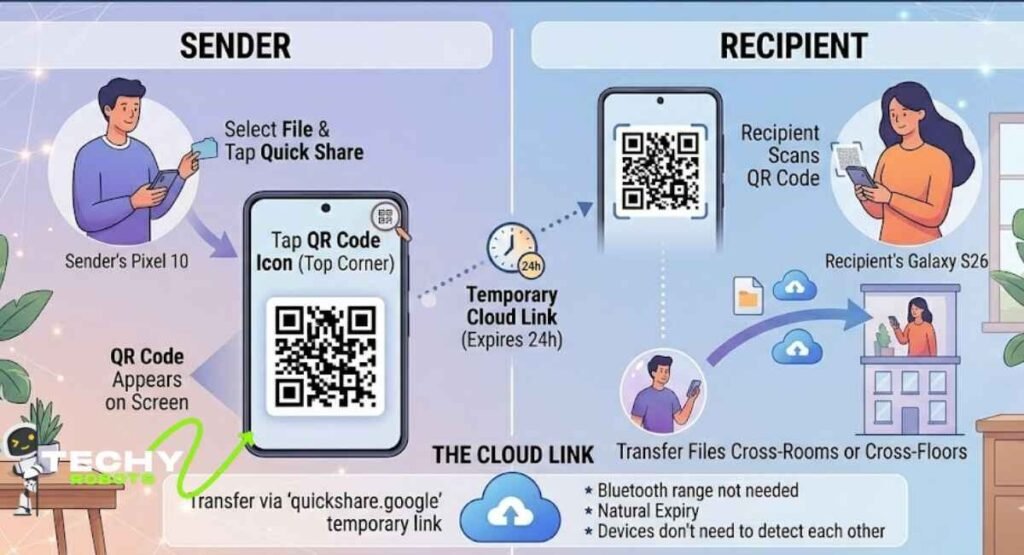
One of Quick Share’s most underrated features is QR code sharing. Instead of searching for a nearby device, you can generate a QR code that the recipient scans to receive your file even if they’re a few rooms away or on a different floor of a building.
Here’s how to use it:
- Select your file and tap Quick Share.
- Instead of waiting for a nearby device to appear, tap the QR code icon in the top corner.
- A QR code appears on your screen.
- The recipient opens Quick Share on their device and taps Scan QR code.
- They scan your code and the file transfer begins through a temporary cloud link at quickshare.google.
The cloud link is only active for 24 hours, so there’s a natural expiry built in. This makes QR code sharing great for situations where Bluetooth range is limited or the devices can’t directly detect each other.
Cloud-Based Sharing: Another Way to Transfer Files Wirelessly
Beyond Quick Share, Android’s cloud sharing options are genuinely excellent. Google Drive, Google Photos, and even WhatsApp’s file sharing tool have all become reliable ways to move content across devices without any cables or proximity requirements.
For larger files, Google Drive lets you create shareable links with custom permissions view only, comment, or edit. You can share a link with anyone, on any device, and they’ll get access instantly. This works beautifully for documents, presentations, large videos, and project folders.
Google Photos even has a free tier that handles unlimited photo and video backup at standard quality, making it the easiest way to share entire albums across iPhone and Android users without worrying about file sizes or transfer limits.
Supported Android Brands for Quick Share
One of Quick Share’s biggest strengths is how widely it’s supported across the Android ecosystem. It’s not just a Google thing anymore. Here’s a breakdown of the major brands that support it:
- Samsung — Full integration starting from Galaxy S21 and newer, with deep One UI support
- Google Pixel — Native support across all Pixel devices from Pixel 6 onward
- OPPO and OnePlus — Added Quick Share support through software updates in 2024
- Xiaomi — Compatible through third-party Quick Share client
- HONOR — Joined the Quick Share ecosystem in 2024
- Vivo — Partial support with ongoing rollout
The goal is to make Quick Share as universal on Android as AirDrop is on Apple devices. The ecosystem is getting there fast, and the 2026 updates have brought more brands into the fold than any previous year.
Security and Encryption in Android File Sharing
If you’re worried about someone intercepting your files mid-transfer, don’t be. Quick Share uses end-to-end encryption for device-to-device transfers. This means only the sender and the recipient can access the file content; nobody in between can read it, not even Google.
For cloud-based transfers through the QR code method, files are uploaded to a temporary encrypted space on Google servers and automatically deleted after 24 hours. You can also revoke the link before it expires if you change your mind.
The visibility settings also give you real control over who can find your device. Setting Quick Share to Contacts only means random people nearby can’t see your device at all — it only appears on phones belonging to people already in your Google Contacts. This is a smart privacy feature that AirDrop’s “Contacts Only” mode also uses, so the two are closely matched on security.
Troubleshooting Quick Share and Nearby Share Issues
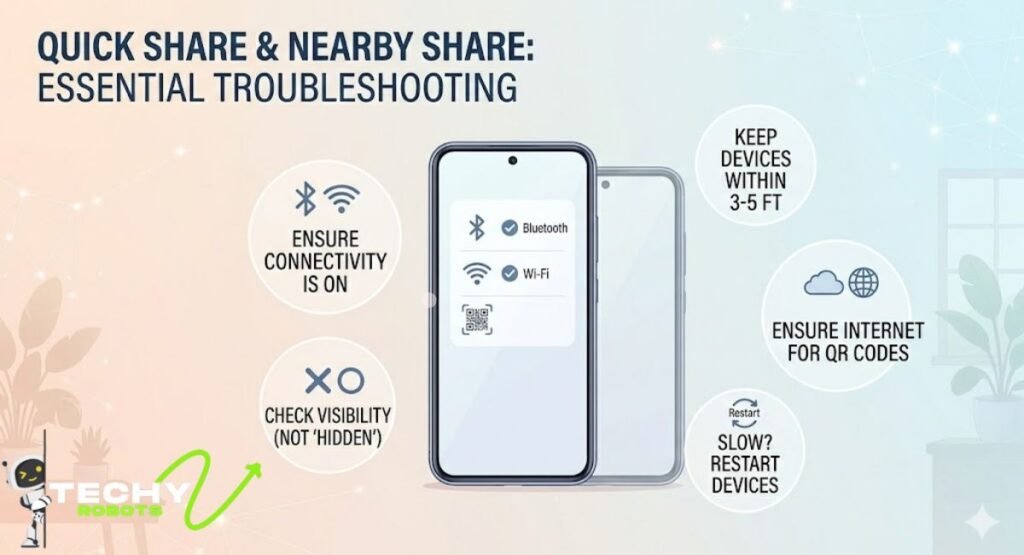
Quick Share usually works without a hitch, but when it doesn’t, here are the most common fixes:
- Device not appearing? Make sure both phones have Bluetooth and Wi-Fi turned on. Quick Share requires both to function. Also check that your visibility setting isn’t set to “Hidden.”
- Transfer keeps failing? Try moving the two phones closer together. Distance matters — for best results, keep devices within 3 to 5 feet of each other during the transfer.
- QR code transfer not working? Check that both devices have a working internet connection for the cloud-based part of the transfer, and make sure the QR code hasn’t expired.
- Quick Share missing from your phone? It may be named differently depending on your phone’s brand. On older Samsung devices, look for “Nearby Share” or check in the Settings under “Connected Devices.”
- Slow transfer speed? If Wi-Fi Direct isn’t connecting, Quick Share may fall back to Bluetooth, which is significantly slower. Restarting both phones usually forces a fresh connection that picks up Wi-Fi Direct properly.
Conclusion
Android may not have AirDrop, but it doesn’t really need it. Quick Share is a genuinely capable wireless file sharing tool that covers most of what AirDrop does and goes a few steps further with cross-platform support and QR code transfers.
Whether you’re sending photos to another Android phone or bridging the gap between Android and iPhone, there’s always a reliable way to get the job done.
The 2026 updates from Google and Samsung have made Quick Share faster and more universally supported than ever before. As more Android brands join the ecosystem, the experience keeps getting smoother. Give Quick Share a proper try, and you might find you don’t miss AirDrop at all.
FAQs
1. Can Android phones use AirDrop directly?
No, Android phones cannot use Apple AirDrop because AirDrop relies on Apple’s proprietary AWDL protocol, which only runs on Apple hardware. The Android equivalent is Quick Share, which works similarly and is available on most modern Android devices.
2. What is the best AirDrop alternative for Android?
Quick Share is the best built-in option because it comes pre-installed on most Android phones and supports fast, encrypted transfers. For cross-platform transfers between Android and iPhone, apps like Send Anywhere or the web-based Snapdrop tool work very well.
3. How do I turn on Quick Share on my Samsung Galaxy phone?
Swipe down on your notification shade to access Quick Settings, then look for the Quick Share tile. If it’s not there, go to Settings, search for “Quick Share,” and enable it. Set visibility to “Everyone” or “Contacts” depending on your preference.
4. Can I send files from Android to iPhone wirelessly?
Yes, but not through Quick Share directly. The easiest methods are cloud services like Google Drive or Google Photos, or cross-platform apps like Send Anywhere. Both options work without cables and transfer files quickly over Wi-Fi.
5. Is Quick Share safe to use?
Yes, Quick Share uses end-to-end encryption for direct device transfers, and cloud-based transfers are stored in a temporary encrypted space that expires after 24 hours. You can also control who can discover your device through the visibility settings, which gives you solid privacy control.