
AirDrop on Android is something many users have searched for, and for good reason. For years, Android users watched as iPhone owners casually sent photos and files with a tap. It felt like a wall nobody could cross. But that wall is gone now. Whether you’re wondering if AirDrop works on Android or how to share files with an iPhone, the answer is better than you’d expect. And in some ways, Android file sharing has actually pulled ahead.
What is AirDrop and How Does It Work?
Let’s start with the basics. AirDrop is Apple’s wireless file sharing protocol that lets users send files, photos, contacts, and more between Apple devices without needing email, messaging apps, or cloud storage. You point your iPhone at another iPhone or iPad, tap a name, and boom. The file’s there. It’s been Apple’s secret weapon for years, the kind of feature that makes their ecosystem feel genuinely connected and frictionless.
But here’s what most people don’t realize: AirDrop works through a combination of Bluetooth for discovery and Wi-Fi Direct for the actual transfer. It doesn’t go through Apple’s servers. Your files travel directly from device to device, which is both faster and more private than uploading to the cloud.
Understanding AirDrop’s Core Technology
The magic behind AirDrop is peer-to-peer technology. When you initiate a transfer, your device creates a temporary connection with the receiving device using Bluetooth to establish a handshake, then switches to Wi-Fi Direct for the actual data transfer. This happens so fast you barely notice the transition. The entire exchange happens locally, meaning Apple can’t see what you’re sending, and you get near-instant transfers even with large files.
This is fundamentally different from cloud-based file sharing services. You’re not uploading anything to the internet. Everything stays between your two devices. That’s why it’s so fast and why people love it.
Why AirDrop Mattered (Until Now)
Before 2024-2025, AirDrop was exclusively Apple’s game. If you had an iPhone and wanted to send a file to your friend’s Android phone, you had to use email, text, Google Drive, or some other workaround. It felt clunky. It felt like unnecessary friction in what should be a simple task.
For Android users, the frustration ran deeper. Google had Quick Share, which worked perfectly between Android devices, but it couldn’t talk to iPhones. Meanwhile, iPhone users could share seamlessly with anyone else using Apple products. It created this odd digital divide where interoperability felt impossible.
Android AirDrop Compatibility: What Changed in 2025?
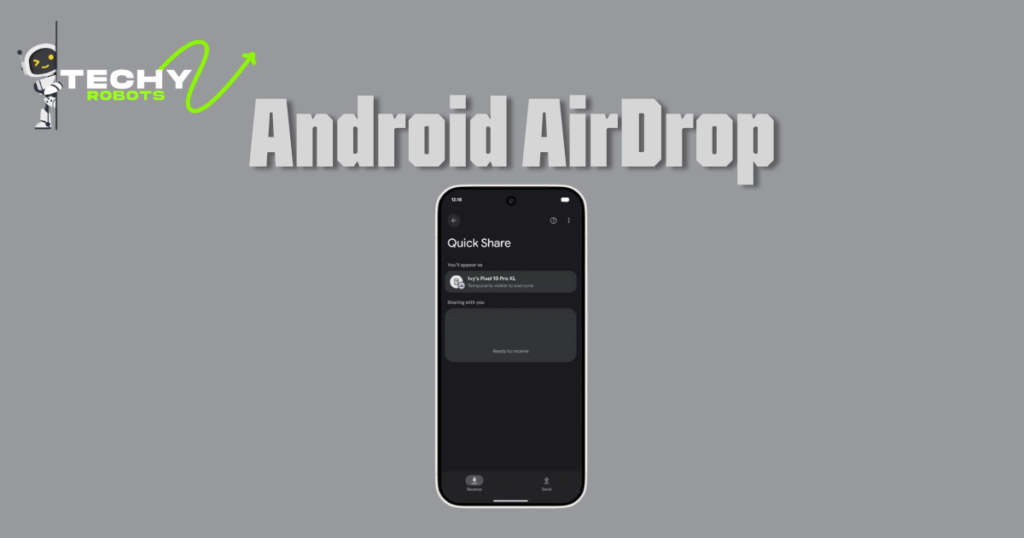
This is where things get interesting. Google and Apple made a move that surprised nearly everyone: Quick Share on Android devices now works with AirDrop. This isn’t a full integration where everything magically works together, but it’s close enough to feel revolutionary for cross-platform users.
Starting with Pixel phones and expanding to other Android devices, you can now initiate AirDrop transfers from your iPhone to an Android phone, and receive transfers on Android through Quick Share. The experience isn’t identical on both sides, but it works. That matters.
Quick Share Now Works with AirDrop
Google’s Quick Share got a major upgrade. Instead of being an Android-only solution, it now accepts AirDrop transfers from iOS devices. When an iPhone user tries to AirDrop a file to a nearby Android phone with Quick Share enabled, the Android phone shows a notification asking if you want to accept the file. You tap yes, and the transfer happens.
This is huge for cross-platform households and friend groups with mixed devices. You’re not stuck using email anymore. You can share directly, quickly, and without any third-party apps required.
Which Android Devices Support AirDrop?
Not all Android phones support this feature yet, though the rollout is expanding. Google Pixel 6 and newer models got the update first. If you’re using a Pixel 10, you definitely have access. Other manufacturers are getting on board too. Samsung, OnePlus, and others are rolling out compatibility, but timing varies.
Here’s the practical question: if you own a recent flagship Android phone, there’s a good chance Quick Share with AirDrop support is already on your device or arriving soon. Check your Quick Share settings to confirm.
Pixel 10 AirDrop Support Explained
The Pixel 10 series came with full AirDrop compatibility built in. Google positioned this as a core feature, not an afterthought. If you use a Pixel 10, you get the smoothest cross-platform experience available on Android right now. The Quick Share File Transfer feature integrates seamlessly, letting you send and receive files from iOS devices without thinking about it.
How to Use AirDrop on Android Devices
Want to actually use this? It’s simpler than you’d think, but there are a few steps to nail down. Let me walk you through it.
Step-by-Step Guide for Pixel 10 Quick Share File Transfer
First, make sure both devices have Bluetooth and Wi-Fi turned on. Quick Share (and AirDrop through Quick Share) requires both connections to work. They don’t need to be connected to the same Wi-Fi network, but they need to be in the same physical area, usually within 50-100 feet, depending on obstacles.
On your Pixel 10, open Quick Share. You’ll find it in Settings under Nearby Share, or you can access it directly from the share sheet in most apps. On your iPhone, go to the file or photo you want to share. Tap the Share button, look for AirDrop, and you should see a list of nearby devices. Tap your Pixel phone’s name. On the Android side, you’ll get a notification asking to accept the incoming transfer. Tap Accept, and you’re done. The file appears in your Files app or Photos app, depending on what you shared.
Setting Up Your Android Phone for AirDrop
Before you can receive AirDrop transfers, you need to configure Quick Share. Go to Settings, then Google, then Device Connections, then Nearby Share. Make sure it’s turned on. You’ll see visibility options: Device only, Contacts only, or Everyone. For cross-platform sharing with iPhones, “Everyone for 10 minutes” is your best bet. This setting temporarily makes your phone visible to any nearby device for receiving transfers.
You can customise who can send to you and for how long. It defaults to a 10-minute window for security reasons. After 10 minutes, Quick Share automatically tunes down visibility to prevent random people from sending files to your phone.
Enabling Quick Share for AirDrop Compatibility
The compatibility exists by default on newer Pixel phones with the latest updates, but you want to confirm it’s active. Check that you’re running the latest version of Android and that Quick Share has the newest updates from the Google Play Store. If you’re on an older Pixel or non-Pixel Android device, you might need to manually update the Nearby Share app or wait for your manufacturer to roll out compatibility.
Android to iPhone File Sharing Made Simple
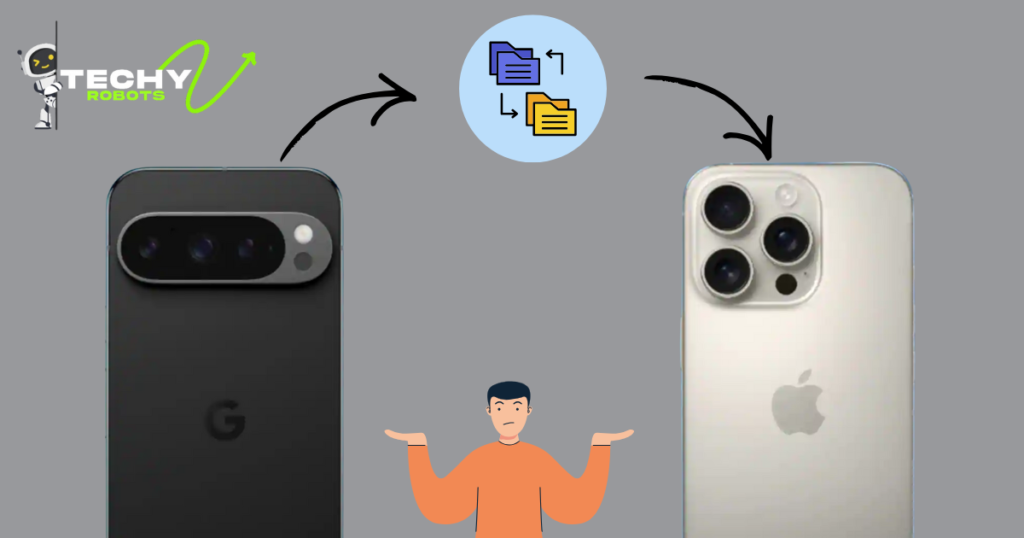
Sharing from Android to iPhone through AirDrop requires the iPhone initiating the transfer. This is a one-way street for now. But it works, and that’s what counts.
Sending Photos from Android to iPhone via AirDrop
Let’s say you took some great photos on your Pixel phone and want to send them to your friend’s iPhone. Open Photos, select the images you want to share, and tap Share. Look for “Nearby Share” or “Quick Share” in the share sheet. Your nearby iPhone should appear in the list if AirDrop is enabled. Tap it, and the transfer starts immediately. On the iPhone side, the user gets a notification and can accept the transfer. The photos land in their Photos app.
The speed is impressive. Most photos transfer within seconds, even if they’re high resolution. This is because Quick Share uses the same peer-to-peer technology as AirDrop. No cloud storage involved. No compression needed (unless you’re sharing a ton of files at once).
Transferring Documents and Files Between Platforms
Photos are just the start. You can share PDFs, documents, spreadsheets, and most other file types. The process is identical: select the file, tap Share, choose Quick Share or Nearby Share, and select your destination device.
One thing worth noting: some file types might not transfer perfectly. Obscure proprietary formats might not open properly on the receiving device. But standard formats like PDF, DOCX, XLSX, and image files transfer without issue. You can always test with a small file first if you’re unsure.
What File Types Work Best?
Standard formats work great. Photos (JPEG, PNG, WebP), videos (MP4, MKV), documents (PDF, DOCX), spreadsheets (XLSX), and archives (ZIP) all transfer without problems. Avoid proprietary or ultra-niche formats. Your results depend partly on what apps you have installed on the receiving device. A photo opens anywhere. A specific design format might only open in niche design software.
Quick Share AirDrop Integration: Everything You Need to Know
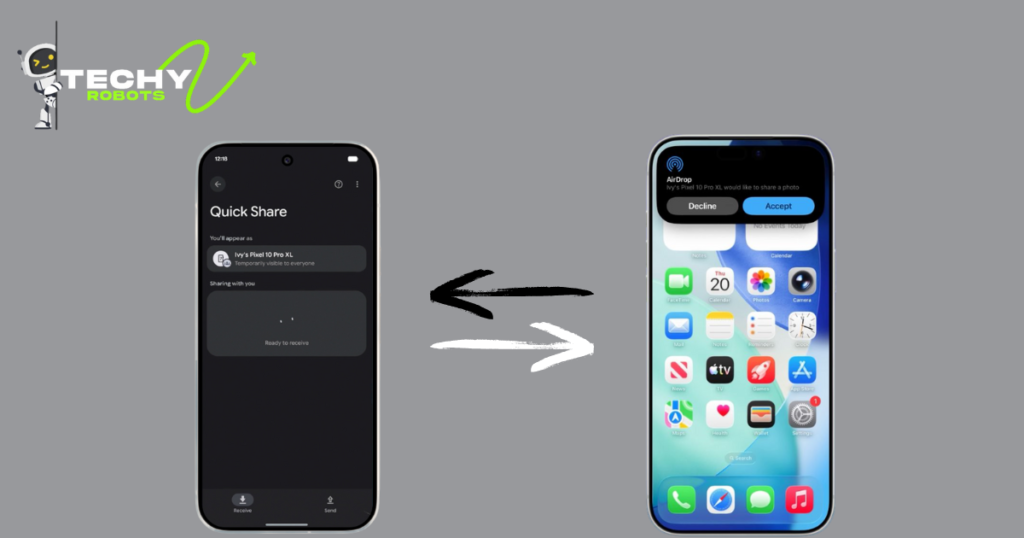
This integration is the real story here. It’s not a full merge of two systems. Instead, it’s two different technologies learning to talk to each other. Understanding how they work together helps you use them better.
How Quick Share Bridges Android and iOS
Google and Apple worked together (yes, actually together) to make Quick Share recognize AirDrop requests. When an iPhone initiates an AirDrop transfer to an Android device, Android’s Quick Share on that device recognises it as a compatible incoming transfer and handles it appropriately. It’s middleware magic, basically.
This happened without requiring deep changes to either system. They didn’t merge the protocols. Instead, they made them compatible at the receiving end. Think of it like adapters that finally made two different connector types work together.
AirDrop and Quick Share Differences Explained
Here’s the core difference: AirDrop is Apple-only for sending. Only iPhones, iPads, and Macs can initiate AirDrop transfers. Quick Share is the Android equivalent, and it can initiate transfers to other Android devices or receive AirDrop from iOS devices.
Speed is roughly the same. Range is roughly the same. Ease of use is roughly the same. The main practical difference is directionality and which devices you’re using. If you’re sending from Android to iPhone, you need Quick Share on Android and AirDrop on iOS. Sending from iPhone to Android requires AirDrop on iOS and Quick Share recognition on Android.
Which Should You Use?
If everyone uses iPhones, use AirDrop. If everyone uses Android, use Quick Share. In mixed environments, use whichever device has the file you’re sharing. The system will guide you to the compatible option. You don’t need to choose or remember anything. The share sheet shows you available options automatically.
Cross-Platform File Transfer: Android and iOS Working Together
We’re living in a moment where Android and iOS finally feel like they’re playing on the same team. This deserves its own section because it’s genuinely revolutionary for people with mixed device households.
Wireless File Transfer Without Third-Party Apps
The old way required downloading an app. Google Drive, Dropbox, Amazon Photos, Microsoft OneDrive. Pick your cloud service and upload. That works, but it’s an unnecessary step for quick transfers. Now you don’t need any of that for basic file sharing.
Open any file on any device, tap Share, and send directly to the other platform. No accounts needed. No app installations needed beyond the native Quick Share/AirDrop. It’s the simplicity that’s been missing for years.
Peer-to-Peer Connection Benefits
Direct connections between devices have real advantages. First, speed. Uploading to the cloud then downloading from the cloud takes longer than direct transfer. Second, privacy. Nothing goes through servers. Third, offline functionality. If you’re somewhere without internet, peer-to-peer still works. This is genuinely useful for people at events, conferences, or travel locations with spotty connectivity.
No Server Upload Required
This can’t be overstated. Your files don’t touch any company’s servers. Google isn’t seeing them. Apple isn’t seeing them. They never exist anywhere except on your devices. For sensitive documents or personal photos, this is a big deal. It’s faster. It’s more private. It’s the right way to share files between devices you own.
Pixel 10 AirDrop Feature: Google’s Answer to Apple’s Ecosystem
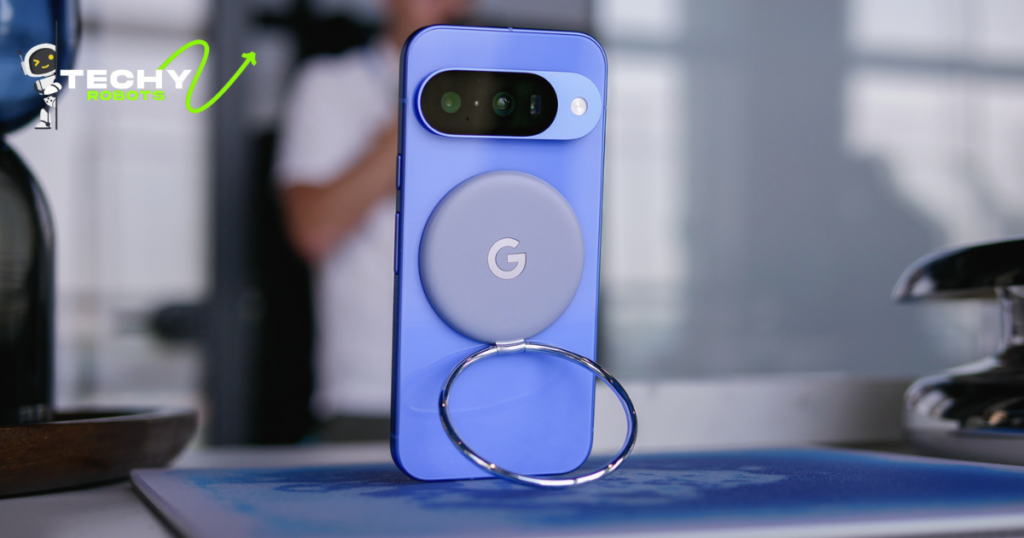
Google’s Pixel line has always been the truest representation of pure Android. The Pixel 10 represents Google’s commitment to making cross-platform sharing work seamlessly. This is Google putting their flagship hardware where their software ideas are.
Pixel 10 Series Exclusive Features
The Pixel 10 got Quick Share with AirDrop compatibility as a day-one feature. No waiting for updates. No slow rollout. It was baked into the software from launch. This signals that Google is serious about this as a core feature, not a nice-to-have addition.
Beyond AirDrop compatibility, the Pixel 10 also has Nearby Share optimizations that make it faster and more reliable than older models. The hardware improvements in Bluetooth and Wi-Fi tech help too. If cross-platform sharing is important to you, Pixel 10 is the Android phone that does it best right now.
Quick Share File Transfer on Pixel 10
Using Quick Share on a Pixel 10 feels native, expected, obvious. It’s not a new discovery. It’s just part of how the phone works. Open any app, tap Share, and Quick Share is right there. The experience is polished. The speed is excellent. If you’re comparing Android phones for cross-platform capabilities, Pixel 10 sets the standard.
Does Android Support Apple AirDrop? The Truth in 2025
This question gets asked constantly, and the answer is nuanced enough to need its own section. Let me be direct: Android doesn’t support initiating AirDrop transfers. iPhones and iPads and Macs do. But Android now receives AirDrop transfers through Quick Share. It’s a one-way street with a toll plaza that actually works.
AirDrop Compatibility Beyond Apple Devices
AirDrop’s compatibility expanded beyond the Apple ecosystem through Quick Share. This is unprecedented. For the first time, if you’re an Android user, you can receive AirDrop transfers directly. You don’t need workarounds. You don’t need third-party apps. You don’t need an email.
Some Android manufacturers beyond Google are implementing this, too. Samsung, OnePlus, and others are adding Quick Share with AirDrop compatibility. The rollout varies by device, but the trend is clear: cross-platform file sharing is becoming standard, not special.
AirDrop Compatibility with iPads and Macs
iPads and Macs can send AirDrop to Android devices too, just like iPhones can. Any Apple device with AirDrop can initiate a transfer to a compatible Android phone running Quick Share. The receiving experience is identical whether the sending device is an iPhone, iPad, or Mac. This makes AirDrop genuinely cross-platform now.
Setting Up Direct File Transfer Between Android and Apple Devices
Want actually to get this working? Here’s everything you need to set up and optimize your cross-platform sharing.
The “Everyone for 10 Minutes” Setting Explained
In Android Quick Share settings, you’ll see visibility options. “Everyone for 10 minutes” is the setting that makes your phone discoverable by nearby iPhones trying to AirDrop files to you. It’s temporary, which is smart for security. After 10 minutes, your phone returns to a more private state. You can adjust this window in settings, but 10 minutes is a good balance between convenience and security.
The reason for the time limit is simple: you don’t want your phone constantly broadcasting its presence to anyone nearby. You want to share with specific people in specific moments. The 10-minute window gives you that flexibility without creating permanent vulnerabilities.
Bluetooth and Wi-Fi Direct Connection Basics
Both connections need to be active. Bluetooth discovers nearby devices. Wi-Fi Direct handles the actual file transfer. If either is disabled, nothing works. This seems obvious, but it’s the number one reason cross-platform sharing fails. People have Bluetooth on but Wi-Fi off, or vice versa.
Your devices don’t need to be on the same Wi-Fi network. They just both need Wi-Fi enabled. Same room or nearby room works fine. The range is roughly 30-50 feet with clear line of sight, a bit less through walls.
Optimizing Your Connection
Get close when transferring large files. Literally stand near the other person’s phone. This reduces interference from other Wi-Fi networks. Make sure no one’s downloading massive files on shared Wi-Fi in the background. Disable any VPNs temporarily if transfers fail. These are tiny tweaks, but they can make the difference between a transfer that works instantly and one that crawls.
Common Issues and Troubleshooting
Even though this feature works well, sometimes things go wrong. Here’s how to fix the most common problems.
Why AirDrop Isn’t Working Between Your Devices
The most common issue is simple: Bluetooth or Wi-Fi is off on one device. Check both. Then check Quick Share settings on the Android phone. Make sure it’s enabled and set to a visibility level that allows incoming transfers. On the iPhone, make sure AirDrop is turned on and set to at least “Contacts Only” or “Everyone.”
Another common issue is being out of range. Move closer. If you’re on opposite ends of a large building or outside with obstacles, the connection might be too weak. Getting closer almost always fixes it.
Sometimes devices just need a restart. It sounds old school, but turning your phone off and back on clears temporary connection issues. Try it before assuming something is permanently broken.
Fixing Connectivity Problems
If restarting doesn’t work, try disabling and re-enabling Quick Share or AirDrop. Sometimes the connection state gets stuck. Toggle it off, wait 10 seconds, toggle it back on. This resets the connection state and often fixes stubborn problems.
Update everything. Make sure both devices are running the latest OS version and all app updates are installed. Compatibility fixes happen in updates. You don’t want to troubleshoot a problem that’s already been fixed in a newer version.
If specific file types won’t transfer but others work, the issue might be the file itself. Try sending a photo or small PDF. If that works, your devices are connected fine. The problem is the specific file. Try a different file or convert it to a more universal format.
AirDrop vs Quick Share: A Head-to-Head Comparison
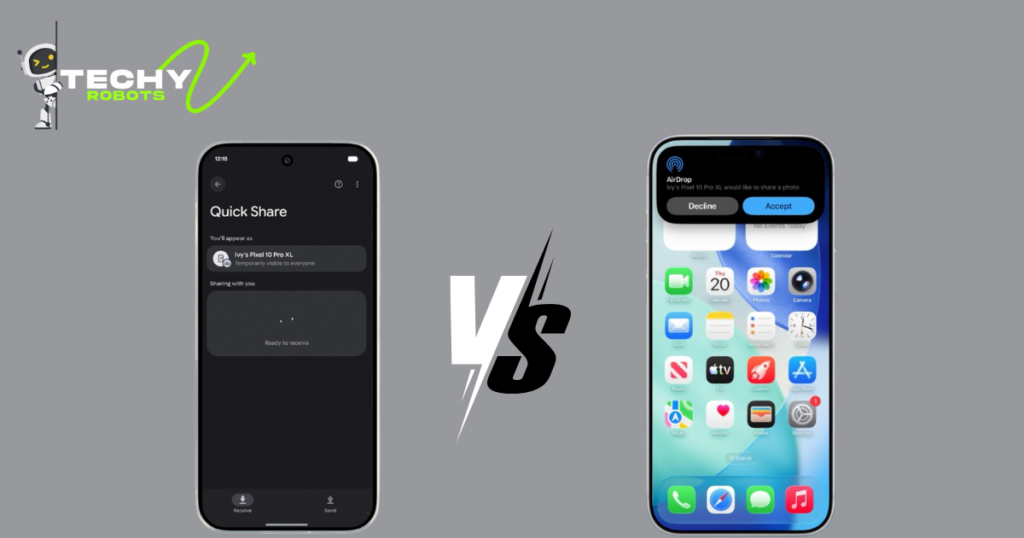
Both systems do the same job. But they’re not identical. Let’s compare them directly.
Performance and Speed Differences
AirDrop has been around longer. Apple spent years optimizing it. Quick Share is newer but benefits from that optimization playbook. In real-world testing, transfer speeds are nearly identical. A 5MB photo takes maybe a second or two on either system. A 100MB video takes 10-15 seconds on either system. Speed isn’t the differentiator.
Where they differ is in user interface. AirDrop shows thumbnail previews of files before sending. Quick Share is more minimal. Both approaches work. One feels slightly more polished. That’s subjective.
User Experience Across Platforms
AirDrop feels more integrated on iOS because it’s been there longer and Apple controls the entire experience. Quick Share on Android feels like it’s catching up, which it is. But it’s catching up fast. Within a year, users probably won’t notice meaningful differences in the experience.
Cross-platform, both systems require the device initiating the transfer to handle the complexity. The receiving device just taps “Accept.” That’s already simple enough that further improvements won’t matter much to average users.
The Future of Cross-Platform File Sharing
This is just the beginning. Apple and Google’s willingness to make their systems work together signals a shift in tech philosophy. Closed ecosystems made sense when phones were new. Now we’re in an era where people own devices from multiple manufacturers. Ecosystem walls are becoming obstacles instead of features.
Where Android and iOS Integration is Heading
Expect more compatibility between Android and iOS going forward. Not a full merge (each company still wants its ecosystem to feel special), but better interoperability. File sharing is just the start. Notifications, contacts, calendars, and other data might get similar cross-platform treatment.
This pressure comes from users. When you own an iPhone and your partner owns a Samsung, you want your devices to work together. Manufacturers are listening.
What This Means for Users
For you, it means fewer reasons to worry about platform differences. The practical friction of owning devices from different ecosystems is shrinking. Not gone, but shrinking. You can buy the best phone for your needs without worrying as much about whether it matches what your friends own.
It also means less dependence on cloud services for basic file sharing. You can share directly, privately, quickly. That’s better for privacy. That’s better for speed. That’s better for everyone except the companies that profit from cloud storage, and even they’re adapting.
Conclusion
We’re in a genuinely interesting moment in tech history. For the first time, Android and iOS are explicitly designed to work together for file sharing. It’s not perfect. It’s not symmetrical. One direction works better than the other. But it works, and that’s huge.
If you’ve been frustrated by platform incompatibility, try this feature. Set up Quick Share on your Android phone, enable AirDrop on your iPhone, and watch your devices actually cooperate. It feels small in the moment. But for anyone with mixed devices, it’s legitimately liberating.
The barrier is down. The gates are open. Your Android phone and your friend’s iPhone can finally share files like normal devices should. That’s worth celebrating.
FAQs
Can I send AirDrop from Android to iPhone?
Not directly through AirDrop. You use Quick Share on Android, and it’s received as an AirDrop transfer on the iPhone side. The effect is the same. The iPhone doesn’t know the difference between AirDrop from another iPhone and Quick Share from Android. To it, an incoming transfer is an incoming transfer.
Do both devices need to be on the same Wi-Fi network?
No. They need Wi-Fi enabled, but they can be on different networks or no network at all. The peer-to-peer connection uses Wi-Fi Direct, which bypasses your router entirely.
Is it safe to use AirDrop with strangers?
Only if you trust them. Set your Quick Share or AirDrop to “Contacts Only” if you’re in public. This prevents random people nearby from sending files to your phone. When you’re ready to share with someone, you can temporarily change the setting.
What if one person has an older phone that doesn’t support cross-platform sharing yet?
Fall back to email, cloud storage, or text. These alternatives still work perfectly fine. Cross-platform sharing is a convenience, not a requirement.
Does this work with tablets and laptops?
iPads support AirDrop and can send to Android. Android tablets with Quick Share can receive. Macs with AirDrop can send to Android. PC options are more limited right now, but support is expanding.