
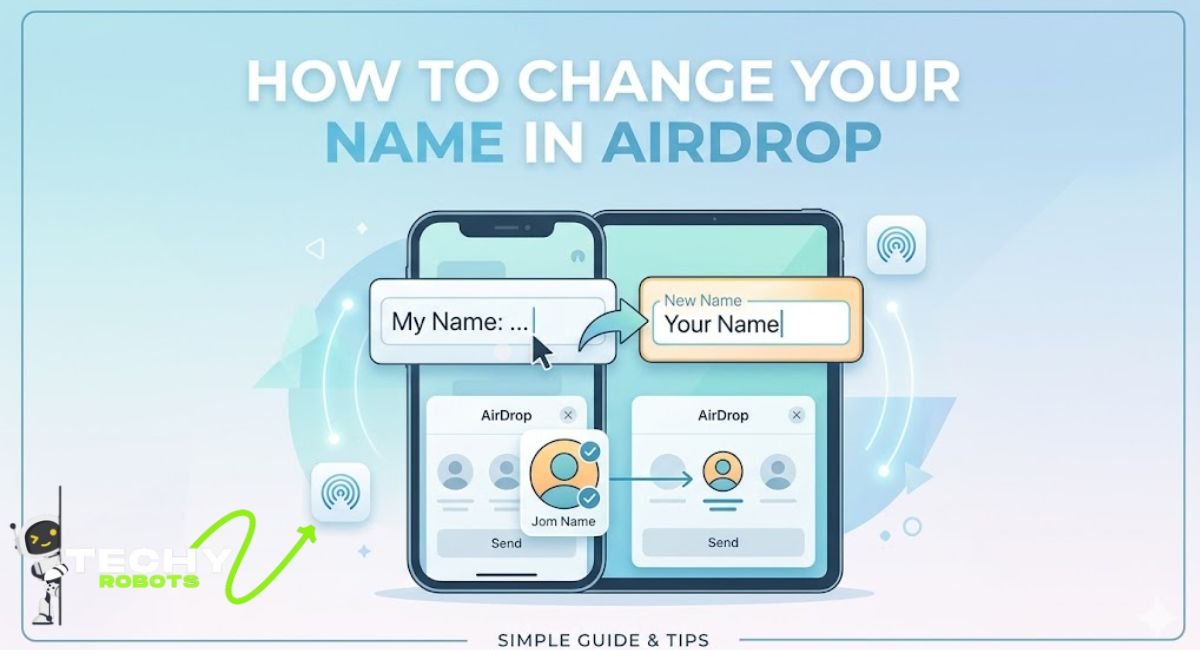
You are in a meeting, someone tries to send you a file via AirDrop, and your device shows up as “iPhone” on their screen. Not your name. Not something recognisable. Just a generic label that could belong to anyone in the room. Embarrassing, right? Or maybe a little confusing for the other person who has no idea which device is yours.
The best news is that changing your AirDrop name is one of the easiest things you can do on any Apple device. It just takes a few taps or clicks. This guide walks you through every step of the process for iPhone, iPad, and Mac, including what to do when AirDrop keeps showing the wrong name no matter what you try.
What Is AirDrop and Why Does Your Device Name Matter?
AirDrop is Apple’s built-in wireless file sharing feature that lets you send photos, documents, links, and just about anything else between Apple devices instantly. No cables, no apps, no email threads. Just a quick tap and the file is on the other device.
But here is the thing: when someone wants to AirDrop something to you, they see a list of nearby Apple devices. That list shows device names. If your device name is something like “iPhone 14 Pro” or just “iPhone,” people around you might not know which one is yours. Giving your device a clear, recognizable name makes the whole experience smoother for everyone involved.
Your AirDrop name is not a separate setting. It comes directly from your device name, which is why you will not find an “AirDrop name” option anywhere in settings. Change the device name, and your AirDrop name updates automatically.
How AirDrop Picks Up Your Device Name
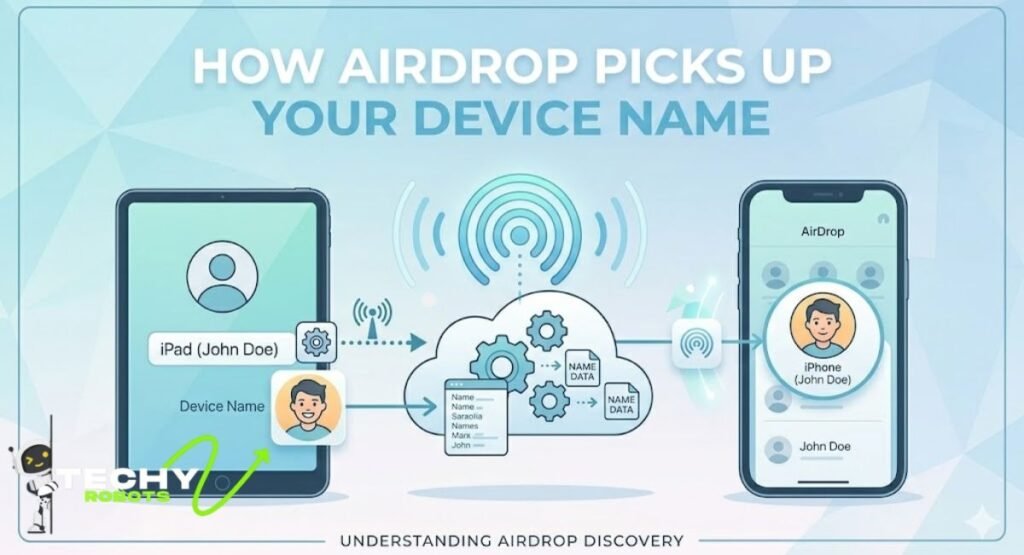
Before jumping into the steps, it helps to understand how AirDrop actually pulls your name. There are two places it can come from, depending on the situation.
The Role of Your iPhone or iPad Name in AirDrop
When you set up your iPhone or iPad, Apple asks you to give it a name. That name lives in Settings under General, then About, then Name. This is the name AirDrop broadcasts to nearby devices. It is also the same name that shows up in Find My, Personal Hotspot, and Bluetooth device lists.
How Your Mac Name Appears to Nearby Devices
On a Mac, the process is similar. Your computer has a name set in System Settings, and that name is what shows up in AirDrop when someone nearby looks for devices to share with. macOS Sonoma keeps this in System Settings under General, then About, then the name field at the top.
How to Change Your AirDrop Name on iPhone and iPad
This is the most common question people have, and the answer is simpler than most people expect. You are not changing AirDrop settings directly. You are changing your device name, and AirDrop reflects that change automatically.
Step-by-Step: Changing Your iPhone Name in Settings
Open the Settings app on your iPhone or iPad. Scroll down and tap General. From there, tap About at the very top of the list. You will see a field labeled Name right at the top of the About screen. Tap on it, clear out the current name, and type whatever you want. Maybe your actual name, a nickname, or something that helps others recognize your device quickly. Tap Done when you are finished, and the change saves instantly.
That is genuinely it. No restart needed, no confirmation screen. Your iPhone or iPad now has a new name, and the next time someone tries to AirDrop to you, they will see your updated device name in their list.
What Happens Right After You Rename Your Device
Most of the time, the new name shows up almost immediately across all nearby Apple devices. If someone is looking at their AirDrop list right when you make the change, they might need to refresh their screen, but a few seconds is usually all it takes. The name update pushes out through Bluetooth and Wi-Fi, which are the same connections AirDrop uses to detect nearby devices.
How to Change Your AirDrop Name on Mac
Mac users follow a slightly different path, but it is just as straightforward. The key is knowing where Apple moved the setting in newer versions of macOS.
Step-by-Step: Renaming Your Mac in System Settings
Click the Apple logo in the top-left corner of your screen and open System Settings. Click on General in the sidebar, then select About from the top of the list. At the top of the About screen, you will see your computer’s current name. Click on it, type in your new name, and press Enter or click away. The name updates right away.
If you are on macOS Ventura or Sonoma, this is where you will find it. On older versions of macOS, the same setting was inside System Preferences under Sharing, where there was a field labeled Computer Name.
macOS Sonoma vs Older Versions: What Changes
The location of the setting changed starting with macOS Ventura when Apple redesigned System Preferences into System Settings. If you are running macOS Monterey or earlier, go to System Preferences, click Sharing, and you will find the Computer Name field right at the top. Change it there, and your AirDrop name updates just like it does on newer systems.
AirDrop Showing the Wrong Name? Here Is Why
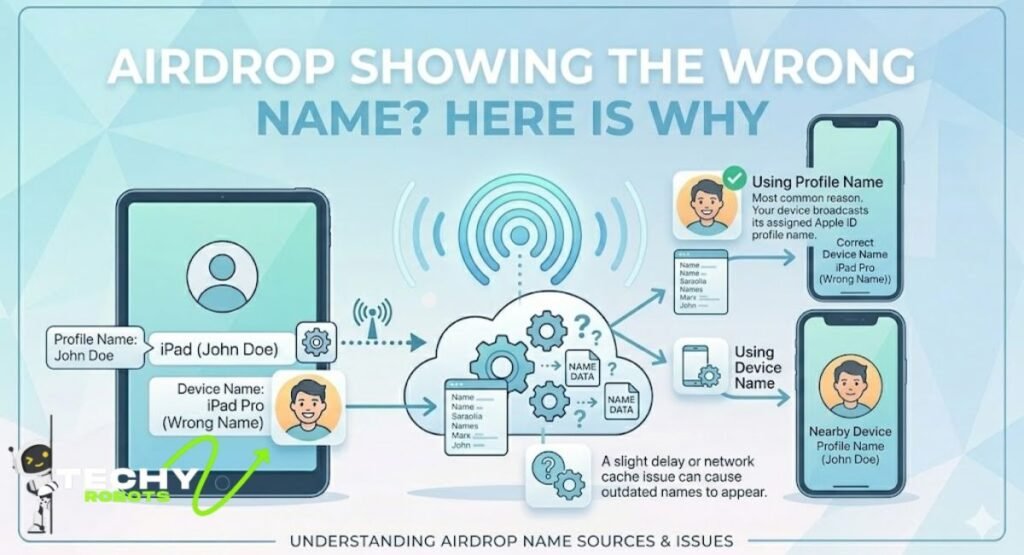
Sometimes people change their device name and AirDrop still shows something completely different, maybe an old name, a previous owner’s name, or a name that seems to have nothing to do with their device settings. This is more common than you might think, and there are a couple of specific reasons it happens.
The Contact Card Name Issue Explained
AirDrop does not always pull only from your device name. In some situations, it also pulls from your personal contact card in the Contacts app. This is the card saved as “My Card,” and it represents you in your own contacts list. If your contact card has a different name than your device, AirDrop can get confused and display the contact card name instead of the device name.
This is especially common when you set up a new iPhone from an old backup or when someone else previously used the device and their name is still on the contact card.
Why AirDrop Still Shows Your Old Name
If you recently changed your device name and AirDrop is still broadcasting the old one, your device might just need a moment to catch up. Bluetooth and local Wi-Fi connections sometimes hold onto cached data. Turning AirDrop off and back on, or restarting the device entirely, usually clears this up pretty quickly.
How to Fix AirDrop Name Not Updating
If your AirDrop name is stuck or showing something you do not recognize, here are the exact steps to fix it.
Restart AirDrop the Right Way
On your iPhone or iPad, swipe down from the top-right corner to open the Control Center. Press and hold on the connectivity box in the top-left (the one with Wi-Fi, Bluetooth, and other icons). Tap AirDrop, set it to off, wait five seconds, then turn it back on. This forces AirDrop to re-announce your device with the current name.
On a Mac, open Finder and click AirDrop in the sidebar. You will see your Mac’s name displayed there. If it looks wrong, turning Wi-Fi off and back on from the menu bar often refreshes it.
Check and Edit Your Contact Card in the Contacts App
This fix matters a lot more than people realize. Your contact card in the Contacts app is what AirDrop sometimes uses as your identity, especially when sharing with people who have you saved in their contacts.
How to Update “My Card” on iPhone
Open the Contacts app. Tap My Card at the very top of your contacts list, or go to Settings, scroll down to Contacts, and tap My Info to see which card is set as yours. Once you find it, tap Edit in the top-right corner and update the first and last name fields to reflect what you want people to see. Tap Done to save.
How to Update “My Card” on Mac
Open the Contacts app on your Mac. At the top of the list, look for your card marked with a small person icon or the word “Me.” Click on it, then click Edit in the bottom-right corner of the card. Change the name fields to whatever you prefer and save. This updated name is what AirDrop will use when it references your contact identity.
Restart Your Device to Refresh the Name
If none of the above works right away, a simple restart usually does the trick. Turn your iPhone, iPad, or Mac off completely and turn it back on. After the restart, AirDrop will pick up all the current name settings from scratch without relying on any cached values.
AirDrop Discoverability Settings You Should Know
While you are in AirDrop settings, it is worth checking who can actually see your device. AirDrop has three visibility options: Receiving Off, Contacts Only, and Everyone for 10 Minutes (on iOS 17 and later).
If your device is set to Contacts Only, only people who have your number or email saved can see your device when they try to AirDrop to you. If it is set to Receiving Off, nobody can send you anything. For general use, Contacts Only is the safest and most practical setting. If you want anyone nearby to be able to send you files, switch to Everyone for 10 Minutes, which Apple introduced as a more secure alternative to the old “Everyone” permanent setting.
Tips for Choosing a Professional AirDrop Name
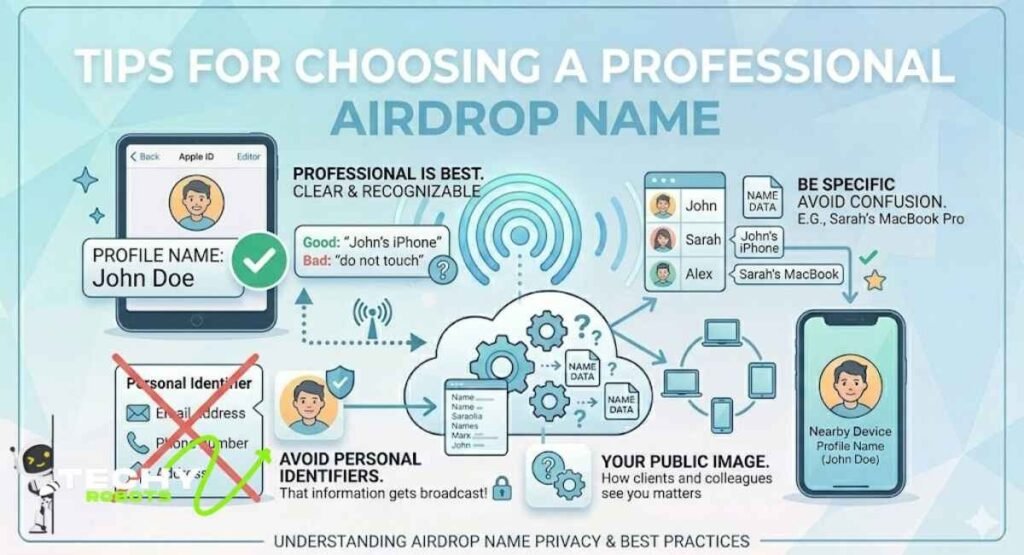
If you use AirDrop at work, in school, or around clients, the name other people see matters more than you might think. A name like “John’s iPhone” is clear and professional. Something like “do not touch” or a string of random characters might raise a few eyebrows.
Keep it simple. Use your actual name or a version of it that people in your environment would recognize. If you share a device or work environment with multiple people using Apple gear, being specific helps avoid confusion. “Sarah’s MacBook Pro” is far more useful in a busy office than “MacBook.”
Avoid using your full email address, phone number, or other personal identifiers as your device name. That information gets broadcast to every Apple device nearby when AirDrop is active, and that is probably more than you want strangers seeing.
Common AirDrop Name Mistakes to Avoid
People run into the same few issues when trying to sort out their AirDrop name. One big one is looking for an “AirDrop Name” setting that does not exist. There is no dedicated field for it. The device name is the AirDrop name, full stop.
Another mistake is changing the device name but forgetting to update the contact card. If both are not in sync, AirDrop can pull from the wrong one depending on the situation.
Some people also forget that a software update can sometimes reset or refresh settings in unexpected ways. If you updated to iOS 17 or macOS Sonoma recently and your AirDrop name changed back to a default, go back to the device name setting and update it again.
Conclusion
Changing your AirDrop name is one of those small things that makes a real difference in how seamlessly your Apple devices work with the people around you. Whether you are sharing photos with a friend, sending files in a meeting, or just trying to make sure people can find your device easily, a clear and recognizable name goes a long way.
The process itself is quick once you know where to look. Go into your device name settings on iPhone, iPad, or Mac, type in a new name, and AirDrop picks it up from there. If things are not updating the way they should, checking your contact card and restarting AirDrop are the two fixes that solve the problem almost every time.
Take five minutes to set your device name properly today, and you will never have to deal with someone asking “which iPhone is yours?” again.
FAQs
1. Is there a separate AirDrop name setting on the iPhone?
No, there is not. AirDrop uses your iPhone’s device name, which you can change in Settings, then General, then About, then Name. Whatever name you set there is what shows up in AirDrop.
2. Why does AirDrop show my old name even after I changed it?
AirDrop sometimes holds onto a cached name for a short time. Try turning AirDrop off and back on from the Control Center, or restart your device entirely. That usually clears the old name and broadcasts the updated one.
3. Can someone else see my AirDrop name without me knowing?
Yes. When AirDrop is set to Everyone or Contacts Only, nearby Apple devices can see your device name. This is why it is a good idea to use a name you are comfortable with others seeing, and to switch AirDrop off when you are not using it.
4. Why is my AirDrop showing a completely different name that I do not recognize?
This often happens because your contact card in the Contacts app has a different name saved. Open the Contacts app, find your My Card entry, and update the name to match what you want people to see.
5. Does changing my iPhone name affect anything else?
Yes, a few things. The name also appears in Find My, Personal Hotspot, iTunes or Finder syncing, and your Bluetooth device list. Changing it updates all of these at once, which is usually a good thing.