
If your AirDrop is showing the wrong name, you are not alone. Many iPhone, iPad, and Mac users notice that even after changing their device name, AirDrop still displays the old or incorrect one. This can make it hard for friends or coworkers to find your device when sharing files. The good news is that fixing the problem is usually simple.
In this guide, you’ll learn how to change your AirDrop name correctly and what to do if the new name does not appear right away.
Why Your AirDrop Name Actually Matters
Imagine you’re in a meeting, trying to send a file to a colleague via AirDrop, and instead of seeing their name pop up on your screen, you see something like “iPhone (3)” or “MacBook Pro.” Confusing, right? Now flip it around. What does your device show up as when someone tries to send you something?
Your AirDrop name is essentially your digital identity in the Apple ecosystem, at least when it comes to wireless file sharing. It’s the label other Apple devices see when you’re within Bluetooth range. A clear, recognizable device name makes the whole experience smoother, faster, and less awkward, whether you’re sharing vacation photos with family or sending work documents to a coworker.
The good news? Changing your AirDrop name is genuinely simple once you know where to look. It’s not buried in some obscure settings menu. Let’s walk through the whole thing.
What Controls Your AirDrop Name?
Before jumping into the steps, it helps to understand one key thing: AirDrop does not have its own separate name setting. There’s no “AirDrop preferences” panel where you type in a custom label. Instead, AirDrop pulls its display name directly from your device’s name. Change the device name, and your AirDrop name updates automatically.
It’s All Tied to Your Device Name
Your iPhone, iPad, or Mac all have a system-level name. On an iPhone, for example, this is usually something like “John’s iPhone” by default. That name is what shows up when someone nearby opens AirDrop and looks for devices to send a file to. So renaming your device for AirDrop is really just renaming the device itself.
How iCloud Plays a Role
If you’ve ever noticed your device listed inside iCloud with a certain name, that’s the same name AirDrop uses. Apple keeps these tied together across the ecosystem, which means your AirDrop name might also reflect changes across your Apple ID linked devices. Good to keep in mind if you manage multiple Apple products.
How to Change Your AirDrop Name on iPhone and iPad
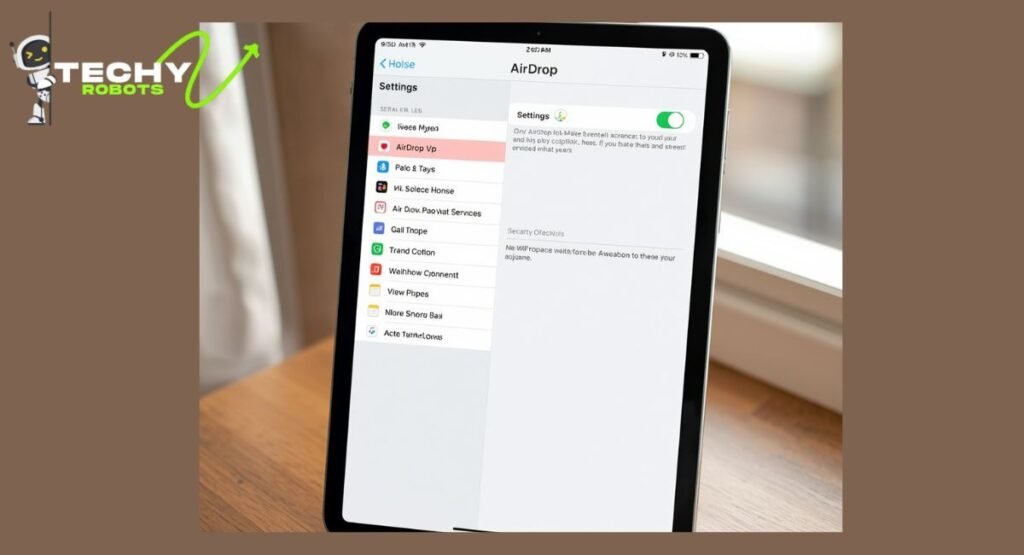
This is probably the most common scenario since iPhones are everywhere, and AirDrop usage on iOS is incredibly frequent. Thankfully, the process takes less than a minute.
Step-by-Step: Rename Your iPhone for AirDrop
- Open the Settings app on your iPhone or iPad.
- Tap General.
- Tap About.
- At the very top, you’ll see your current device name. Tap on it.
- Clear the existing name and type in whatever you want your AirDrop name to be.
- Tap Done on the keyboard to save it.
That’s genuinely all there is to it. No restart required, no confirmation screen. Your new name will show up immediately when someone looks for your device via AirDrop.
Worth noting: the same steps work for iPad. The menu path is identical since iPadOS and iOS share the same Settings layout. If you’re on an older version of iOS, the steps are essentially the same, just navigate to Settings > General > About > Name.
What Happens After You Save the New Name?
The change takes effect almost instantly. If you want to verify it worked, you can open the Control Center, long-press on the connectivity cluster (where Bluetooth and Wi-Fi icons are), and tap on AirDrop. Your device should now be broadcasting under the new name you just set. Anyone nearby with an Apple device will see your updated name.
How to Change Your AirDrop Name on Mac
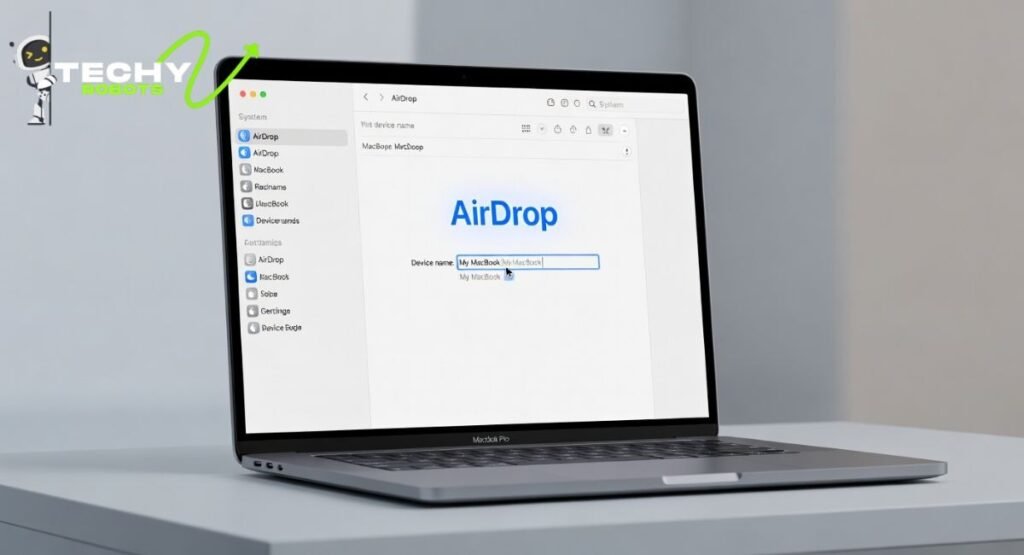
The process on a Mac is just as easy, though it lives in a slightly different spot in System Settings.
Step-by-Step: Rename Your Mac for AirDrop
- Click on the Apple menu in the top-left corner of your screen.
- Select System Settings (on macOS Ventura and later) or System Preferences on older versions.
- Click on General.
- Select About (on newer macOS) or look for Sharing on older versions.
- At the top of the About screen, you’ll see your Mac’s name. Click on it to edit.
- Type your new name and press Enter or Return to confirm.
Your Mac’s AirDrop name will now reflect the change. No restart needed.
Finding the Sharing Settings on Older macOS Versions
If you’re running an older version of macOS, the device name might be found under System Preferences > Sharing. At the top of that window, there’s a field labeled “Computer Name.” That’s the one you want to edit. Change it there, and your AirDrop identity updates to match.
AirDrop Not Showing the Correct Name? Here’s Why
Sometimes people change their device name and then get frustrated because AirDrop still seems to show the old one. This is more common than you’d think, and it usually comes down to one of two things.
Cache and Refresh Issues
Apple devices sometimes cache nearby device information for a short period. Think of it like your phone holding onto old contact card data before it refreshes. If someone saw your old AirDrop name just before you made the change, their device might still display the previous name for a bit. This usually resolves itself within a few minutes as the cache clears.
If you’re testing it yourself on a separate device and still seeing the wrong name, try toggling Bluetooth off and back on. That often forces a refresh of the nearby device list, and your new name should appear.
The Restart Fix That Actually Works
There’s a classic reason restarts exist. If your AirDrop name still isn’t updating correctly after toggling Bluetooth, a full device restart typically solves it. When your iPhone or Mac boots back up, it broadcasts the new device name fresh, and any lingering cache from the old name gets wiped out. It’s a simple fix, but it works.
How to Make Your AirDrop Visible to the Right People

Changing your name is one thing. Making sure you’re visible to the right people is another layer of the AirDrop experience that’s worth understanding.
Contacts Only vs. Everyone Mode
AirDrop has two main visibility settings beyond simply being off:
- Contacts Only: Only people in your contacts can see your device when they try to AirDrop something to you. This is the safer, more private option.
- Everyone: Any nearby Apple device, even strangers, can see your device name and send you a request. You still have to accept it, but your name is visible to anyone around you.
For everyday use, Contacts Only is usually the smarter pick. If you’re at an event or need to receive files from someone not in your contacts, you can temporarily switch to Everyone and switch back afterward.
AirDrop Discoverability Tips
Make sure both Bluetooth and Wi-Fi are turned on. AirDrop uses both to function. You don’t need to be on the same Wi-Fi network, but Wi-Fi needs to be enabled. Also, make sure your screen is unlocked when someone is trying to send you a file, as a locked screen can sometimes prevent the AirDrop request from coming through properly.
Common AirDrop Name Problems and How to Fix Them
Even with the right steps, AirDrop can occasionally behave in frustrating ways. Here are some of the most common name-related issues and what to do about them.
AirDrop Showing an Old Name
If your device was recently renamed but still shows up under the old name to other devices, the fastest fix is toggling AirDrop off and on again. You can also toggle Bluetooth off and on, or just restart the device. These actions force the system to broadcast the refreshed device name.
AirDrop Not Appearing on Nearby Devices
This one’s slightly different. If your device isn’t showing up at all (name or no name), check that:
- AirDrop is set to Contacts Only or Everyone, not Off.
- Bluetooth and Wi-Fi are both enabled.
- You’re within range. AirDrop works best within about 30 feet.
- Personal Hotspot is turned off. An active hotspot can interfere with AirDrop discoverability.
- Your iOS or macOS is up to date. Running older software can cause compatibility issues with nearby devices running newer versions.
Choosing the Right AirDrop Name
This might seem like a small thing, but your AirDrop name is the first thing someone sees when you show up on their screen. It’s worth putting a little thought into it.
Professional vs. Personal Device Names
If you use your iPhone primarily for work, something like “Alex’s Work iPhone” or even just your full name makes a lot of sense. It’s immediately recognizable and professional. On the flip side, if it’s your personal device, something simple like “Sarah’s iPhone” or even a nickname works perfectly fine.
Avoid super generic names like “iPhone” or “My Phone.” These are nearly impossible to distinguish in a crowd of Apple devices, and they make AirDrop transfers unnecessarily confusing for everyone involved. A little specificity goes a long way.
How AirDrop Works in the Apple Ecosystem
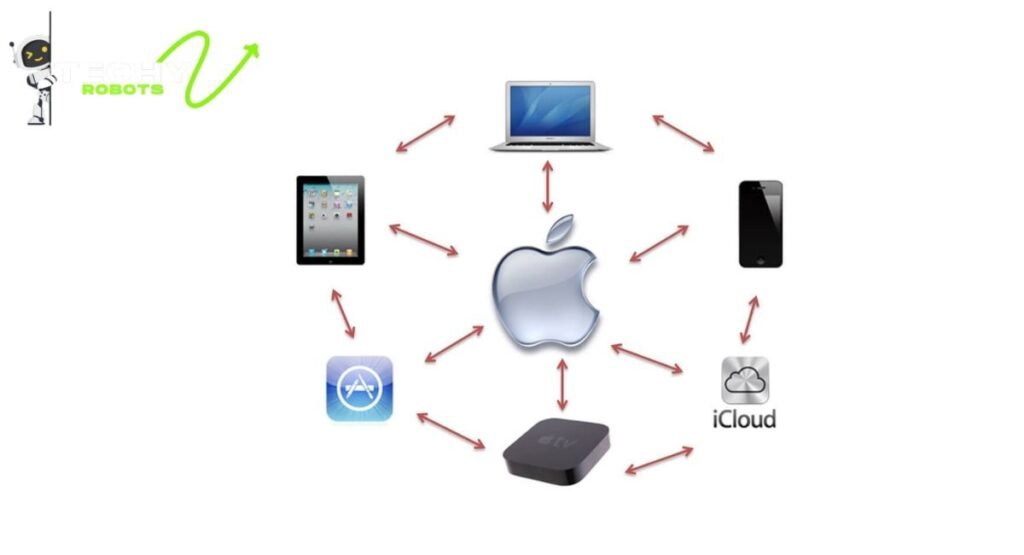
AirDrop is Apple’s peer-to-peer wireless file transfer system. It uses a combination of Bluetooth and Wi-Fi to create a secure, direct connection between two Apple devices. No internet is required. Files are encrypted during transfer, which makes it one of the more secure ways to share data wirelessly.
It works across iPhones, iPads, and Macs, as long as both devices have the feature enabled and are within range of each other. The name you set on your device is the only identifier the other person sees, which is why getting it right actually matters for a smooth experience.
When someone sends you a file via AirDrop, you get a pop-up asking if you want to accept or decline. Photos go straight to your Photos app, while other file types typically land in your Downloads folder or open in an appropriate app.
AirDrop Troubleshooting Tips Beyond the Name
If AirDrop is giving you grief beyond just the name issue, here are a few extra things to try:
- Update your software. A lot of AirDrop issues are resolved in iOS and macOS updates. Head to Settings > General > Software Update on iPhone, or System Settings > General > Software Update on Mac.
- Sign out and back into iCloud. This can refresh your device’s identity across Apple’s services.
- Reset network settings on iPhone. This is a more aggressive fix but can resolve persistent AirDrop connection problems. Go to Settings > General > Transfer or Reset iPhone > Reset > Reset Network Settings.
- Check for interference. Microwaves, crowded Wi-Fi environments, and some Bluetooth accessories can interfere with AirDrop’s signal. Moving to a different spot sometimes helps.
FAQs
1. Does changing my device name change my AirDrop name automatically?
Yes, it does. AirDrop pulls your display name directly from your device’s system name. There’s no separate AirDrop name setting. As soon as you update the name in Settings > General > About on iPhone, or in System Settings > General > About on Mac, the AirDrop name updates to match.
2. Can I have a different name for AirDrop than my device name?
No, not natively. Apple doesn’t offer a way to set a separate AirDrop-specific name. The name other devices see in AirDrop is always your device’s name. If you want a custom label just for AirDrop purposes, you’d need to change the actual device name.
3. Why is my AirDrop showing someone else’s name?
This can happen if you’re using a device that was previously set up by or for someone else, and the device name was never changed. Head to Settings > General > About > Name on iPhone and update it to reflect the current owner. It’s a quick fix.
4. Will changing my AirDrop name affect anything else on my device?
Mostly no. The device name also shows up in iCloud, iTunes, Finder (when connected to a Mac), and your Personal Hotspot network name. So if you change it, those other places will reflect the new name too. Nothing breaks. It’s just something to be aware of.
5. How do I know if my new AirDrop name is working?
Open Control Center on your iPhone, press and hold the connectivity panel, then tap AirDrop. Your device is now broadcasting. Ask someone nearby with an Apple device to open AirDrop on their end. They should see your updated name in the list. You can also check this yourself using a second Apple device.
Conclusion
Changing your AirDrop name is one of those simple tweaks that makes a surprisingly big difference in everyday use. Whether you’re trying to avoid confusion in a room full of iPhones or just want your device to look a little more polished, knowing how to update your device name gives you full control over how you appear to others in the Apple ecosystem.
The process is quick whether you’re on an iPhone, iPad, or Mac, and the change takes effect almost immediately. A clear, recognizable name saves time, avoids awkward mix-ups, and just makes the whole AirDrop experience feel more intentional.
So go ahead, open your settings and give your device a name that actually reflects who’s holding it. It takes less than a minute, and you’ll probably wonder why you didn’t do it sooner.