If you are new to ChatGPT and feeling confused about how to use GPT-4o, you are not alone. Many people see different buttons, tools, and features and don’t know where to begin. The good news is that getting started is actually very simple. You can use GPT-4o to ask questions, upload pictures or files, get help with studies, write content, and even have voice conversations on mobile devices.
Whether you are a student, beginner, or just curious about the latest version of ChatGPT, this guide will help you understand everything in an easy and clear way without any technical confusion.
What Is ChatGPT-4o and Why Does It Matter?
ChatGPT-4o is OpenAI’s flagship multimodal AI model. The “4o” stands for “omni,” which means it can work with text, images, audio, and files all at once. Unlike older models that could only handle one type of input, GPT-4o is built to understand the world in a much richer way, kind of like how a person can read a document, look at a photo, and listen to someone speak all at the same time.
Think of it less like a basic chatbot and more like a brilliant assistant who never gets tired, never forgets what you said five minutes ago, and has read virtually everything on the internet.
The “Omni” in GPT-4o Explained
The word “omni” isn’t just a fancy label. It’s actually a meaningful description of what the model can do. GPT-4o processes text, audio, and images natively, rather than patching together separate tools to fake that ability. This makes responses faster, more natural, and more context-aware. If you upload a photo and ask a question about it, GPT-4o doesn’t just describe the image.
How GPT-4o Compares to Older Models
If you’ve used GPT-3.5 or even GPT-4 before, you’ll notice the difference almost immediately. GPT-4o is faster, cheaper for OpenAI to run (which is partly why it’s available on the free tier), and better at following complex instructions. It’s also significantly better at writing code, analyzing data, and generating structured content like reports or outlines.
How to Access ChatGPT-4o
Before you can use GPT-4o, you need to know how to actually get your hands on it. Good news: there are a few different ways.
Getting GPT-4o for Free
Yes, you can use GPT-4o without paying anything. OpenAI allows free users to access GPT-4o, though with some limitations on how many messages you can send in a given window. When you hit your cap, the platform usually switches you to GPT-3.5 automatically, which is noticeably less capable.
So how do you access GPT-4o for free? Simply go to chat.openai.com, create a free account, and in the model selector dropdown at the top of the chat window, choose GPT-4o. That’s it. You’re in.
ChatGPT Plus Subscription and What You Get
The ChatGPT Plus plan costs $20 per month at the time of writing, and it gives you a lot more breathing room with GPT-4o. If you use AI regularly for work or study, the upgrade is genuinely worth considering.
Usage Limits on the Free Tier
Free users get a limited number of GPT-4o messages per day. The exact number fluctuates based on server demand, but it’s usually enough for light, casual use. If you’re running into caps frequently, it might be time to consider Plus.
Why Plus Users Get More
Plus subscribers get significantly higher usage limits, early access to new features, access to advanced tools like the code interpreter and file analysis, and priority access during peak hours. You also get access to GPT-4o with voice, which is one of the most impressive features in the entire product.
Setting Up Your OpenAI Account
Getting started is genuinely easy, and the whole process takes about two minutes.
Creating an Account Step by Step
Head to chat.openai.com. Click “Sign up.” You can register with an email address, or log in with your Google or Microsoft account. Once you verify your email, you’re ready to go. No credit card is required for the free tier.
After logging in, you’ll land on the main ChatGPT interface. There’s a text input box at the bottom, a conversation history on the left sidebar, and the model selector at the top of the page.
Choosing the Right Model from the Selector
At the top of the chat window, you’ll see a dropdown that says something like “ChatGPT” or shows the current model name. Click it, and you’ll see a list of available models. Select “GPT-4o” and you’re locked in for that conversation. If you start a new chat, you may need to select it again depending on your settings.
How to Start a Conversation with GPT-4o
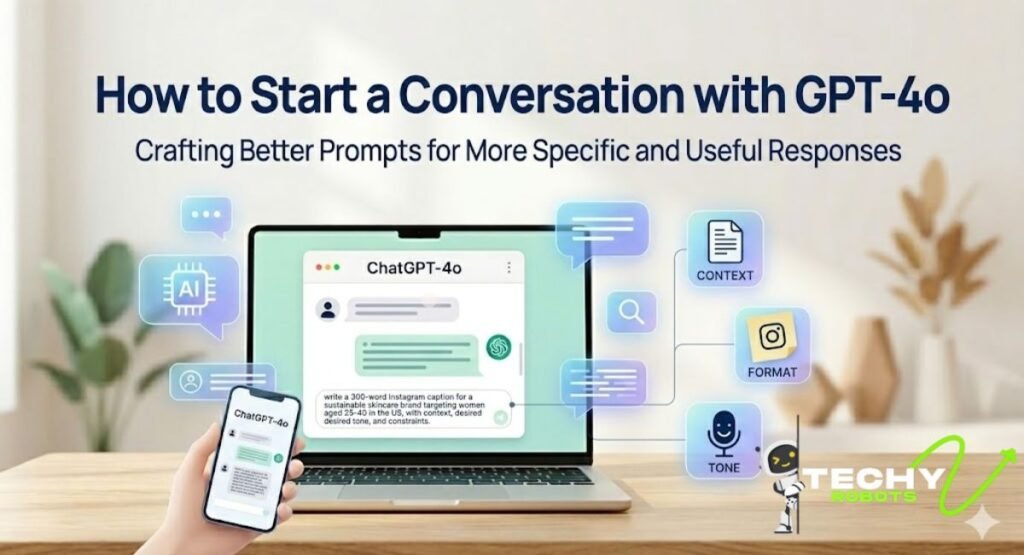
This is where most people get it slightly wrong at first. They type vague questions and then wonder why the answers feel generic. GPT-4o is incredibly capable, but it responds to what you give it.
Writing Better Prompts for GPT-4o
The quality of your output is directly related to the quality of your input. A vague prompt like “write me something about marketing” will give you a mediocre, generic response. A specific prompt like “write a 300-word Instagram caption for a sustainable skincare brand targeting women aged 25-40 in the US” will give you something actually useful.
Try to include context, a specific format, a desired tone, and any constraints you have. The more clearly you describe what you want, the closer GPT-4o will get on the first try.
Using the Active Voice in Your Prompts
One small but effective trick: phrase your prompts in the active voice. Instead of saying “a summary of this document is needed,” say “summarize this document in three bullet points.” It sounds obvious, but it actually makes a noticeable difference in how the model interprets your request.
How to Use GPT-4o Voice Mode
Voice mode is one of those features that sounds gimmicky until you actually try it. Then you realize it’s genuinely useful, especially when you’re on the go or don’t feel like typing.
Enabling Voice on the Mobile App
Download the ChatGPT app from the App Store or Google Play. Log into your account. At the bottom of the chat interface, you’ll see a microphone icon. Tap it, speak your question or request, and GPT-4o will respond either in text or out loud, depending on your settings.
Voice mode works best with a clear microphone and minimal background noise. It handles follow-up questions really well, so you can have an actual back-and-forth conversation rather than just dictating text.
Real-Time Voice Conversation Tips
If you want to use Advanced Voice Mode (available to Plus users), GPT-4o can respond with a natural-sounding voice and even pick up on your tone. Ask it to explain a concept, quiz you on a topic, or talk through a decision with you. It’s a surprisingly natural experience.
How to Upload Files in ChatGPT-4o
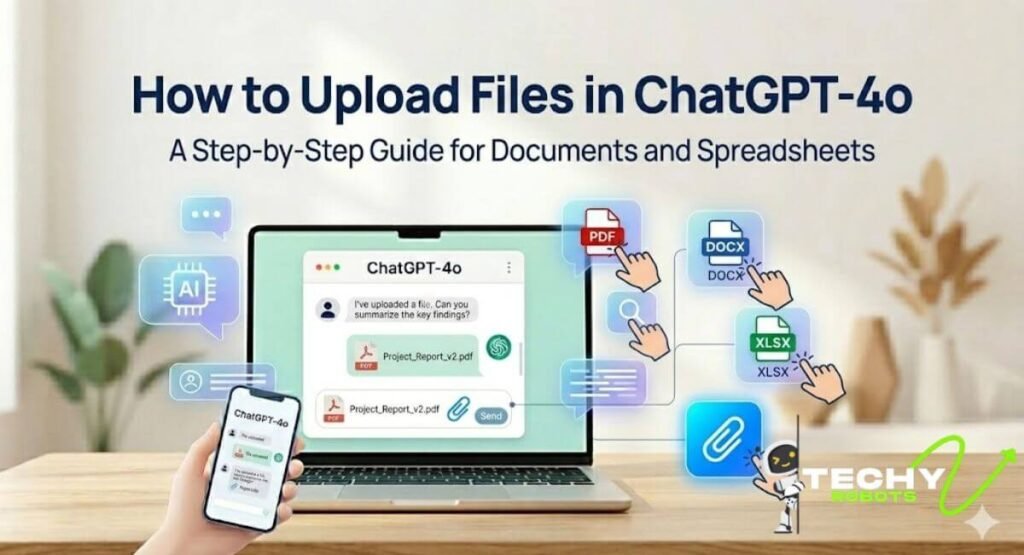
File uploads are one of the most underused features of GPT-4o, and once you start using them, you’ll wonder how you managed without them.
Uploading PDFs, Word Files, and Spreadsheets
To upload a file, click the paperclip icon or the attachment button in the chat interface. You can upload PDFs, Word documents (.docx), PowerPoint files (.pptx), Excel spreadsheets (.xlsx), plain text files, and more. Once the file is uploaded, just type your question about it.
For example, you could upload a 50-page PDF report and ask GPT-4o to “summarize the key findings in five bullet points.” Or upload a contract and ask it to “identify any clauses that might be problematic for a freelancer.”
How GPT-4o Reads and Analyzes Documents
GPT-4o doesn’t just skim the surface of a document. It reads the full text, understands the structure, and can answer questions that require reasoning across multiple sections. If you ask it to compare section 3 and section 7 of a legal document, it’ll do that without breaking a sweat.
Data Analysis with GPT-4o
Here’s where things get seriously powerful. GPT-4o can actually act like a data analyst, and you don’t need to know how to code to take advantage of it.
Uploading CSV and Excel Files
Upload any CSV or Excel file into the chat, and then ask GPT-4o to analyze it. You could say things like “what are the top 5 products by revenue?” or “find any rows where the sales figure is unusually high.” It reads the data, reasons about it, and gives you actual insights.
Generating Charts and Visualizations
With the code interpreter enabled (available to Plus users), GPT-4o can write Python code behind the scenes to generate charts and graphs from your data. Tell it “create a bar chart showing monthly revenue by region” and it’ll produce an actual chart you can download. This is genuinely useful for anyone who works with data but doesn’t want to wrestle with Excel formulas or Power BI.
Using ChatGPT-4o for Image Understanding
GPT-4o can look at images and actually understand what’s in them not just describe colors and shapes, but reason about content, context, and meaning.
What GPT-4o Can See in an Image
You can upload a photo of a whiteboard full of handwritten notes, and GPT-4o will transcribe and organize them. You can share a screenshot of an error message, and it’ll diagnose the problem. You can upload a photo of a restaurant menu and ask it to suggest dishes based on your dietary restrictions.
Practical Use Cases for AI Image Analysis
The real-world applications are broad. Developers use it to debug UI screenshots. Writers use it to extract text from scanned documents. Teachers use it to grade handwritten assignments. Designers use it to get feedback on mockups. If you can take a photo of it, GPT-4o can probably help you do something useful with it.
GPT-4o for Students and Academic Work

If you’re a student, GPT-4o might genuinely change how you approach your workload — in a good way.
Summarizing Research Papers
Upload a dense academic paper and ask GPT-4o to explain it in plain English. Ask it to pull out the methodology, findings, and limitations. Ask it to compare two papers you’ve uploaded. It handles academic language well and can make complex material much more digestible.
Digitizing Handwritten Notes
Take a photo of your handwritten lecture notes and upload them to GPT-4o. Ask it to organize them into a structured outline, fill in any gaps, or turn them into a study guide. This alone is worth the price of admission for many students.
Building Presentations with AI Help
Tell GPT-4o the topic of your presentation, your audience, and how many slides you need. Ask it to create an outline, then flesh out the content for each slide. You can even ask it to suggest visual concepts for each slide. It won’t build the actual PowerPoint file for you in the default interface, but it’ll give you content that you can paste straight in and with some tools in the ecosystem, it can go even further.
How to Enable the Legacy GPT-4o Model
Interestingly, some users actually prefer the original version of GPT-4o over newer iterations, particularly when they feel recent updates changed the model’s personality or response style.
Why Some Users Prefer the Original GPT-4o
OpenAI occasionally updates the underlying model, and not everyone loves every change. If you want to access a legacy version of GPT-4o, go to your ChatGPT settings, navigate to the model section, and look for any legacy model options. This isn’t always available, and the options change over time, but it’s worth checking if you noticed behavior you preferred in an older version.
Free Alternatives to GPT-4o
Maybe you’ve hit your daily message limit, or you’re looking for other tools that use similar technology. Here are a couple of options worth knowing about.
Microsoft Copilot
Microsoft Copilot (formerly Bing Chat) is free and runs on GPT-4 technology. You can access it at copilot.microsoft.com or through Microsoft Edge. It’s deeply integrated with the Microsoft 365 suite, which makes it especially useful if you’re already working in Word or Excel. The free version is genuinely good for everyday tasks.
Writingmate AI and Other Tools
Writingmate is a Chrome extension that gives you access to GPT-4o through a browser sidebar. It’s handy if you want to use AI while browsing without switching tabs. There are also API-based tools and various platforms that wrap GPT-4o’s capabilities in different interfaces useful if you want something more tailored to a specific workflow.
Common Mistakes to Avoid When Using GPT-4o
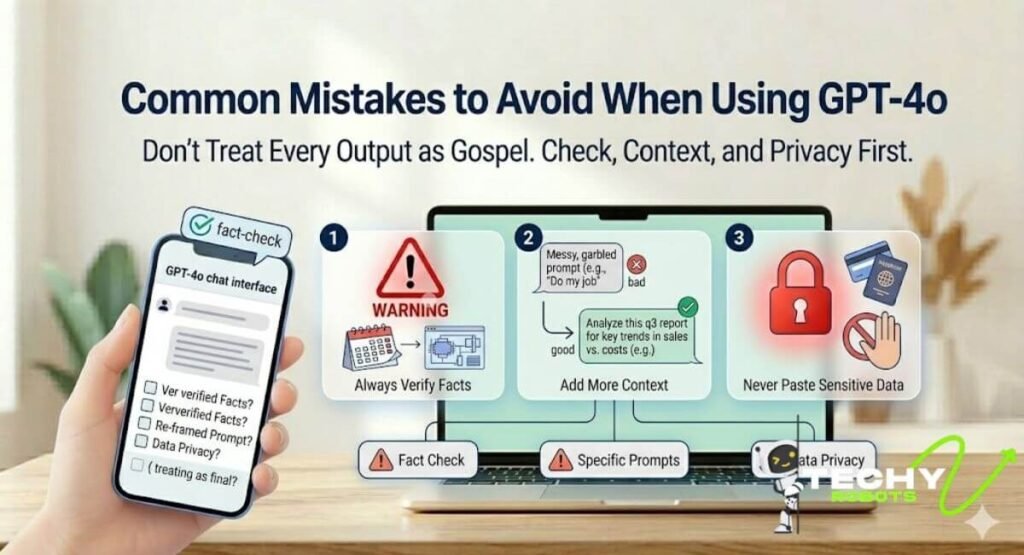
Even experienced users fall into a few traps. Here’s what to watch out for.
Don’t treat every output as gospel. GPT-4o is very good, but it can still get facts wrong, especially for recent events or highly specific technical details. Always verify important information.
Don’t use vague prompts and then blame the model. If the answer isn’t useful, the prompt is usually the place to start. Reframe, add more context, and try again.
Don’t forget to ask follow-up questions. GPT-4o holds the context of your conversation, so if the first answer wasn’t quite right, say “can you make it shorter?” or “can you give me a more formal version?” rather than starting over.
Don’t paste sensitive personal data into the chat. While OpenAI has privacy protections in place, it’s still good practice not to share things like passwords, financial data, or anything you’d be uncomfortable making semi-public.
Conclusion
ChatGPT-4o is genuinely one of the most versatile AI tools ever made available to the public, and most people are only scratching the surface of what it can do. Whether you’re using it to analyze a spreadsheet, chat with it on your commute, get feedback on your writing, or power through a research paper, there’s almost always a way to make it work for you.
The best way to get comfortable with GPT-4o is simply to use it more. Try uploading a file you’ve been meaning to deal with. Ask it a question you’ve been too embarrassed to Google. Give it a task that feels a little ambitious. You might be surprised by what it can do.
As AI keeps evolving, tools like GPT-4o are going to become a normal part of how we work, study, and create. Getting familiar with it now puts you ahead of the curve and honestly, it’s a pretty enjoyable tool to explore.
FAQs
1. Is ChatGPT-4o free to use?
Yes, GPT-4o is available on the free tier of ChatGPT, though with daily usage limits. Once you hit the cap, the platform typically falls back to GPT-3.5. ChatGPT Plus subscribers get much higher limits and additional features.
2. How do I switch to GPT-4o in ChatGPT?
After logging into chat.openai.com, click the model selector dropdown at the top of the chat interface. From the list of available models, select GPT-4o. This setting applies to your current conversation.
3. Can I use GPT-4o on my phone?
Absolutely. The ChatGPT mobile app is available for both iOS and Android. Once logged in, you can select GPT-4o and even use voice mode for a hands-free conversation experience.
4. What types of files can I upload to GPT-4o?
GPT-4o supports a wide range of file types including PDFs, Word documents, Excel spreadsheets, CSV files, PowerPoint presentations, plain text files, and images. Just use the attachment button in the chat interface.
5. How is GPT-4o different from GPT-5?
GPT-5 is OpenAI’s newer flagship model with enhanced reasoning and expanded capabilities. GPT-4o remains widely available and is considered a strong “legacy” option that many users prefer for everyday tasks. Both models are excellent, but GPT-5 tends to shine in more complex, multi-step reasoning scenarios.