Author: Shaheer Akram

  • Nvidia Quadro K5000 Graphics Card

    Nvidia Quadro K5000 Graphics Card

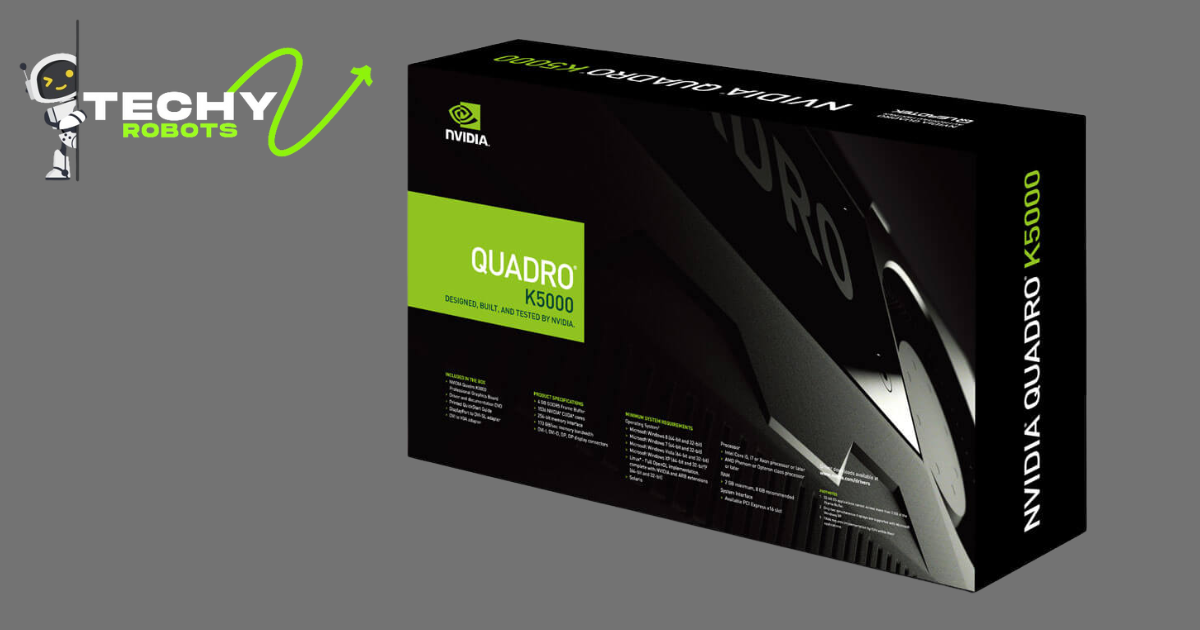
    The Nvidia Quadro K5000 is a high-performance professional graphics card designed for 3D modeling, CAD (Computer-Aided Design), video editing, and other intensive graphical applications.

     Launched in 2012, it has been a reliable choice for professionals in various industries. This comprehensive guide will cover the Quadro K5000’s rendering performance, best software compatibility, comparisons with the Quadro K4000, considerations for upgrading, and power requirements. 

    Additionally, it will address five frequently asked questions and conclude with an overview of the card’s value proposition.

    Rendering Performance

    The Quadro K5000 excels in rendering tasks, offering significant improvements over its predecessors and competitors. Here are the key aspects of its rendering performance:

    1. CUDA Cores and Architecture: The Quadro K5000 features 1536 CUDA cores based on the Kepler architecture. This allows for parallel processing of complex calculations, significantly boosting rendering speeds in applications that utilize CUDA technology.
    2. Memory and Bandwidth: With 4 GB of GDDR5 memory and a memory bandwidth of 173 GB/s, the K5000 handles large datasets and high-resolution textures efficiently. This is particularly beneficial for rendering tasks that require substantial memory, such as 3D animations and simulations.
    3. Floating Point Performance: The card delivers up to 2.15 TFLOPS of single-precision floating-point performance. This makes it suitable for tasks that demand high computational power, such as fluid dynamics simulations and photorealistic rendering.
    4. Application Optimization: The K5000 is optimized for professional software like Autodesk Maya, 3ds Max, and Adobe Premiere Pro. This ensures stable performance and compatibility, reducing the likelihood of crashes and slowdowns during intensive rendering tasks.

    Best Software for Quadro K5000

    The Quadro K5000 is compatible with a wide range of professional software applications. Here are some of the best software to utilize the full potential of this graphics card:

    1. Autodesk Maya: For 3D modeling, animation, and rendering, Autodesk Maya leverages the Quadro K5000’s CUDA cores to accelerate complex tasks, making it a top choice for animators and visual effects artists.
    2. Autodesk 3ds Max: Similar to Maya, 3ds Max benefits from the K5000’s performance, providing faster rendering times and smoother workflow for game developers and architectural visualizers.
    3. Adobe Premiere Pro: Video editors using Premiere Pro can experience enhanced real-time playback and faster rendering of high-resolution videos, thanks to the K5000’s optimized performance.
    4. Dassault Systèmes SOLIDWORKS: Engineers and designers using SOLIDWORKS will find the K5000’s capabilities ideal for handling large assemblies and complex simulations, improving productivity and design accuracy.
    5. Blender: This open-source 3D creation suite utilizes the K5000 for faster rendering and smoother viewport performance, making it a cost-effective option for independent artists and small studios.

    Quadro K5000 vs. K4000 Comparison

    When considering an upgrade from the Quadro K4000 to the K5000, it’s essential to understand the key differences between the two cards:

    1. CUDA Cores: The K5000 has 1536 CUDA cores, while the K4000 features 768. This significant increase in cores allows the K5000 to handle more parallel tasks, improving overall performance in CUDA-accelerated applications.
    2. Memory: The K5000 comes with 4 GB of GDDR5 memory, compared to the K4000’s 3 GB. The additional memory allows the K5000 to manage larger datasets and more complex scenes without performance degradation.
    3. Memory Bandwidth: The K5000 boasts a memory bandwidth of 173 GB/s, whereas the K4000 has 134 GB/s. Higher bandwidth translates to faster data transfer between the GPU and memory, enhancing performance in memory-intensive applications.
    4. Floating Point Performance: With a single-precision performance of 2.15 TFLOPS, the K5000 outperforms the K4000’s 1.25 TFLOPS. This makes the K5000 better suited for applications requiring high computational power.
    5. Power Consumption: The K5000 has a maximum power consumption of 122 watts, slightly higher than the K4000’s 80 watts. While this results in greater power usage, it also indicates more robust performance capabilities.

    Upgrading to Quadro K5000

    Upgrading to the Quadro K5000 can be a significant investment, but it offers considerable benefits for professionals who require enhanced performance. Here are some factors to consider:

    1. Performance Needs: Assess whether your current workload justifies the upgrade. If you frequently work with large 3D models, high-resolution video editing, or complex simulations, the K5000’s performance improvements can save you time and increase productivity.
    2. Compatibility: Ensure your workstation is compatible with the K5000. Check for available PCIe slots, sufficient power supply, and physical space within your case.
    3. Software Utilization: Determine if your primary software applications are optimized for the K5000. Upgrading will be most beneficial if your software can fully utilize the card’s capabilities.
    4. Budget: Consider the cost of the K5000 against the potential performance gains. While the initial investment may be high, the long-term benefits in terms of productivity and efficiency can outweigh the cost.
    5. Future-Proofing: Investing in the K5000 can help future-proof your workstation, allowing you to handle more demanding tasks and newer software versions without the need for frequent upgrades.

    Quadro K5000 Power Requirements

    The Quadro K5000 requires adequate power supply and proper cooling to operate efficiently. Here are the power requirements and recommendations:

    1. Power Consumption: The K5000 has a maximum power consumption of 122 watts. Ensure your power supply unit (PSU) can accommodate this along with other components in your system.
    2. PSU Recommendation: A PSU with at least 500 watts is recommended to provide sufficient power for the K5000 and other components, ensuring stable and reliable performance.
    3. Connectors: The K5000 requires a 6-pin PCIe power connector. Verify that your PSU has the necessary connector and that it can deliver the required power.
    4. Cooling: Proper cooling is essential to maintain optimal performance and prevent overheating. Ensure your workstation has adequate airflow and consider additional cooling solutions if necessary.
    5. Power Efficiency: While the K5000 consumes more power than its predecessors, it also offers better performance efficiency. This means you get more computational power per watt, making it a cost-effective choice in the long run.

    FAQs

    What is the difference between the Quadro K5000 and gaming graphics cards?

    The Quadro K5000 is designed for professional applications, offering optimized drivers and stability for software like CAD and 3D modeling tools. Gaming cards prioritize higher frame rates and performance in gaming scenarios.

    Can the Quadro K5000 be used for gaming?

    While it is possible to use the K5000 for gaming, it is not optimized for such purposes. Gaming performance may not be as high as that of dedicated gaming GPUs, and drivers may not be as finely tuned for gaming applications.

    Is the Quadro K5000 still relevant for modern applications? 

    The Quadro K5000 remains relevant for many professional applications, particularly those that benefit from CUDA acceleration and substantial memory bandwidth. However, newer models offer improved performance and features.

    How does the Quadro K5000 compare to the Quadro K6000?

    The Quadro K6000 is a higher-end model with more CUDA cores, memory, and overall performance. While the K5000 is sufficient for many tasks, the K6000 provides superior performance for the most demanding applications.

    What are the alternatives to the Quadro K5000?

    Alternatives include newer Quadro models like the P4000 or RTX series, as well as AMD’s professional graphics cards. These alternatives offer updated features, better performance, and enhanced power efficiency.

    Conclusion

    The Nvidia Quadro K5000 is a powerful and reliable graphics card tailored for professional use in 3D modeling, video editing, and other intensive applications. Its robust performance, compatibility with leading software, and substantial memory make it a valuable asset for professionals. 

    Ultimately, the Quadro K5000 offers a compelling blend of performance and reliability, making it a worthy investment for demanding professional environments.

  • How Long Does it Take to Build a PC

    How Long Does it Take to Build a PC

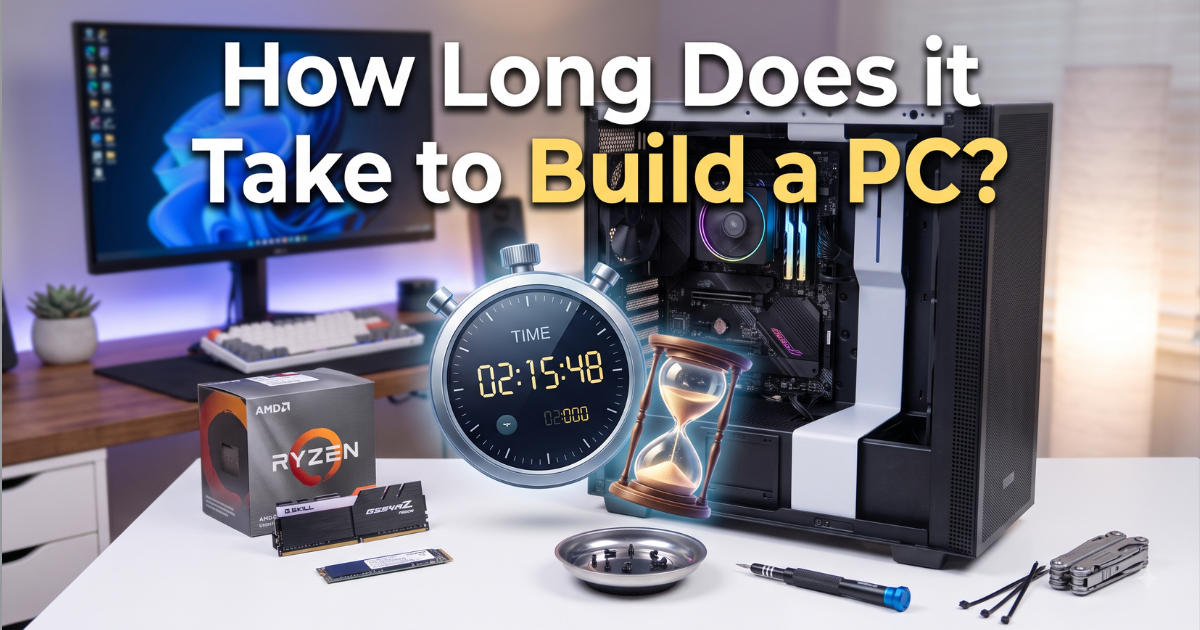
    Building a PC typically takes anywhere from a few hours to half a day, depending on your experience level and the complexity of the build.

    Building a PC can be a thrilling and profitable experience, mainly for those interested in customizing their very own system to match their wishes and possibilities. The time it takes to construct a PC usually ranges from 2 to 6 hours, depending on revel in and education.

     While it can seem daunting before everything, with research and persistence, it has potential for novices. Ensuring component compatibility and proper cable control are key demanding situations. However, several courses and tutorials can assist.

    By following a step-by-step guide and taking precautions, even first-time builders can successfully assemble their very own PC, gaining valuable abilities and delight within the technique.

    How Long Does It Take to Build a PC?

    1: General Timeframe

    • The time it takes to construct a PC can vary greatly depending on the level of instruction and complexity of the build. Generally, it may take anywhere from 2 to 6 hours.

    2: Factors Affecting Build Time

    • Experience Level: Beginners might take longer due to unfamiliarity with additives and meeting steps.
    • Preparation: Having all components and tools prepared can notably reduce build time.
    • The complexity of Build: More complex builds, including people with custom cooling answers or multiple GPUs, can take longer.

    Is It Hard to Build a PC?

    1: Difficulty Level

    • Building a PC can be challenging, but it can appear formidable to first-time builders. The technique is comparable to assembling a complex puzzle, with every factor becoming a selected place.

    Key Challenges

    • Component Compatibility: Ensuring all components are like-minded (e.g., CPU and motherboard socket sorts, power deliver wattage).
    • Cable Management: Keeping cables prepared to make certain appropriate airflow and aesthetics.
    • BIOS/Software Configuration: Setting up the BIOS and installing the working system may be elaborate for a few.

    Is Now a Good Time to Build a PC?

    1: Market Considerations

    The nice time to construct a PC often depends on market conditions. Factors to recall encompass:

    • Component Prices: Prices for additives like GPUs can differ based totally on call for and deliver.
    • New Releases: New hardware releases can offer better overall performance or push down the fees of older additives.
    • Sales and Discounts: Major income occasions like Black Friday or lower back-to-college sales can provide massive savings.

    2: Order to Build a PC

    Preparation:

    • Gather all additives and equipment.
    • Ensure a static-loose workspace.

    Install CPU, Cooler, and RAM on the Motherboard:

    • Install the CPU into the motherboard socket.
    • Attach the CPU cooler.
    • Insert RAM sticks into the motherboard slots.

    Mount the Motherboard inside the Case:

    • Place the motherboard into the case and secure it with screws.

    Install Storage Drives:

    • Mount SSDs or HDDs of their respective bays.

    Install the Power Supply:

    • Place the power delivery in the case and connect the necessary cables.

    Connect Components:

    • Connect the power delivery cables to the motherboard, GPU, and drives.
    • Connect the front panel connectors (strength button, USB ports).

    Install the Graphics Card:

    • Insert the GPU into the correct PCIe slot on the motherboard.

    Cable Management:

    • Organize and secure cables to ensure suitable airflow.

    First Boot:

    • Power at the system and take a look at if all additives are diagnosed.

    BIOS Configuration and OS Installation:

    • Configure BIOS settings if vital.
    • Install the running device and drivers.

    Best Time to Build a PC

    • Black Friday/Cyber Monday: These sales activities regularly provide full-size discounts on PC additives.
    • Back-to-School Season: Another length with capability discounts on electronics.
    • New Hardware Releases: After a chief hardware launch, fees for older components can also drop.

    What to Know When Building a PC

    • Compatibility: Ensure all components are well-suited with each other.
    • Power Requirements: Make sure the strength delivered has sufficient wattage for all components.
    • Cooling Solutions: Adequate cooling is crucial, particularly for high-overall performance builds.
    • Future Upgradability: Consider choosing additives that allow for destiny enhancements.

    First-Time PC Builder Tips

    • Research: Watch tutorial videos and study publications specific to your components.
    • Take Your Time: Don’t rush the method; double-take a look at each step.
    • Static Precautions: Use an anti-static wrist strap to save you from destructive additives.
    • Ask for Help: Don’t hesitate to try to find advice from experienced builders or online groups.

    Building a PC Steps:

    • Choose Components: Research and select components based totally on your needs and budget.
    • Prepare Workspace: Ensure a smooth, static-unfastened workspace.
    • Assemble Components: Follow the step-by-step manual supplied earlier.
    • Test the Build: Power on and test all additives before finalizing the construct.
    • Install Software: Install the working machine and important drivers.

    FAQs

    How long does it take to build a PC for the first time?

    For first-time developers, it can take anywhere from 4 to 8 hours, depending on the guidance and complexity of the construct.

    What are the critical equipment wished for building a PC?

    Essential equipment consists of a screwdriver (typically Phillips’s head), an anti-static wrist strap, and probable zip ties for cable control.

    Can I construct a PC without prior enjoyment?

    Yes, many resources are to be had, together with guides, tutorials, and community boards, to help first-time developers.

    What do I need to do if my PC does not boot after the meeting?

    Check all connections, make certain additives are seated well, and confer with the motherboard’s Guide for troubleshooting steps.

    How much can I shop by constructing my PC compared to buying a pre-constructed one?

    Building your very own PC can regularly keep cash and permit better customization, but the exact financial savings depends upon the additives and current market charges.

    Conclusion

    Building a PC may be enjoyable, imparting a feeling of achievement and a deeper knowledge of how computer systems work. With the right training, research, and persistence, even first-time developers can successfully create their custom PCs.

    The method now not handiest allows for a tailored computing experience; however also offers the potential for destiny upgrades and adjustments. Happy constructing!