
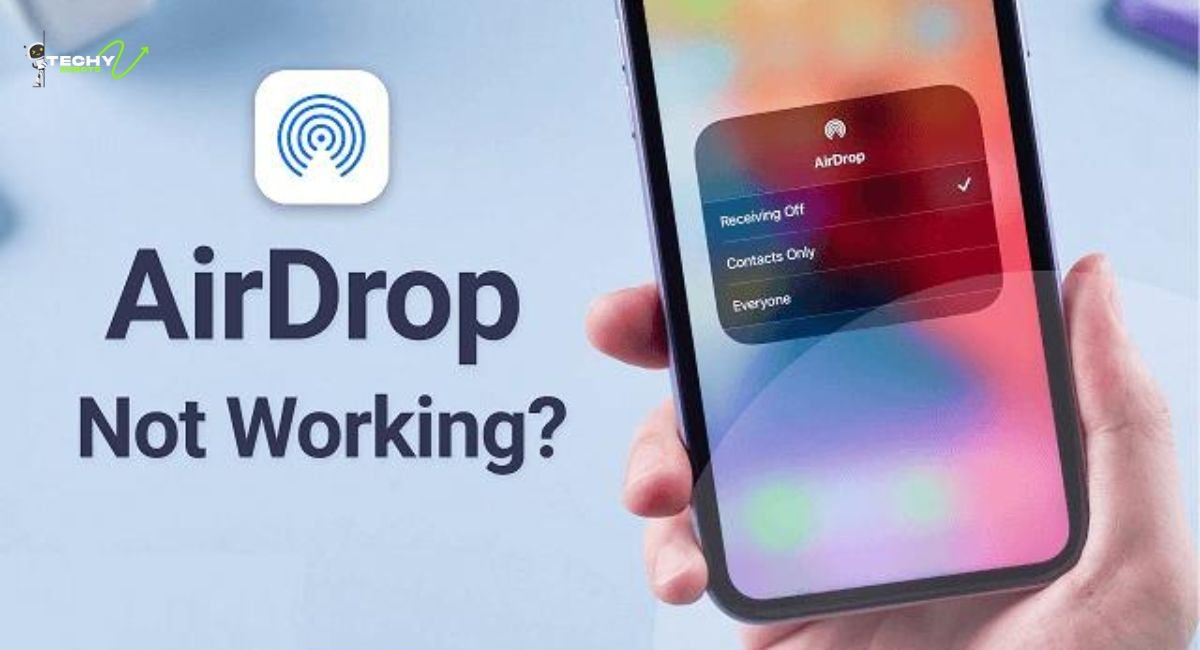
Few things are more frustrating than trying to send a photo, video, or document using AirDrop and watching it sit there doing nothing. No transfer. No notification. Sometimes not even detect the other device. If you have been Googling “why is AirDrop not working,” you have landed in the right place.
AirDrop is one of Apple’s most useful features. It lets you wirelessly share files between iPhones, iPads, and Macs almost instantly. But when it breaks down, it really breaks down. The good news? Most AirDrop issues are easy to fix once you know what is causing them.
This guide will walk you through every major reason AirDrop fails and exactly what you can do to get it working again. Whether you are dealing with an iPhone AirDrop not working, a Mac AirDrop not showing devices, or an AirDrop transfer that keeps failing, we have got you covered.
What Exactly Is AirDrop and Why Does It Matter?
Before jumping into fixes, it helps to understand what AirDrop actually does under the hood. AirDrop uses a combination of Bluetooth and Wi-Fi to create a peer-to-peer connection between nearby Apple devices. Bluetooth is used to discover the other device, while Wi-Fi handles the actual data transfer.
This means both radios need to be active at the same time for AirDrop to work. If either one is off, disabled, or acting up, the whole thing falls apart. That peer-to-peer system is also why AirDrop works without a router; the devices communicate directly with each other.
It is a brilliant system when it works. And when it does not, there is usually a very specific reason why.
The Most Common Reasons AirDrop Stops Working
There is no single answer to why AirDrop fails, but there are a handful of causes that show up again and again. Here is what most AirDrop issues come down to.
Bluetooth or Wi-Fi Is Turned Off
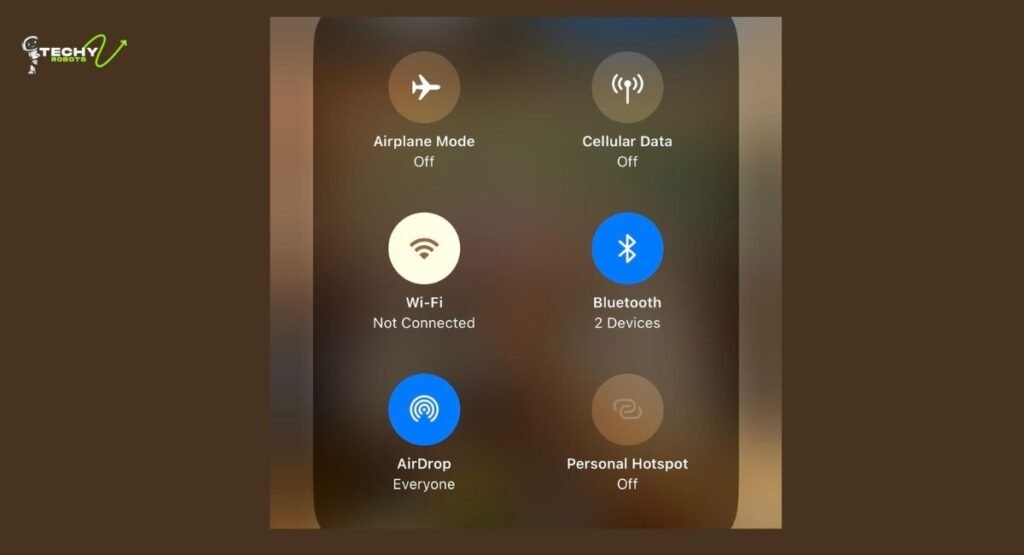
This sounds too obvious, right? But it is genuinely the most common cause. AirDrop cannot function without both Bluetooth and Wi-Fi enabled. A lot of people swipe up and disable Wi-Fi from the Control Center without realizing that AirDrop depends on it even when you are not connected to a network.
Go to Settings, check that both Wi-Fi and Bluetooth are toggled on. Not just in the Control Center shortcuts in the actual Settings app. Control Center toggles do not fully disable these radios, but it is still worth checking the Settings directly if you are having issues.
AirDrop Visibility Is Set to “Receiving Off”
Your AirDrop visibility setting controls who can see your device. There are three options: Receiving Off, Contacts Only, and Everyone for 10 Minutes. If yours is set to Receiving Off, no one will be able to find you and you probably cannot send files either.
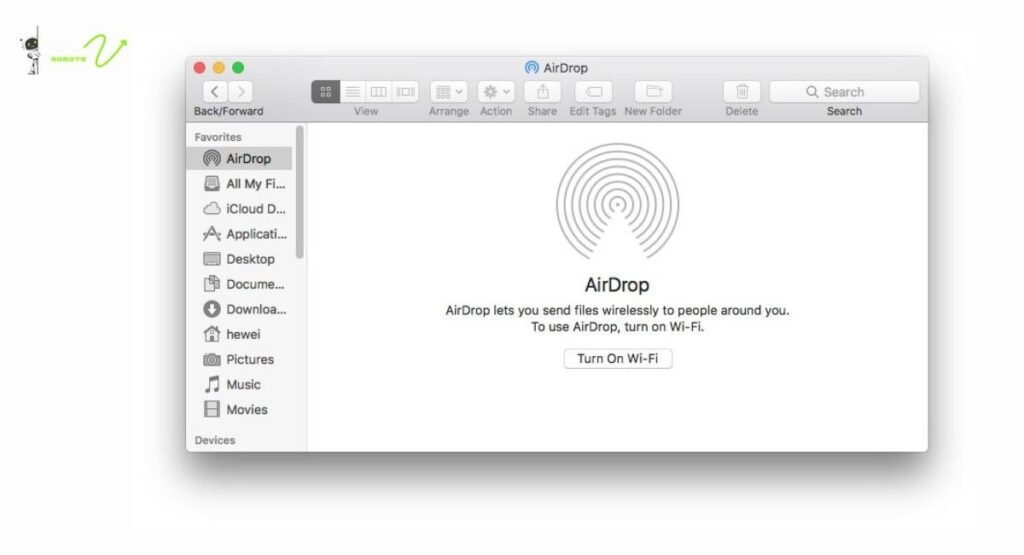
To check this on iPhone or iPad, go to Settings, tap General, then AirDrop. Make sure it is set to Contacts Only or Everyone for 10 Minutes depending on your situation. On Mac, open Finder and click AirDrop in the sidebar to see and adjust the visibility option at the bottom of the window.
Devices Are Too Far Apart
AirDrop uses Bluetooth for device discovery, and Bluetooth has a range of roughly 30 to 33 feet. If the devices are farther apart than that, AirDrop simply cannot detect them. Even if they are within range, walls, interference from other electronics, and physical obstructions can weaken the signal.
Keep both devices close to each other ideally within 10 feet when trying to transfer files. This small change alone fixes a surprising number of AirDrop issues.
Personal Hotspot Is Getting in the Way
Here is one that catches people off guard. If your iPhone is sharing a Personal Hotspot, AirDrop will not work. Apple disables AirDrop when the hotspot is active because both features compete for the same wireless resources.
To fix this, go to Settings, tap Personal Hotspot, and turn it off. Then try AirDrop again. Once the transfer is done, you can turn your hotspot back on.
How to Fix AirDrop Not Working on iPhone and iPad
Now let’s get into the actual step-by-step fixes for iOS devices. These are ordered from simplest to more involved, so start at the top.
Check Your AirDrop Settings First
Go to Settings, then General, then AirDrop. Make sure it is not set to Receiving Off. For most situations, setting it to Everyone for 10 Minutes makes it easiest to connect, especially if the person you are sharing with is not in your Contacts.
Also make sure Do Not Disturb is off. Some people do not realize that DND can interfere with incoming AirDrop requests by blocking the notification.
Toggle Bluetooth and Wi-Fi Off and Back On
A quick reset of both radios can clear minor glitches that prevent AirDrop from working. Go to Settings, tap Bluetooth, toggle it off, wait five seconds, then toggle it back on. Do the same for Wi-Fi under Settings. This forces both radios to reconnect and often clears up detection problems.
Restart Your iPhone or iPad
When something is not working on an Apple device and you cannot figure out why, a restart is almost always worth trying. It clears temporary processes, refreshes network connections, and resets a lot of small background states that could be causing conflicts.
Hold the side button and volume button together until the power slider appears, slide to power off, wait 30 seconds, then power back on. After the restart, try AirDrop again.
Reset Network Settings on iOS
If nothing else has worked, resetting your network settings can fix deeper connectivity problems that are blocking AirDrop. Go to Settings, General, Transfer or Reset iPhone, Reset, then Reset Network Settings.
One thing to keep in mind: this will erase all your saved Wi-Fi passwords and VPN configurations. It is a bit of a nuclear option, but it fixes AirDrop issues that come from corrupted network configurations. Make sure you have your Wi-Fi password written down before doing this.
How to Fix AirDrop Not Working on Mac
Mac AirDrop issues have their own set of causes. Here is how to work through them.
Make Sure AirDrop Is Open in Finder
On Mac, AirDrop needs to be actively open in a Finder window for it to be discoverable by other devices. Open Finder, click AirDrop in the left sidebar, and leave that window open while you try to transfer. It sounds like a small thing, but many people miss it.
Also check the “Allow me to be discovered by” setting at the bottom of the AirDrop window. Set it to Everyone or Contacts Only based on your preference.
Check macOS Firewall Settings
macOS has a built-in firewall that can sometimes block AirDrop connections, especially if it is configured to block all incoming connections. Go to System Settings (or System Preferences on older macOS), click Network or Security and Privacy, and then Firewall. If the firewall has an option to block all incoming connections, make sure that is unchecked.
Blocking all incoming connections is the Mac firewall setting most likely to interfere with AirDrop because AirDrop needs to receive incoming discovery signals from nearby devices.
Sign In to the Same Apple ID or Stay on Same Network
While AirDrop does not technically require you to be on the same Wi-Fi network, being on the same network can improve reliability. More importantly, if you are trying to AirDrop between two devices signed into the same Apple ID, make sure both are actually logged in correctly.
Go to System Settings and check that your Apple ID is active. Sign out and back in if something looks off.
AirDrop Not Finding Nearby Devices: What to Do
One of the most common complaints is that AirDrop simply does not detect the other device at all. No name appears. No ping. Nothing.
Why Device Discovery Fails
Device discovery depends on Bluetooth working properly on both ends. If one device has a Bluetooth glitch, a range problem, or a setting conflict, it will not show up. Screen time restrictions can also prevent AirDrop from showing up particularly on devices used by kids where AirDrop may be restricted in Screen Time settings.
Go to Settings, Screen Time, Content and Privacy Restrictions, and check under Allowed Apps to make sure AirDrop is not restricted.
Quick Fixes for Device Discovery Issues
Wake up both devices AirDrop does not work well on a device that is locked or sleeping. Make sure both screens are on and unlocked. Turn Airplane Mode on for five seconds and then off again on both devices. This refreshes all wireless radios at once and is surprisingly effective.
If you still cannot find the device, forget the current Wi-Fi network on both devices, reconnect, and try again.
AirDrop Transfer Failed or Stuck? Here Is What Is Happening
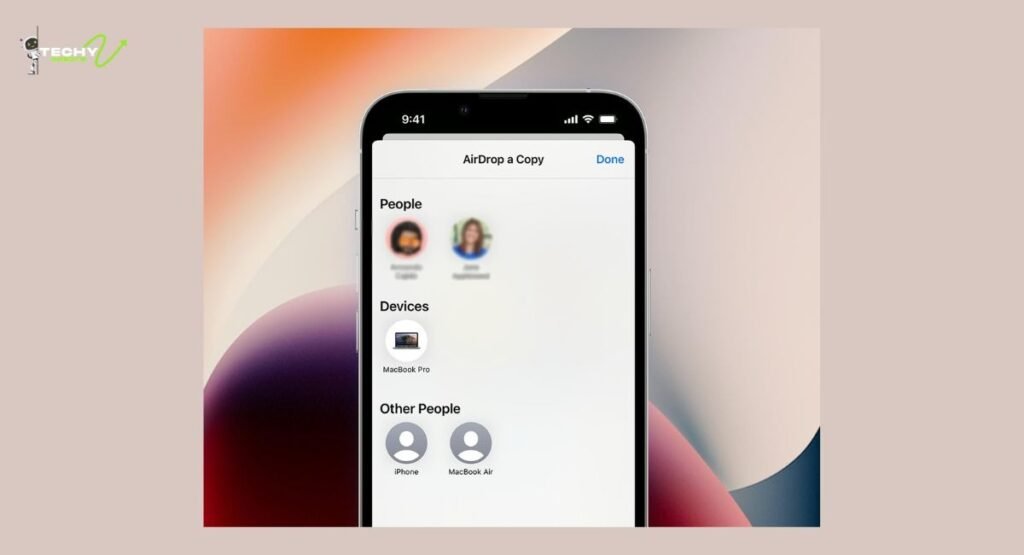
Sometimes AirDrop finds the device just fine but the transfer itself fails or freezes partway through. This usually comes down to one of a few things: the file is too large and the connection dropped mid-transfer, the receiving device ran out of storage space, or there was a brief signal interruption.
Make sure the receiving device has enough free storage before trying to send large files. Keep both devices awake and close together for the entire transfer and do not let the screen lock mid-send. If a transfer keeps failing, try splitting the content into smaller batches.
AirDrop and iOS 17 — New Features You Should Know About
iOS 17 brought some meaningful upgrades to AirDrop that are worth knowing about, especially if you are still dealing with problems on older settings.
AirDrop Over Cellular
One of the biggest changes in iOS 17 is the ability to continue an AirDrop transfer over cellular if you walk out of Bluetooth range mid-transfer. Before iOS 17, if you moved too far away while a file was sending, the transfer would just fail. Now it can continue using your mobile data connection.
Use Mobile Data Option Explained
To take advantage of this, both sender and receiver need to be on iOS 17 or later. You will see a “Use Mobile Data” toggle appear during a transfer if the devices move out of range. Tapping it allows the transfer to continue over the internet rather than dying out.
This is especially useful when you start a large transfer and then need to walk away. It is a small feature, but one that solves a genuinely annoying real-world problem.
AirDrop Not Working Between iPhone and Mac
If the specific problem is AirDrop not working between an iPhone and a Mac, there are a couple of things to check beyond the general tips above.
Make sure both devices are signed into iCloud with the same Apple ID, or that they are within Bluetooth range of each other. Also check that the Mac is not in a mode that blocks incoming connections like if you just changed network security settings.
On the Mac, open Finder and go to AirDrop. On the iPhone, open the share sheet and select AirDrop. Both should then discover each other within about 30 seconds. If they do not, restart Bluetooth on the Mac by going to System Settings, Bluetooth, toggle it off and on. Then close and reopen the Finder AirDrop window.
When Should You Just Restart Everything?
If you have tried several fixes and nothing is working, a full restart of both devices at the same time is often the most effective reset. Power off both the iPhone and the Mac, leave them off for a full minute, then power them back on.
This clears cached network states, resets Bluetooth pairing tables, and gives the whole wireless stack a fresh start. It takes two minutes and fixes more AirDrop problems than most people expect.
Tips to Keep AirDrop Running Smoothly
A few habits make a real difference in keeping AirDrop reliable over time.
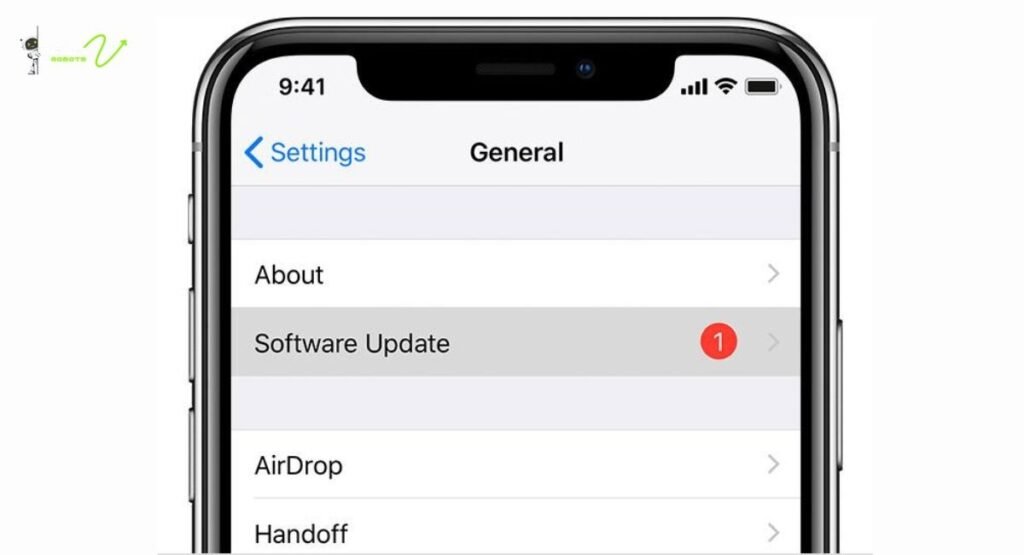
- Keep your devices updated. Apple regularly patches connectivity bugs in iOS and macOS updates, and many AirDrop fixes arrive through software updates that people skip. Running an old version of iOS or macOS is one of the quieter reasons AirDrop breaks.
- Do not leave AirDrop set to everyone permanently if you are in public places. Use Everyone for 10 Minutes when you need it and switch back to Contacts Only afterward. This is both a privacy best practice and it keeps your device from being cluttered with random AirDrop requests.
Also, if you frequently transfer files between the same devices, keeping them on the same Wi-Fi network helps AirDrop find them faster and transfer more reliably.
Conclusion
AirDrop is one of those features that you do not think about until it stops working and then it becomes very annoying very fast. The good news is that almost every AirDrop problem traces back to something fixable: a setting that is off, a connection that needs refreshing, or two devices that are just a bit too far apart.
Start with the basics, check your visibility settings, make sure Bluetooth and Wi-Fi are both on, and keep the devices close. From there, work through the specific fixes for your device type. Most people find the solution within the first two or three steps. And if all else fails, a full restart of both devices usually does the trick.
AirDrop is genuinely great when it is working. With a bit of troubleshooting, you will be sending files between your Apple devices again in no time.
FAQs
1. Why does AirDrop say “waiting” and never connect?
This usually means the receiving device is not discoverable. Check that the other device has AirDrop set to Contacts Only or Everyone for 10 Minutes, that its screen is unlocked, and that it is within Bluetooth range. Also make sure Personal Hotspot is disabled on the receiving iPhone.
2. Can AirDrop work without Wi-Fi?
AirDrop needs Wi-Fi to be enabled, but you do not need to be connected to a Wi-Fi network. It creates its own peer-to-peer Wi-Fi link between devices. However, Wi-Fi must be turned on, not disabled in your Settings.
3. Why can I not see my Mac in AirDrop from my iPhone?
Open Finder on the Mac and click AirDrop in the sidebar. The Mac only becomes discoverable to nearby devices when the AirDrop window is open. Also check the “Allow me to be discovered by” setting at the bottom of that window.
4. Does resetting network settings delete everything on my iPhone?
No, it only removes network-related data: saved Wi-Fi passwords, Bluetooth pairings, VPN configurations, and cellular settings. Your apps, photos, and personal data are completely untouched.
5. Why does AirDrop work sometimes but not others?
Inconsistent AirDrop behavior is often caused by Bluetooth signal interference, background app activity, or the receiving device going to sleep between attempts. Try keeping both devices awake and unlocked during transfers, and avoid areas with heavy wireless interference like crowded offices or public spaces.