
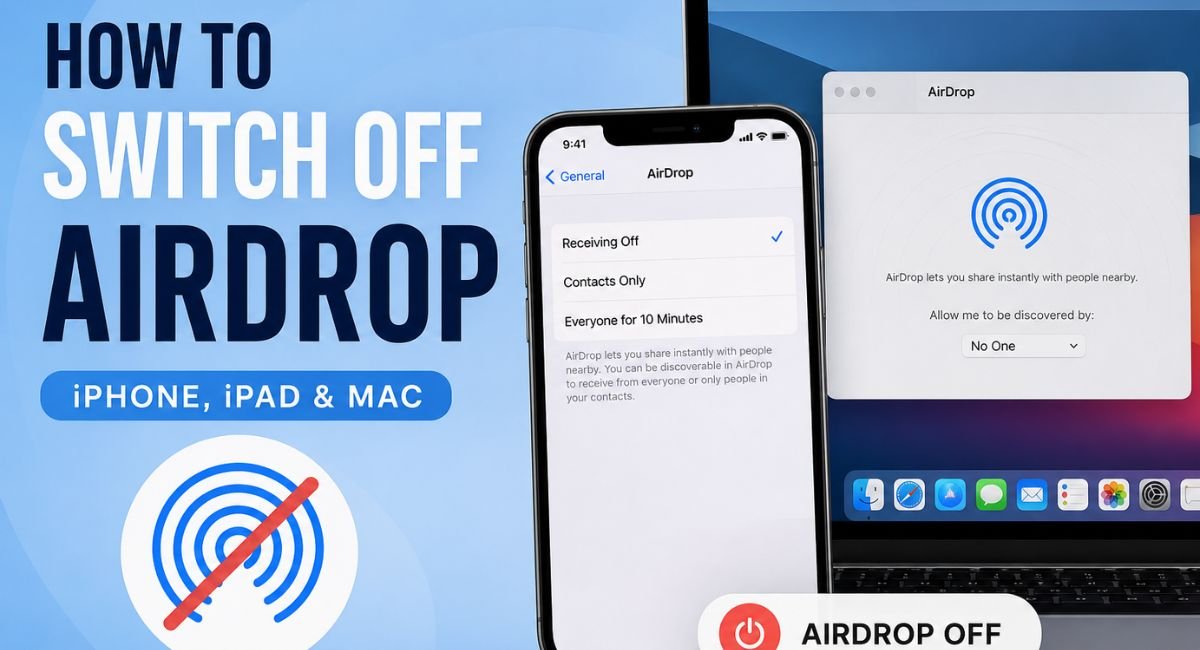
How to switch off AirDrop is one of those things that sounds simple until you’re actually staring at your screen looking for the right setting. Whether your phone keeps getting random file requests from strangers or you just want a bit more privacy, turning AirDrop off is a smart move. The good news is it takes less than a minute once you know where to look.
If you’ve ever had a stranger try to send you a random file in a coffee shop, you already know why switching off AirDrop matters. It’s one of those features that’s super handy when you need it, but can feel a little invasive when you don’t. Whether you’re trying to protect your privacy, save battery life, or just clean up your sharing settings, knowing how to turn off AirDrop properly is something every Apple user should have in their toolkit.
This guide walks you through everything step by step, from quick fixes in the Control Center to deeper settings buried in Screen Time restrictions. No matter which Apple device you’re on, you’ll find exactly what you need here.
What Is AirDrop and Why Would You Want to Turn It Off?
AirDrop is Apple’s peer-to-peer file sharing feature that lets you wirelessly send photos, documents, links, and other content between Apple devices. It uses a combination of Bluetooth and Wi-Fi to create a direct connection between devices, meaning no internet is required. Pretty neat, right?
But here’s the thing: when AirDrop is set to “Everyone,” any nearby Apple device can see yours. That opens the door to unwanted file requests from strangers, which has become such a problem that Apple actually introduced a “Everyone for 10 Minutes” mode in newer iOS versions to limit that exposure.
People typically want to disable AirDrop for a few reasons. Privacy is the big one. You might also want to switch it off to slightly extend battery life, avoid accidental file transfers, or lock down a child’s device using parental controls. Whatever your reason, it’s easy to do once you know where to look.
How to Switch Off AirDrop on iPhone
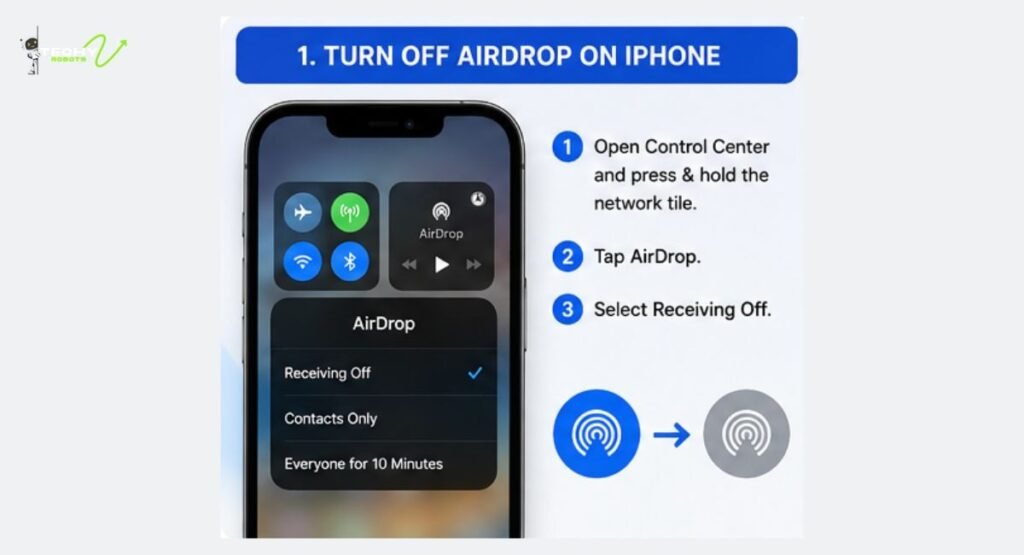
Let’s start with the most common scenario: turning off AirDrop on your iPhone. There are two ways to do this, and both take less than a minute.
Using Control Center to Disable AirDrop
This is the fastest method and the one most people reach for first.
- Swipe down from the top-right corner of your screen (or swipe up from the bottom if you have an older iPhone with a Home button) to open the Control Center.
- Press and hold the network settings tile, which is the box that contains Wi-Fi, Bluetooth, and Airplane Mode icons.
- A larger panel will expand. Tap on the AirDrop button.
- Select Receiving Off from the options that appear.
That’s it. AirDrop is now off, and no one can send you files until you change it back. This method is perfect when you’re out in public and want a quick privacy fix without digging through menus.
Turning Off AirDrop Through iPhone Settings
If you prefer going through Settings, or if Control Center isn’t giving you the right options, here’s the longer route:
- Open the Settings app.
- Tap on General.
- Scroll down and tap AirDrop.
- Choose Receiving Off.
This lands you in the same place as the Control Center method, just through a different path. Some people find this more reliable, especially on older iOS versions where the Control Center shortcut doesn’t always behave as expected.
How to Switch Off AirDrop on Mac
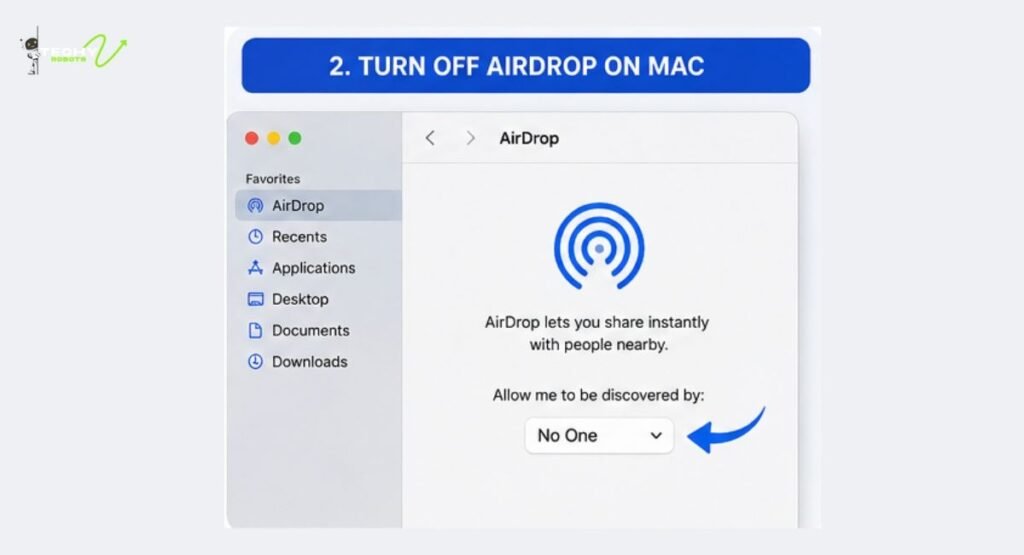
Switching off AirDrop on a Mac is just as straightforward, though the interface looks a bit different depending on which version of macOS you’re running.
Turning Off AirDrop from Finder
- Open a Finder window.
- In the Finder sidebar, click on AirDrop.
- At the bottom of the AirDrop window, you’ll see a dropdown that says “Allow me to be discovered by.” Click on it.
- Select No One.
Once you set it to No One, your Mac becomes invisible to other AirDrop users. The AirDrop icon will still appear in the Finder sidebar, but no one nearby can see your device or send you anything.
Disabling AirDrop via System Settings on macOS
On newer Macs running macOS Ventura or later, you can also manage AirDrop discovery settings through System Settings:
- Click the Apple menu in the top-left corner.
- Go to System Settings.
- Select General, then click AirDrop & Handoff.
- Toggle AirDrop to off, or set discovery to No One.
This is especially useful if you want to control AirDrop as part of a broader set of sharing preferences on your Mac.
Understanding AirDrop Visibility Options
Before you disable AirDrop entirely, it’s worth knowing what your options actually mean. Apple gives you three (sometimes four) choices:
Receiving Off
This completely disables AirDrop on your device. No one can send you anything, and your device won’t appear in anyone else’s AirDrop list. This is the setting to use when you want full privacy.
Contacts Only
This is the middle-ground option. With Contacts Only selected, only people who are in your Contacts app and who also have your Apple ID email or phone number saved can see your device. It’s a great setting for everyday use since it keeps you reachable to people you know without exposing you to strangers.
Everyone and Everyone for 10 Minutes
The “Everyone” setting makes your device visible to all nearby Apple users. Apple introduced “Everyone for 10 Minutes” as a safer alternative in iOS 16.2 and later. When you tap this, your device becomes publicly visible for just ten minutes, then automatically switches back to Contacts Only. It’s a thoughtful middle ground for situations where you need to share files with someone outside your contacts.
How to Disable AirDrop Using Screen Time Restrictions
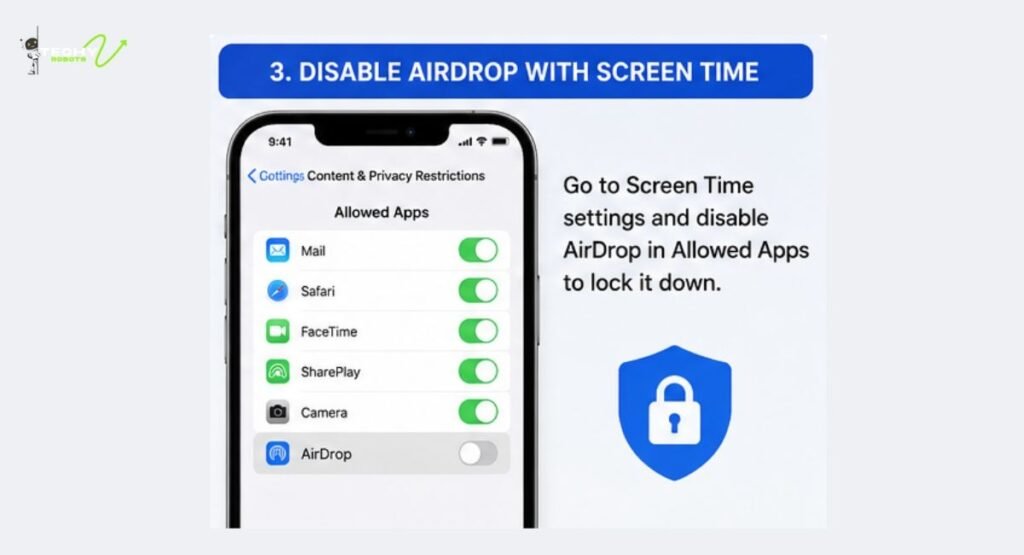
If you’re managing a device for a child or want to prevent AirDrop from being turned back on without your knowledge, Screen Time restrictions are the way to go. This is especially useful for parents who want to lock down sharing settings.
Here’s how to do it:
- Open Settings and tap Screen Time.
- If Screen Time isn’t already set up, turn it on and create a passcode.
- Tap Content and Privacy Restrictions.
- Enable Content and Privacy Restrictions if it’s not already on.
- Tap Allowed Apps.
- You’ll find AirDrop listed here. Toggle it off.
Once this is done, AirDrop will be grayed out in both Control Center and the General Settings, and no one can turn it back on without the Screen Time passcode. This is a solid parental control option that goes beyond just switching AirDrop off.
Why Bluetooth and Wi-Fi Matter When Using AirDrop
Here’s something a lot of people don’t realize: AirDrop needs both Bluetooth and Wi-Fi to be enabled in order to work, even though it doesn’t use your actual Wi-Fi internet connection. Bluetooth is used to discover nearby devices, and Wi-Fi is used to transfer the data quickly.
So if you turn off Bluetooth or Wi-Fi, AirDrop stops working even if you haven’t explicitly disabled it. Some people use this as a quick workaround, especially on older devices. That said, turning off Bluetooth and Wi-Fi affects a lot of other features too, so it’s not the cleanest approach. It’s much better to just go into AirDrop settings and set it to Receiving Off.
How to Stop AirDrop Temporarily Without Turning It Off Completely
Sometimes you don’t want to turn off AirDrop permanently. Maybe you’re in a public place for an hour and want to go invisible, but plan to use AirDrop later. In that case, setting it to Contacts Only is your best bet. It limits your visibility without disabling the feature entirely.
The “Everyone for 10 Minutes” option on newer iOS versions is also fantastic for this. You get temporary public visibility that turns itself off automatically, so you don’t have to remember to switch it back.
AirDrop Not Working? Here’s What to Check
Sometimes people try to turn AirDrop on or off and run into issues. If AirDrop isn’t working as expected, here’s a quick troubleshooting checklist:
- Make sure both Bluetooth and Wi-Fi are turned on.
- Check that you’re not in Airplane Mode.
- Verify that AirDrop isn’t restricted by Screen Time settings.
- Ensure Personal Hotspot is turned off, as it can interfere with AirDrop.
- Restart your device and try again.
- If transferring between a Mac and iPhone, make sure both devices are signed into iCloud and are within about 30 feet of each other.
- On Mac, check the Finder sidebar to ensure AirDrop discovery isn’t set to “No One” if you’re trying to receive files.
Most AirDrop issues come down to one of these simple fixes. If problems persist, restarting both devices usually clears things up.
How to Turn Off AirDrop on Older iOS Versions
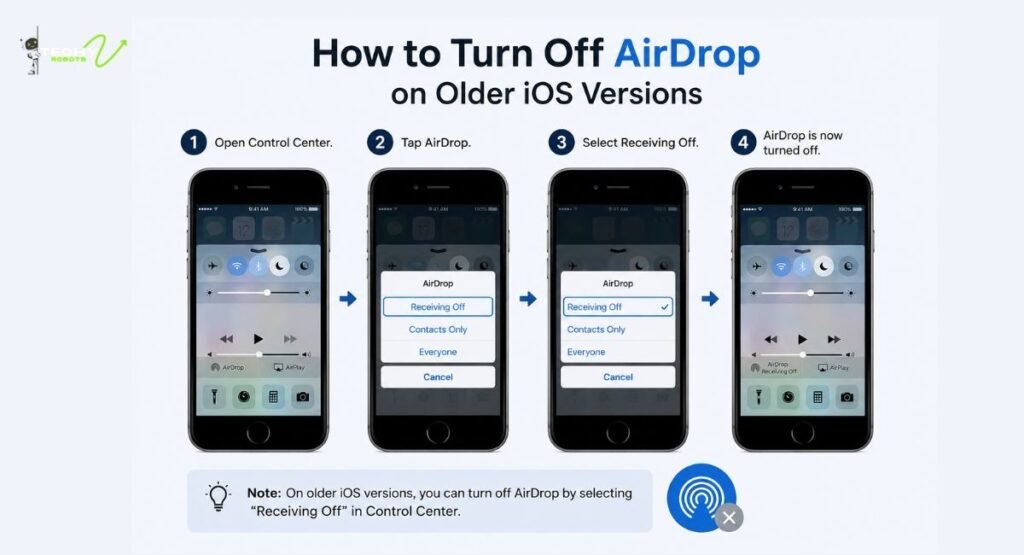
If you’re running an older version of iOS, the steps are slightly different. On iOS 13 and earlier, you’d go to Settings, then General, then AirDrop to find your options. The Control Center shortcut may not expand the same way it does on newer devices.
On very old iPhones running iOS 7 through iOS 11, AirDrop was introduced but had a more limited interface. The basics are still the same: open Settings, head to General, tap AirDrop, and choose Off or Receiving Off.
If you’re using an iPhone 5s or earlier with an older iOS, it’s worth noting that AirDrop was not available on those devices at all, so there’s nothing to turn off.
Managing AirDrop Settings for Kids and Shared Devices
When it comes to devices used by children, AirDrop can be a concern because it potentially allows unknown people to send content. Beyond just turning it off, using Screen Time restrictions (as described above) ensures kids can’t re-enable it without a parent’s passcode.
For shared devices in a school or workplace setting, device management profiles (through MDM software) can control AirDrop at the system level. This means administrators can disable AirDrop entirely across all managed devices without relying on individual users to change settings themselves.
Common Mistakes People Make with AirDrop Settings
One of the most common mistakes is thinking that turning off Wi-Fi or Bluetooth in the Control Center fully disables those features. On iOS 11 and later, swiping up and tapping the Wi-Fi or Bluetooth icons in Control Center only disconnects from current networks temporarily. It doesn’t fully turn them off. AirDrop could still function in some scenarios. Always go through the actual AirDrop settings to make sure it’s properly set to Receiving Off.
Another common mistake is forgetting that “Everyone” mode was replaced by “Everyone for 10 Minutes” in newer iOS versions. If you’re telling someone else how to use AirDrop and they’re on an older device, the options may look different.
When Should You Keep AirDrop On?
AirDrop is genuinely useful and worth keeping on in the right situations. Sharing photos with family, dropping files between your own iPhone and Mac, or sending links to a friend nearby are all excellent use cases. When you’re at home or in a trusted environment, keeping AirDrop on Contacts Only is a smart middle ground that gives you convenience without sacrificing privacy.
The key is being intentional about it. Turn it on when you need it, switch it off or back to Contacts Only when you’re done, especially in public.
Conclusion
Switching off AirDrop takes about ten seconds once you know where to look, but the privacy payoff is real. Whether you’re quickly silencing unwanted file requests from strangers or locking down a child’s device with Screen Time restrictions, Apple gives you the tools to stay in control of what gets shared and who can reach you.
The best habit to build is treating AirDrop like your front door. You wouldn’t leave it wide open in a crowd, but you also don’t need to deadbolt it when you’re home with people you trust. Keep it on Contacts Only as your default, flip it to Receiving Off in public, and use the Everyone for 10 Minutes mode when you genuinely need a quick one-time share with someone new.
Once it becomes second nature, managing your AirDrop settings feels effortless, and you’ll never have to worry about that awkward stranger-in-a-coffee-shop moment again.
FAQs
1. Does turning off AirDrop affect other Apple features?
No, turning off AirDrop only affects file sharing through that feature. Your Wi-Fi, Bluetooth, iMessage, and other functions continue working normally.
2. Can someone still find my device if AirDrop is set to Contacts Only?
Only people who already have your Apple ID email or phone number saved in their contacts will be able to see your device. Strangers cannot find you.
3. Will turning off AirDrop save battery life?
It may offer a marginal improvement since it reduces background activity, but the difference is minimal in most everyday use cases.
4. Can I turn off AirDrop without going into Settings?
Yes, you can do it directly from the Control Center by pressing and holding the network tile and then tapping on AirDrop. It takes just a couple of taps.
5. What should I do if AirDrop is grayed out and I can’t change it?
This usually means Screen Time restrictions have been applied to your device. You’ll need the Screen Time passcode to go into Content and Privacy Restrictions and re-enable AirDrop from the Allowed Apps section.